
VAT returns
Review the selected VAT period, its classifications and adjustments before any journal posting. A view or export is not a financial approval.
Open this screen
Command launcher → Compliance → VAT returns, or its Koaila home shortcut.
When it is available
Available to users whose company roles permit this work. Country, subscription, company settings and the saved record's state can narrow the available controls.
QuickBooks connection
This screen prepares or displays work in FOR; opening it does not write to QuickBooks. Where a later step creates an accounting document, that step is identified separately. FOR:CEO never sends its accounting entries to QuickBooks.
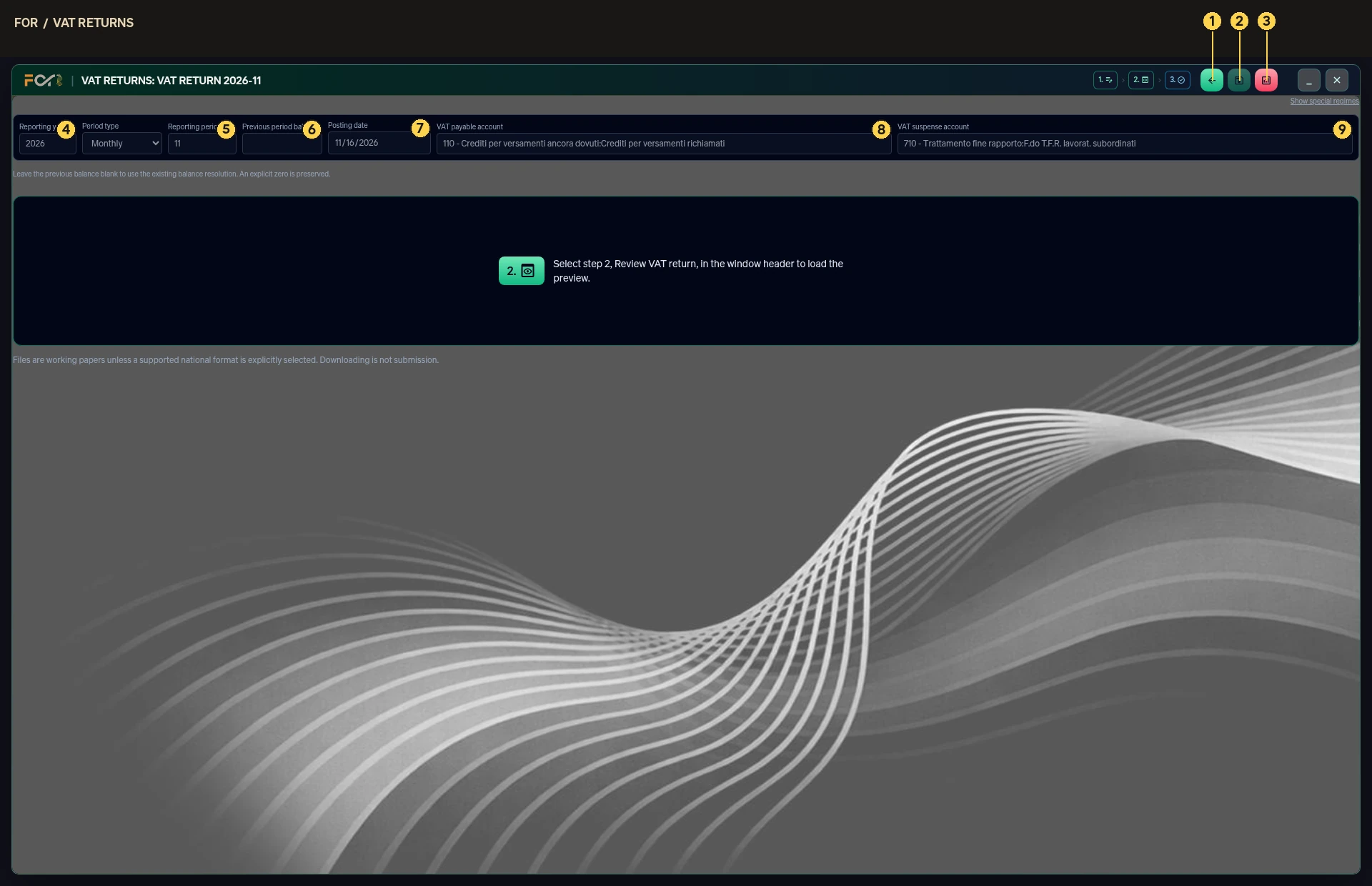
- 1
Back to list
Return to saved periods after resolving unsaved header or line-classification changes.
- 2
Save / Save period
Disabled in this example. Save the reviewed period and editable header choices. This is not submission of a national filing, and it is not the separate VAT posting confirmation.
- 3
Open VAT registers
Open the corresponding read-only published register, keeping the company and intended period.
- 4
Reporting year
Select the actual filing/review year. Once a period is saved, its identity is fixed; a different year needs a separate period rather than relabeling the old evidence.
- 5
Reporting period
Enter the month from 1 to 12 or quarter from 1 to 4 according to Period type. Annual outputs do not need a month/quarter number.
- 6
Previous period balance
Leave blank to use the supported existing-balance resolution; enter zero only when zero is intentional. Blank and zero have different meanings.
- 7
Posting date
Choose the date of the proposed VAT adjustment journal. It is separate from the reporting period; closed-book and source checks still apply.
- 8
VAT payable account
Review the automatically detected liability account or use Select account when offered. Do not accept an arbitrary account merely to enable posting.
- 9
VAT suspense account
Review the corresponding VAT clearing/suspense account, independently from the payable account and ordinary supplier expense accounts.
How to work here
Review the selected VAT period, its classifications and adjustments before any journal posting. A view or export is not a financial approval.
- Choose the period and read the source-register totals. Check sales, purchases, reverse charge, non-deductible VAT and any actual split-payment treatment.
- Review adjustments and resolved VAT settlement accounts. Unsupported or unresolved country classifications require review, not an invented zero.
- Save/preview and explicitly confirm posting only if authorized. Read-only Compliance access can review/export but cannot post or unpost.
- Use the offered country output where supported. For an interrupted operation, reconcile the original rather than posting the same return again.
Every field and control
Use the exact label or hover over an icon to match it to this reference. A missing action is not the same as an empty field: check its availability below.
Choose the actual review period. A registration/payment date basis can differ from document date; use the screen's stated basis.
Availability: Shown when the corresponding workflow and your permissions allow it; review required markers and any disabled-state explanation.
Narrow the current review without changing source documents or classifying unseen rows.
Availability: Shown when the corresponding workflow and your permissions allow it; review required markers and any disabled-state explanation.
Prepare the period's review with its recorded progress. A partial preparation must finish before a complete export can be claimed.
Availability: Only when offered by the current screen, role and saved workflow state. Read any confirmation before proceeding.
Refresh
ActionRead current review state; resolve unsaved classifications before changing pages or refreshing.
Availability: Only when offered by the current screen, role and saved workflow state. Read any confirmation before proceeding.
Open source document
ActionOpen the actual source when your role permits; read-only review does not grant ordinary accounting edits.
Availability: Only when offered by the current screen, role and saved workflow state. Read any confirmation before proceeding.
Review export
ActionDownload the supported reviewed result, retaining the chosen company and period. This is not automatic submission to a tax authority.
Availability: Only when offered by the current screen, role and saved workflow state. Read any confirmation before proceeding.
Previous / Next
ActionReview all pages; pending row edits can block navigation so they are not lost.
Availability: Only when offered by the current screen, role and saved workflow state. Read any confirmation before proceeding.
Post return / confirm
ActionReview the full settlement journal and confirm only with financial authority and an open accounting period.
Availability: Only when offered by the current screen, role and saved workflow state. Read any confirmation before proceeding.
Unpost return
ActionReview and confirm the supported reversal of the original return; it is not just hiding the report.
Availability: Only when offered by the current screen, role and saved workflow state. Read any confirmation before proceeding.
Country output
ActionGenerate only the country-specific output actually offered for the reviewed period; do not infer unsupported annual/statutory filing coverage.
Availability: Only when offered by the current screen, role and saved workflow state. Read any confirmation before proceeding.
Reporting year
FieldSelect the actual filing/review year. Once a period is saved, its identity is fixed; a different year needs a separate period rather than relabeling the old evidence.
Availability: Shown when the corresponding workflow and your permissions allow it; review required markers and any disabled-state explanation.
Back to list
ActionReturn to saved periods after resolving unsaved header or line-classification changes.
Availability: Only when offered by the current screen, role and saved workflow state. Read any confirmation before proceeding.
Save / Save period
ActionSave the reviewed period and editable header choices. This is not submission of a national filing, and it is not the separate VAT posting confirmation.
Availability: Only when offered by the current screen, role and saved workflow state. Read any confirmation before proceeding.
Period type
FieldChoose Monthly or Quarterly. Annual appears only for supported national VAT outputs; it is not offered universally.
Availability: Shown when the corresponding workflow and your permissions allow it; review required markers and any disabled-state explanation.
Reporting period
FieldEnter the month from 1 to 12 or quarter from 1 to 4 according to Period type. Annual outputs do not need a month/quarter number.
Availability: Shown when the corresponding workflow and your permissions allow it; review required markers and any disabled-state explanation.
Previous period balance
FieldLeave blank to use the supported existing-balance resolution; enter zero only when zero is intentional. Blank and zero have different meanings.
Availability: Shown when the corresponding workflow and your permissions allow it; review required markers and any disabled-state explanation.
Posting date
FieldChoose the date of the proposed VAT adjustment journal. It is separate from the reporting period; closed-book and source checks still apply.
Availability: Shown when the corresponding workflow and your permissions allow it; review required markers and any disabled-state explanation.
VAT payable account
FieldReview the automatically detected liability account or use Select account when offered. Do not accept an arbitrary account merely to enable posting.
Availability: Shown when the corresponding workflow and your permissions allow it; review required markers and any disabled-state explanation.
VAT suspense account
FieldReview the corresponding VAT clearing/suspense account, independently from the payable account and ordinary supplier expense accounts.
Availability: Shown when the corresponding workflow and your permissions allow it; review required markers and any disabled-state explanation.
Swiss VAT basis
FieldConfirm Effective method and agreed consideration (accrual) only if it matches the company's real regime. Other regimes must not be represented by choosing an inaccurate option.
Availability: Shown when the corresponding workflow and your permissions allow it; review required markers and any disabled-state explanation.
Art. 74-ter
FieldA specific Italian travel-agency regime option exposed through Show special regimes. Use it only for the company's actual reviewed treatment, not as a general VAT adjustment.
Availability: Shown when the corresponding workflow and your permissions allow it; review required markers and any disabled-state explanation.
Sales / Purchases
FieldRead the selected period's included bases. These totals are not the same as cash collected or paid.
Availability: Shown when the corresponding workflow and your permissions allow it; review required markers and any disabled-state explanation.
Read the three treatments separately. Non-recoverable tax is not automatically another input deduction.
Availability: Shown when the corresponding workflow and your permissions allow it; review required markers and any disabled-state explanation.
Net VAT
FieldReview the net result together with the previous balance and supporting tax-code rows before posting.
Availability: Shown when the corresponding workflow and your permissions allow it; review required markers and any disabled-state explanation.
Inspect the summary by actual tax treatment rather than deriving classification from a percentage alone.
Availability: Shown when the corresponding workflow and your permissions allow it; review required markers and any disabled-state explanation.
Review the offered country-specific boxes and unresolved issues. A generated working paper does not prove the national filing was submitted or accepted.
Availability: Shown when the corresponding workflow and your permissions allow it; review required markers and any disabled-state explanation.
Show the optional Italian special-regime setting without enabling it merely by expanding the panel.
Availability: Only when offered by the current screen, role and saved workflow state. Read any confirmation before proceeding.
Step 2 · Review VAT return
ActionLoad the calculated preview after saving header changes. Keep the window open while calculation completes; a loading state is not a zero result.
Availability: Only when offered by the current screen, role and saved workflow state. Read any confirmation before proceeding.
Open VAT registers
ActionOpen the corresponding read-only published register, keeping the company and intended period.
Availability: Only when offered by the current screen, role and saved workflow state. Read any confirmation before proceeding.
Reconcile original operation
ActionResolve an uncertain VAT posting through the same operation instead of creating another journal.
Availability: Only when offered by the current screen, role and saved workflow state. Read any confirmation before proceeding.
Open journal
ActionInspect the actual linked journal when one exists. Opening it does not post or unpost the return.
Availability: Only when offered by the current screen, role and saved workflow state. Read any confirmation before proceeding.
Watch the workflow

This recording is temporarily unavailable. Please try again later.
Italian fiscal workflow
Periodic VAT summaries and returns
Read the steps
- Review the supported period calculation and adjustments.
- Record authorized VAT accounting entries where available.