
Time settings and activity types
Define what to track, how to track it, the work schedule and time-off calendar. Review settings saves separately from calendar confirmation.
Open this screen
Time window → Time settings → Activity types, Time off codes or Settings.
When it is available
Available to users whose company roles permit this work. Country, subscription, company settings and the saved record's state can narrow the available controls.
QuickBooks connection
This screen prepares or displays work in FOR; opening it does not write to QuickBooks. Where a later step creates an accounting document, that step is identified separately. FOR:CEO never sends its accounting entries to QuickBooks.
- 1
Time off code · Name / Code / Enabled
Give the absence a clear name and an eligible code. Standard country codes can be read-only. Disable unused choices rather than treating old approved absences as deleted.
- 2
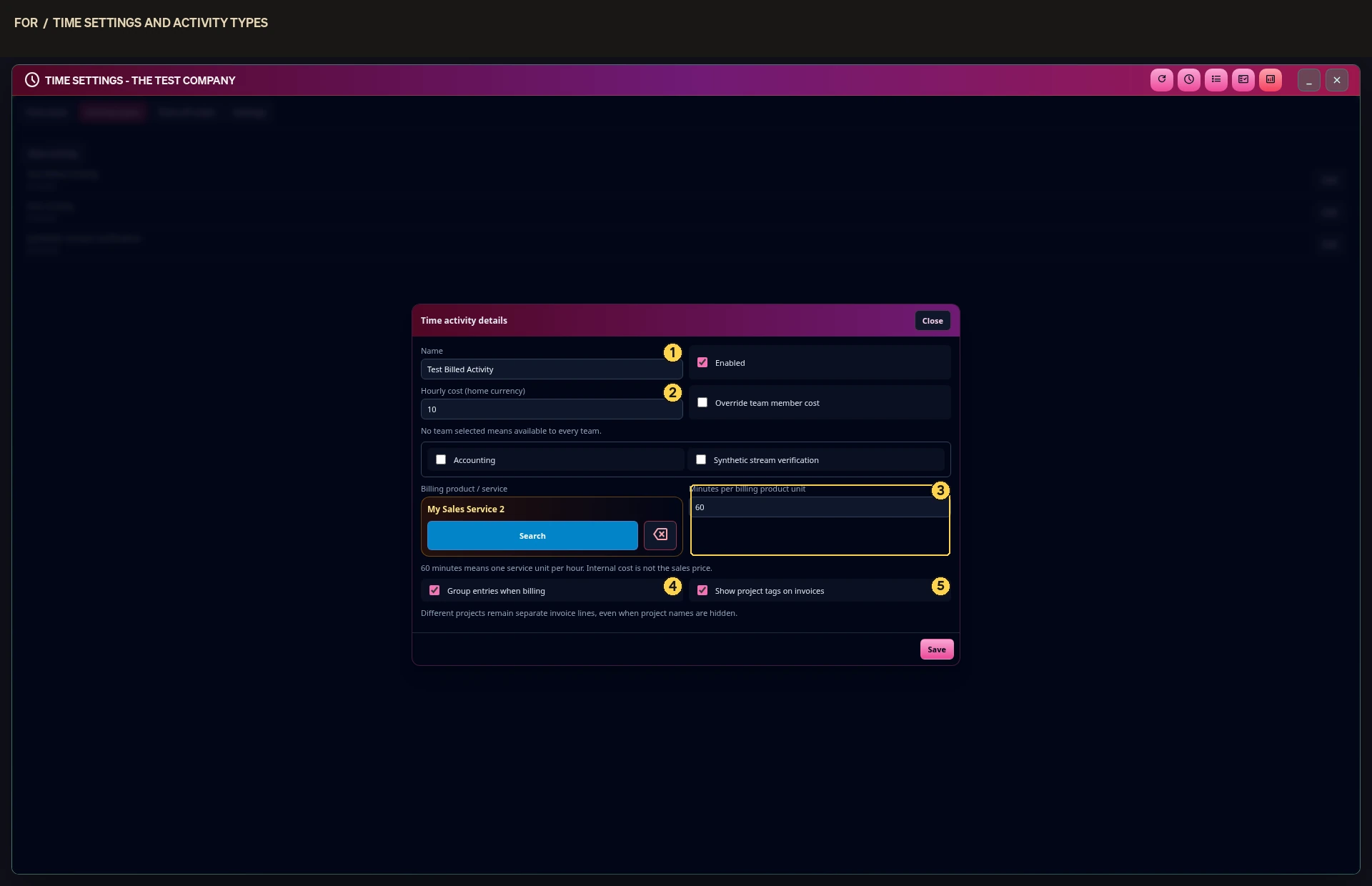
Activity details · Hourly cost / Override team member cost
An activity can carry its own internal hourly cost. Enable the override only when that activity cost should replace the person's cost for eligible new work; blank is not an explicit zero.
- 3
Minutes per billing product unit
Enter a whole number from 1 to 1440. With 60, one hour is one service unit; with 30, one hour is two units. Review the product's unit price accordingly.
- 4
Group entries when billing
Group compatible entries into the supported invoice presentation. Different projects are never merged merely because their printed names are hidden.
- 5
Show project tags on invoices
Control the printed project-name disclosure, not project ownership, source separation or the billable amount.
- 1
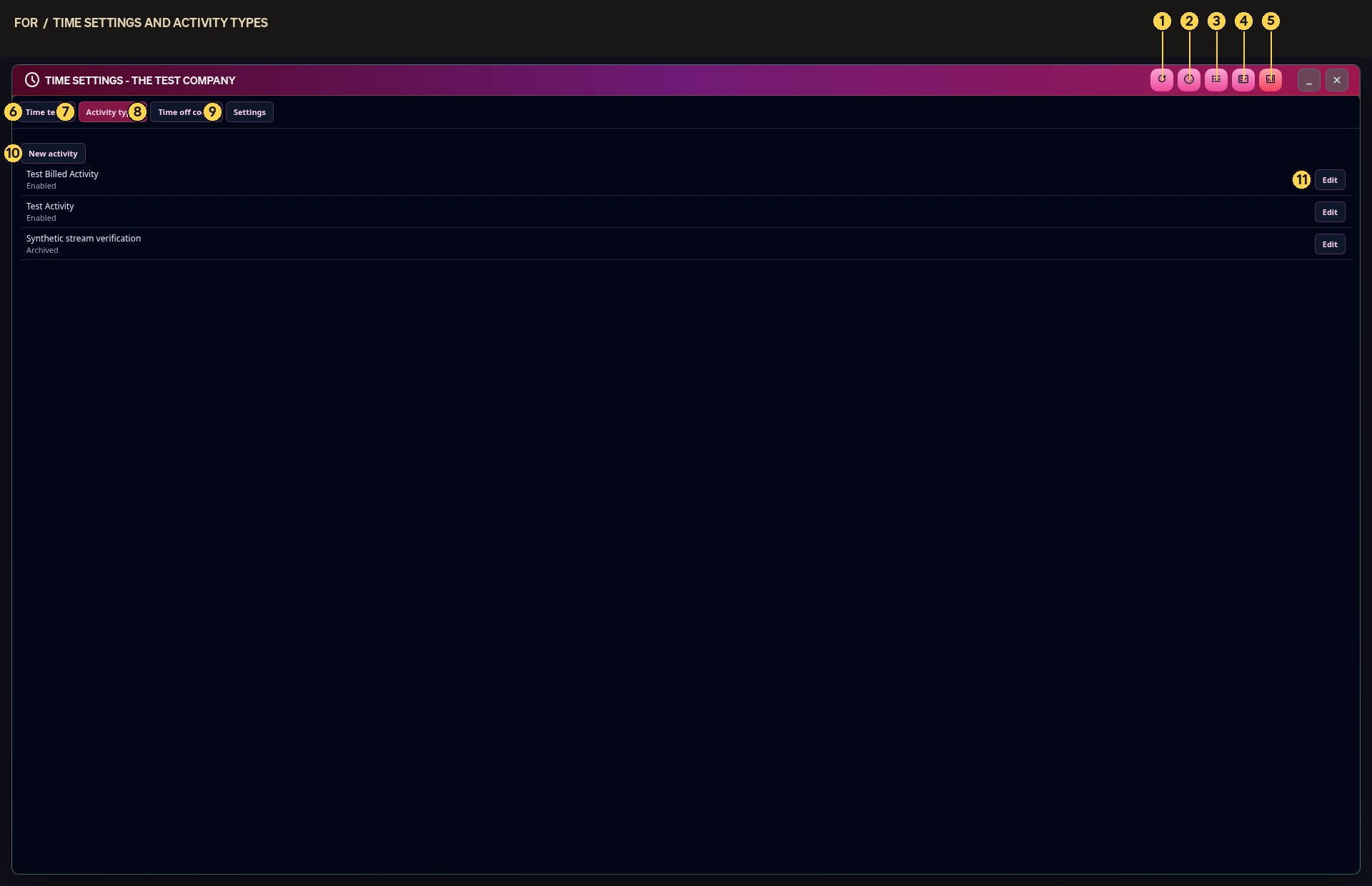
Refresh
Reload the saved settings. Review any unsaved-change prompt; after an uncertain autosave, use Refresh to reconcile rather than submitting another version blindly.
- 2
Clock in/out
Open this Time view for the same employer. Navigation does not start/stop the clock, approve time or issue an invoice.
- 3
Time activities
Open this Time view for the same employer. Navigation does not start/stop the clock, approve time or issue an invoice.
- 4
Time approvals
Open this Time view for the same employer. Navigation does not start/stop the clock, approve time or issue an invoice.
- 5
Time activities report
Open this Time view for the same employer. Navigation does not start/stop the clock, approve time or issue an invoice.
- 6
Time team
Switch to the employer's teams and people after resolving pending settings changes.
- 7
Activity types
Open the activity catalogue and its cost/billing choices.
- 8
Time off codes
Open absence categories, not an employee's actual leave request.
- 9
Settings
Return to tracking, schedule and permissions. Ordinary field changes autosave; calendar confirmation remains separate.
- 10
New activity / Edit
Open the activity's cost, team and billing-service choices, then Save the reviewed dialog.
- 11
New time off code / Edit
Open an absence category without submitting an employee's absence request.
- 1
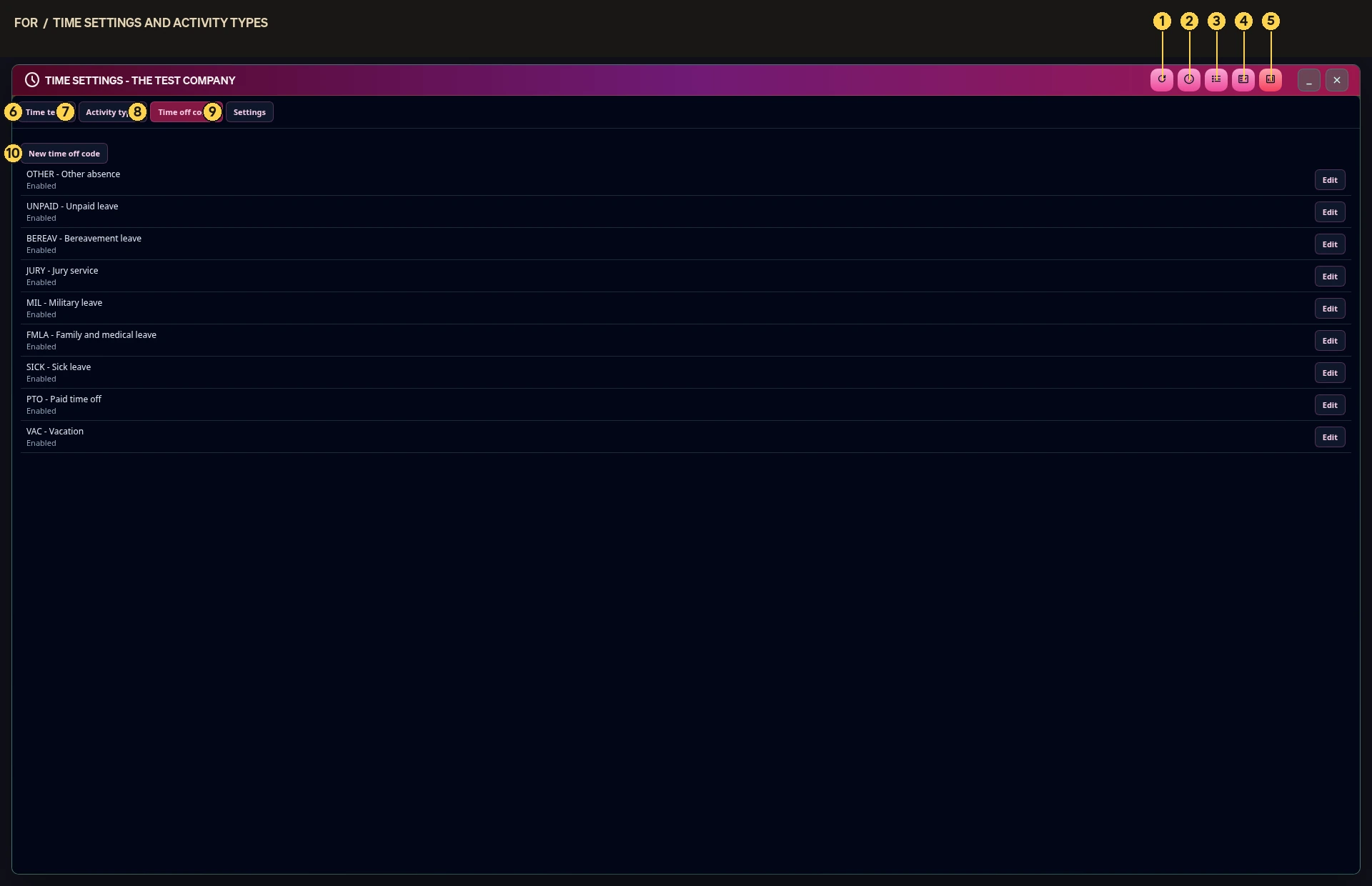
Refresh
Reload the saved settings. Review any unsaved-change prompt; after an uncertain autosave, use Refresh to reconcile rather than submitting another version blindly.
- 2
Clock in/out
Open this Time view for the same employer. Navigation does not start/stop the clock, approve time or issue an invoice.
- 3
Time activities
Open this Time view for the same employer. Navigation does not start/stop the clock, approve time or issue an invoice.
- 4
Time approvals
Open this Time view for the same employer. Navigation does not start/stop the clock, approve time or issue an invoice.
- 5
Time activities report
Open this Time view for the same employer. Navigation does not start/stop the clock, approve time or issue an invoice.
- 6
Time team
Switch to the employer's teams and people after resolving pending settings changes.
- 7
Activity types
Open the activity catalogue and its cost/billing choices.
- 8
Time off codes
Open absence categories, not an employee's actual leave request.
- 9
Settings
Return to tracking, schedule and permissions. Ordinary field changes autosave; calendar confirmation remains separate.
- 10
New time off code / Edit
Open an absence category without submitting an employee's absence request.
- 1
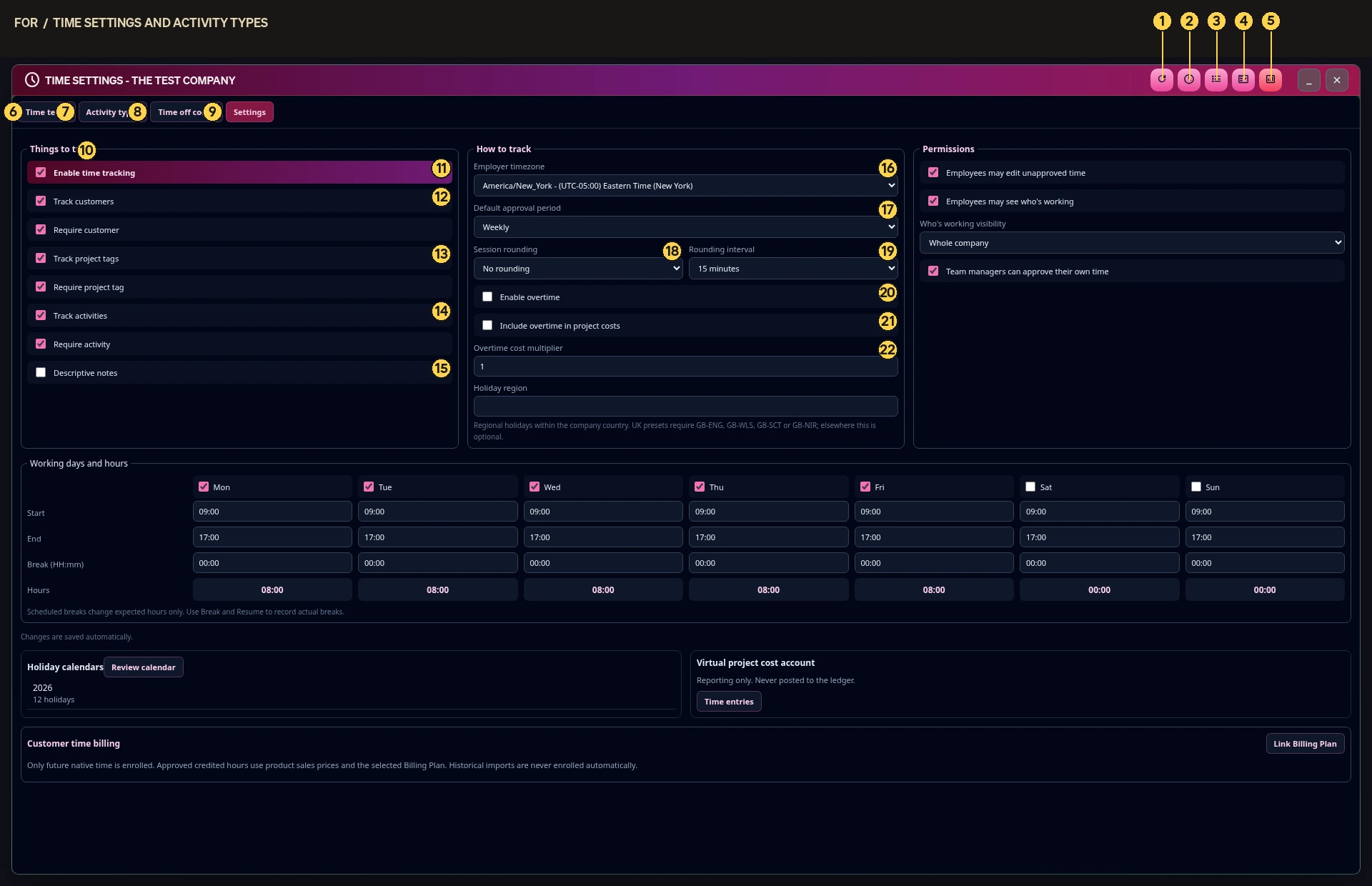
Refresh
Reload the saved settings. Review any unsaved-change prompt; after an uncertain autosave, use Refresh to reconcile rather than submitting another version blindly.
- 2
Clock in/out
Open this Time view for the same employer. Navigation does not start/stop the clock, approve time or issue an invoice.
- 3
Time activities
Open this Time view for the same employer. Navigation does not start/stop the clock, approve time or issue an invoice.
- 4
Time approvals
Open this Time view for the same employer. Navigation does not start/stop the clock, approve time or issue an invoice.
- 5
Time activities report
Open this Time view for the same employer. Navigation does not start/stop the clock, approve time or issue an invoice.
- 6
Time team
Switch to the employer's teams and people after resolving pending settings changes.
- 7
Activity types
Open the activity catalogue and its cost/billing choices.
- 8
Time off codes
Open absence categories, not an employee's actual leave request.
- 9
Settings
Return to tracking, schedule and permissions. Ordinary field changes autosave; calendar confirmation remains separate.
- 10
Things to track / How to track
Enable the context fields and entry modes intended for this employer. Disabling a field does not erase recorded history.
- 11
Enable time tracking
Enable the employer's Time workflow deliberately after reviewing people, teams, schedule and timezone. The switch does not create entries or approve imported history.
- 12
Track customers
Show this work-context choice. Turning tracking off also clears its Require setting; existing history is retained.
- 13
Track project tags
Show this work-context choice. Turning tracking off also clears its Require setting; existing history is retained.
- 14
Track activities
Show this work-context choice. Turning tracking off also clears its Require setting; existing history is retained.
- 15
Descriptive notes
Offer the Additional notes field with a 100-character, single-line limit. A notes-only change does not split an active working interval.
- 16
Employer timezone / holiday region
Use the employer's actual timezone and regional calendar. The tax country remains the company country, not a second editable Time jurisdiction.
- 17
Default approval period
Choose Weekly, Biweekly or Monthly. Teams set to Company default inherit it; a team can deliberately choose its own period.
- 18
Session rounding
Choose No rounding, Nearest interval, Round up or Round down for the reviewed session policy. Do not confuse rounded working time with the unmodified source timestamps shown in history.
- 19
Rounding interval
Choose 15 minutes, 30 minutes or 1 hour for a rounding policy. Changing the interval is a policy change, not a correction of an employee's actual start/end evidence.
- 20
Enable overtime
Enable the Time overtime classification relative to the reviewed schedule. A classification in this application is not, by itself, contractual authorization or payroll payment.
- 21
Include overtime in project costs
Choose whether the supported overtime premium contributes to internal project costing. This does not create a ledger journal or set the customer's invoice price.
- 22
Overtime cost multiplier
Enter a positive factor up to 10 for the supported cost policy. A factor of 1 keeps the ordinary cost; 1.5 represents one and a half times that cost, not 1.5 percent.
How to work here
Define what to track, how to track it, the work schedule and time-off calendar. Review settings saves separately from calendar confirmation.
- Choose Things to track, How to track and Permissions, including customer/project/activity and optional descriptive notes.
- Set employer timezone and each working day's 24-hour start/end/break values. Calculated scheduled hours exclude scheduled breaks; actual breaks still follow the clock.
- Review country/holiday region and the actual calendar, then explicitly save the calendar where required.
- Configure activity eligibility, optional cost and billing service. Use the real sales price for commercial billing, not employee cost.
Every field and control
Use the exact label or hover over an icon to match it to this reference. A missing action is not the same as an empty field: check its availability below.
Enable the context fields and entry modes intended for this employer. Disabling a field does not erase recorded history.
Availability: Shown when the corresponding workflow and your permissions allow it; review required markers and any disabled-state explanation.
Grant the specific time permissions deliberately; they do not confer accounting or report-authoring access.
Availability: Shown when the corresponding workflow and your permissions allow it; review required markers and any disabled-state explanation.
Use the employer's actual timezone and regional calendar. The tax country remains the company country, not a second editable Time jurisdiction.
Availability: Shown when the corresponding workflow and your permissions allow it; review required markers and any disabled-state explanation.
Enter 24-hour HH:mm values and scheduled break minutes. Overnight spans must be deliberate; the calculated hours are not a second editable total.
Availability: Shown when the corresponding workflow and your permissions allow it; review required markers and any disabled-state explanation.
Choose the approved absence category and period. A requested absence and an approved calendar event are different states.
Availability: Shown when the corresponding workflow and your permissions allow it; review required markers and any disabled-state explanation.
Map eligible time to a service product and review presentation. Hiding a project name never merges different projects into one billing source.
Availability: Shown when the corresponding workflow and your permissions allow it; review required markers and any disabled-state explanation.
Enable time tracking
FieldEnable the employer's Time workflow deliberately after reviewing people, teams, schedule and timezone. The switch does not create entries or approve imported history.
Availability: Shown when the corresponding workflow and your permissions allow it; review required markers and any disabled-state explanation.
Default approval period
FieldChoose Weekly, Biweekly or Monthly. Teams set to Company default inherit it; a team can deliberately choose its own period.
Availability: Shown when the corresponding workflow and your permissions allow it; review required markers and any disabled-state explanation.
Biweekly anchor date
FieldRequired when Biweekly is selected. It determines the alignment of successive two-week approval periods; it is not the date an employee joined.
Availability: Shown when the corresponding workflow and your permissions allow it; review required markers and any disabled-state explanation.
Session rounding
FieldChoose No rounding, Nearest interval, Round up or Round down for the reviewed session policy. Do not confuse rounded working time with the unmodified source timestamps shown in history.
Availability: Shown when the corresponding workflow and your permissions allow it; review required markers and any disabled-state explanation.
Rounding interval
FieldChoose 15 minutes, 30 minutes or 1 hour for a rounding policy. Changing the interval is a policy change, not a correction of an employee's actual start/end evidence.
Availability: Shown when the corresponding workflow and your permissions allow it; review required markers and any disabled-state explanation.
Enable overtime
FieldEnable the Time overtime classification relative to the reviewed schedule. A classification in this application is not, by itself, contractual authorization or payroll payment.
Availability: Shown when the corresponding workflow and your permissions allow it; review required markers and any disabled-state explanation.
Choose whether the supported overtime premium contributes to internal project costing. This does not create a ledger journal or set the customer's invoice price.
Availability: Shown when the corresponding workflow and your permissions allow it; review required markers and any disabled-state explanation.
Overtime cost multiplier
FieldEnter a positive factor up to 10 for the supported cost policy. A factor of 1 keeps the ordinary cost; 1.5 represents one and a half times that cost, not 1.5 percent.
Availability: Shown when the corresponding workflow and your permissions allow it; review required markers and any disabled-state explanation.
Permit eligible edits to unapproved personal time. It does not unlock approved or protected imported entries, grant cross-employee editing or enable manual entry without its separate per-person opt-in.
Availability: Shown when the corresponding workflow and your permissions allow it; review required markers and any disabled-state explanation.
Show the permitted presence list without granting access to employee cost or payroll details.
Availability: Shown when the corresponding workflow and your permissions allow it; review required markers and any disabled-state explanation.
Who's working visibility
FieldChoose Own team or Whole company for the allowed presence view. This does not change ordinary company roles.
Availability: Shown when the corresponding workflow and your permissions allow it; review required markers and any disabled-state explanation.
Review this explicit self-approval permission separately from the team's list of approvers. Other approval checks still apply.
Availability: Shown when the corresponding workflow and your permissions allow it; review required markers and any disabled-state explanation.
Holiday region
FieldUse the employer's regional holiday selection inside its company country. UK presets require GB-ENG, GB-WLS, GB-SCT or GB-NIR; elsewhere the field is optional where the country calendar permits it.
Availability: Shown when the corresponding workflow and your permissions allow it; review required markers and any disabled-state explanation.
Descriptive notes
FieldOffer the Additional notes field with a 100-character, single-line limit. A notes-only change does not split an active working interval.
Availability: Shown when the corresponding workflow and your permissions allow it; review required markers and any disabled-state explanation.
Choose the readable reporting label for Time costs and its optional translation. It is reporting-only and never posts a financial journal.
Availability: Shown when the corresponding workflow and your permissions allow it; review required markers and any disabled-state explanation.
Name the work category and choose whether it is available for new selection. Disabling an activity does not erase its historical entries.
Availability: Shown when the corresponding workflow and your permissions allow it; review required markers and any disabled-state explanation.
An activity can carry its own internal hourly cost. Enable the override only when that activity cost should replace the person's cost for eligible new work; blank is not an explicit zero.
Availability: Shown when the corresponding workflow and your permissions allow it; review required markers and any disabled-state explanation.
Activity details · Teams
FieldSelect permitted teams. No team selected means available to every team, not unavailable to everyone; team-specific visibility restrictions still apply.
Availability: Shown when the corresponding workflow and your permissions allow it; review required markers and any disabled-state explanation.
Select the actual service used on the later customer invoice. The normal commercial price is resolved in the billing context; internal hourly cost is never the sales price.
Availability: Shown when the corresponding workflow and your permissions allow it; review required markers and any disabled-state explanation.
Enter a whole number from 1 to 1440. With 60, one hour is one service unit; with 30, one hour is two units. Review the product's unit price accordingly.
Availability: Shown when the corresponding workflow and your permissions allow it; review required markers and any disabled-state explanation.
Group compatible entries into the supported invoice presentation. Different projects are never merged merely because their printed names are hidden.
Availability: Shown when the corresponding workflow and your permissions allow it; review required markers and any disabled-state explanation.
Control the printed project-name disclosure, not project ownership, source separation or the billable amount.
Availability: Shown when the corresponding workflow and your permissions allow it; review required markers and any disabled-state explanation.
Give the absence a clear name and an eligible code. Standard country codes can be read-only. Disable unused choices rather than treating old approved absences as deleted.
Availability: Shown when the corresponding workflow and your permissions allow it; review required markers and any disabled-state explanation.
Bind collection to the intended customer, compatible plan and activity. It is a prospective routing choice, not permission to rebill previously consumed or imported billing evidence.
Availability: Shown when the corresponding workflow and your permissions allow it; review required markers and any disabled-state explanation.
Enable future collection for this reviewed link. Existing source claims still prevent manual and scheduled billing from consuming the same work twice.
Availability: Shown when the corresponding workflow and your permissions allow it; review required markers and any disabled-state explanation.
Track customers
FieldShow this work-context choice. Turning tracking off also clears its Require setting; existing history is retained.
Availability: Shown when the corresponding workflow and your permissions allow it; review required markers and any disabled-state explanation.
Require customers
FieldRequire an eligible selection when entering the corresponding work context. Enabling Require also enables tracking; team visibility still limits the available choices.
Availability: Shown when the corresponding workflow and your permissions allow it; review required markers and any disabled-state explanation.
Track project tags
FieldShow this work-context choice. Turning tracking off also clears its Require setting; existing history is retained.
Availability: Shown when the corresponding workflow and your permissions allow it; review required markers and any disabled-state explanation.
Require project tags
FieldRequire an eligible selection when entering the corresponding work context. Enabling Require also enables tracking; team visibility still limits the available choices.
Availability: Shown when the corresponding workflow and your permissions allow it; review required markers and any disabled-state explanation.
Track activities
FieldShow this work-context choice. Turning tracking off also clears its Require setting; existing history is retained.
Availability: Shown when the corresponding workflow and your permissions allow it; review required markers and any disabled-state explanation.
Require activities
FieldRequire an eligible selection when entering the corresponding work context. Enabling Require also enables tracking; team visibility still limits the available choices.
Availability: Shown when the corresponding workflow and your permissions allow it; review required markers and any disabled-state explanation.
Include this weekday in the expected schedule. A disabled weekday has zero expected hours; it does not erase actual time recorded that day.
Availability: Shown when the corresponding workflow and your permissions allow it; review required markers and any disabled-state explanation.
Monday · Start
FieldEnter the scheduled local start as HH:mm in 24-hour format. This is an expected schedule, not an automatic clock-in.
Availability: Shown when the corresponding workflow and your permissions allow it; review required markers and any disabled-state explanation.
Monday · End
FieldEnter the scheduled local end as HH:mm. Review deliberate overnight shifts carefully; it does not automatically clock the person out.
Availability: Shown when the corresponding workflow and your permissions allow it; review required markers and any disabled-state explanation.
Monday · Break (HH:mm)
FieldEnter a scheduled break duration such as 00:30, not its starting time. It must fit within the scheduled span. Actual breaks still require Break and Resume.
Availability: Shown when the corresponding workflow and your permissions allow it; review required markers and any disabled-state explanation.
Monday · Hours
FieldRead the calculated expected duration after the scheduled break. It is not an independently editable total and is not proof of hours actually worked.
Availability: Shown when the corresponding workflow and your permissions allow it; review required markers and any disabled-state explanation.
Include this weekday in the expected schedule. A disabled weekday has zero expected hours; it does not erase actual time recorded that day.
Availability: Shown when the corresponding workflow and your permissions allow it; review required markers and any disabled-state explanation.
Tuesday · Start
FieldEnter the scheduled local start as HH:mm in 24-hour format. This is an expected schedule, not an automatic clock-in.
Availability: Shown when the corresponding workflow and your permissions allow it; review required markers and any disabled-state explanation.
Tuesday · End
FieldEnter the scheduled local end as HH:mm. Review deliberate overnight shifts carefully; it does not automatically clock the person out.
Availability: Shown when the corresponding workflow and your permissions allow it; review required markers and any disabled-state explanation.
Tuesday · Break (HH:mm)
FieldEnter a scheduled break duration such as 00:30, not its starting time. It must fit within the scheduled span. Actual breaks still require Break and Resume.
Availability: Shown when the corresponding workflow and your permissions allow it; review required markers and any disabled-state explanation.
Tuesday · Hours
FieldRead the calculated expected duration after the scheduled break. It is not an independently editable total and is not proof of hours actually worked.
Availability: Shown when the corresponding workflow and your permissions allow it; review required markers and any disabled-state explanation.
Include this weekday in the expected schedule. A disabled weekday has zero expected hours; it does not erase actual time recorded that day.
Availability: Shown when the corresponding workflow and your permissions allow it; review required markers and any disabled-state explanation.
Wednesday · Start
FieldEnter the scheduled local start as HH:mm in 24-hour format. This is an expected schedule, not an automatic clock-in.
Availability: Shown when the corresponding workflow and your permissions allow it; review required markers and any disabled-state explanation.
Wednesday · End
FieldEnter the scheduled local end as HH:mm. Review deliberate overnight shifts carefully; it does not automatically clock the person out.
Availability: Shown when the corresponding workflow and your permissions allow it; review required markers and any disabled-state explanation.
Enter a scheduled break duration such as 00:30, not its starting time. It must fit within the scheduled span. Actual breaks still require Break and Resume.
Availability: Shown when the corresponding workflow and your permissions allow it; review required markers and any disabled-state explanation.
Wednesday · Hours
FieldRead the calculated expected duration after the scheduled break. It is not an independently editable total and is not proof of hours actually worked.
Availability: Shown when the corresponding workflow and your permissions allow it; review required markers and any disabled-state explanation.
Include this weekday in the expected schedule. A disabled weekday has zero expected hours; it does not erase actual time recorded that day.
Availability: Shown when the corresponding workflow and your permissions allow it; review required markers and any disabled-state explanation.
Thursday · Start
FieldEnter the scheduled local start as HH:mm in 24-hour format. This is an expected schedule, not an automatic clock-in.
Availability: Shown when the corresponding workflow and your permissions allow it; review required markers and any disabled-state explanation.
Thursday · End
FieldEnter the scheduled local end as HH:mm. Review deliberate overnight shifts carefully; it does not automatically clock the person out.
Availability: Shown when the corresponding workflow and your permissions allow it; review required markers and any disabled-state explanation.
Thursday · Break (HH:mm)
FieldEnter a scheduled break duration such as 00:30, not its starting time. It must fit within the scheduled span. Actual breaks still require Break and Resume.
Availability: Shown when the corresponding workflow and your permissions allow it; review required markers and any disabled-state explanation.
Thursday · Hours
FieldRead the calculated expected duration after the scheduled break. It is not an independently editable total and is not proof of hours actually worked.
Availability: Shown when the corresponding workflow and your permissions allow it; review required markers and any disabled-state explanation.
Include this weekday in the expected schedule. A disabled weekday has zero expected hours; it does not erase actual time recorded that day.
Availability: Shown when the corresponding workflow and your permissions allow it; review required markers and any disabled-state explanation.
Friday · Start
FieldEnter the scheduled local start as HH:mm in 24-hour format. This is an expected schedule, not an automatic clock-in.
Availability: Shown when the corresponding workflow and your permissions allow it; review required markers and any disabled-state explanation.
Friday · End
FieldEnter the scheduled local end as HH:mm. Review deliberate overnight shifts carefully; it does not automatically clock the person out.
Availability: Shown when the corresponding workflow and your permissions allow it; review required markers and any disabled-state explanation.
Friday · Break (HH:mm)
FieldEnter a scheduled break duration such as 00:30, not its starting time. It must fit within the scheduled span. Actual breaks still require Break and Resume.
Availability: Shown when the corresponding workflow and your permissions allow it; review required markers and any disabled-state explanation.
Friday · Hours
FieldRead the calculated expected duration after the scheduled break. It is not an independently editable total and is not proof of hours actually worked.
Availability: Shown when the corresponding workflow and your permissions allow it; review required markers and any disabled-state explanation.
Include this weekday in the expected schedule. A disabled weekday has zero expected hours; it does not erase actual time recorded that day.
Availability: Shown when the corresponding workflow and your permissions allow it; review required markers and any disabled-state explanation.
Saturday · Start
FieldEnter the scheduled local start as HH:mm in 24-hour format. This is an expected schedule, not an automatic clock-in.
Availability: Shown when the corresponding workflow and your permissions allow it; review required markers and any disabled-state explanation.
Saturday · End
FieldEnter the scheduled local end as HH:mm. Review deliberate overnight shifts carefully; it does not automatically clock the person out.
Availability: Shown when the corresponding workflow and your permissions allow it; review required markers and any disabled-state explanation.
Saturday · Break (HH:mm)
FieldEnter a scheduled break duration such as 00:30, not its starting time. It must fit within the scheduled span. Actual breaks still require Break and Resume.
Availability: Shown when the corresponding workflow and your permissions allow it; review required markers and any disabled-state explanation.
Saturday · Hours
FieldRead the calculated expected duration after the scheduled break. It is not an independently editable total and is not proof of hours actually worked.
Availability: Shown when the corresponding workflow and your permissions allow it; review required markers and any disabled-state explanation.
Include this weekday in the expected schedule. A disabled weekday has zero expected hours; it does not erase actual time recorded that day.
Availability: Shown when the corresponding workflow and your permissions allow it; review required markers and any disabled-state explanation.
Sunday · Start
FieldEnter the scheduled local start as HH:mm in 24-hour format. This is an expected schedule, not an automatic clock-in.
Availability: Shown when the corresponding workflow and your permissions allow it; review required markers and any disabled-state explanation.
Sunday · End
FieldEnter the scheduled local end as HH:mm. Review deliberate overnight shifts carefully; it does not automatically clock the person out.
Availability: Shown when the corresponding workflow and your permissions allow it; review required markers and any disabled-state explanation.
Sunday · Break (HH:mm)
FieldEnter a scheduled break duration such as 00:30, not its starting time. It must fit within the scheduled span. Actual breaks still require Break and Resume.
Availability: Shown when the corresponding workflow and your permissions allow it; review required markers and any disabled-state explanation.
Sunday · Hours
FieldRead the calculated expected duration after the scheduled break. It is not an independently editable total and is not proof of hours actually worked.
Availability: Shown when the corresponding workflow and your permissions allow it; review required markers and any disabled-state explanation.
Refresh
ActionReload the saved settings. Review any unsaved-change prompt; after an uncertain autosave, use Refresh to reconcile rather than submitting another version blindly.
Availability: Only when offered by the current screen, role and saved workflow state. Read any confirmation before proceeding.
New activity / Edit
ActionOpen the activity's cost, team and billing-service choices, then Save the reviewed dialog.
Availability: Only when offered by the current screen, role and saved workflow state. Read any confirmation before proceeding.
New time off code / Edit
ActionOpen an absence category without submitting an employee's absence request.
Availability: Only when offered by the current screen, role and saved workflow state. Read any confirmation before proceeding.
Review calendar
ActionChoose the year, inspect the proposed country/regional holidays and save only the reviewed calendar. A settings autosave is not this confirmation.
Availability: Only when offered by the current screen, role and saved workflow state. Read any confirmation before proceeding.
Clock in/out
ActionOpen this Time view for the same employer. Navigation does not start/stop the clock, approve time or issue an invoice.
Availability: Clock and activity views require Time access; approvals require the relevant reviewing role; settings and reports require full company access.
Time activities
ActionOpen this Time view for the same employer. Navigation does not start/stop the clock, approve time or issue an invoice.
Availability: Clock and activity views require Time access; approvals require the relevant reviewing role; settings and reports require full company access.
Time approvals
ActionOpen this Time view for the same employer. Navigation does not start/stop the clock, approve time or issue an invoice.
Availability: Clock and activity views require Time access; approvals require the relevant reviewing role; settings and reports require full company access.
Time activities report
ActionOpen this Time view for the same employer. Navigation does not start/stop the clock, approve time or issue an invoice.
Availability: Clock and activity views require Time access; approvals require the relevant reviewing role; settings and reports require full company access.
Time team
ActionSwitch to the employer's teams and people after resolving pending settings changes.
Availability: Only when offered by the current screen, role and saved workflow state. Read any confirmation before proceeding.
Activity types
ActionOpen the activity catalogue and its cost/billing choices.
Availability: Only when offered by the current screen, role and saved workflow state. Read any confirmation before proceeding.
Time off codes
ActionOpen absence categories, not an employee's actual leave request.
Availability: Only when offered by the current screen, role and saved workflow state. Read any confirmation before proceeding.
Settings
ActionReturn to tracking, schedule and permissions. Ordinary field changes autosave; calendar confirmation remains separate.
Availability: Only when offered by the current screen, role and saved workflow state. Read any confirmation before proceeding.
Watch the workflow

This recording is temporarily unavailable. Please try again later.
FOR:CEO only — native Time workflow, shown as part of the FOR product portfolio.
Configure company Time
Read the steps
- Review tracking requirements, approval periods, working hours, teams and activities. Project time costs are analytical, not payroll execution.

This recording is temporarily unavailable. Please try again later.
FOR:CEO only — native Time workflow, shown as part of the FOR product portfolio.
Link billable time to a service
Read the steps
- Link the activity to a sales service and define minutes per unit. Internal time cost and the customer's sales price are distinct.