
Print, download and email documents
Use the document's own actions so its saved values, branding, template and delivery permissions remain together.
Open this screen
Open a saved printable document, then select Print / download PDF or Send by email.
When it is available
Available to users whose company roles permit this work. Country, subscription, company settings and the saved record's state can narrow the available controls.
QuickBooks connection
This screen prepares or displays work in FOR; opening it does not write to QuickBooks. Where a later step creates an accounting document, that step is identified separately. FOR:CEO never sends its accounting entries to QuickBooks.
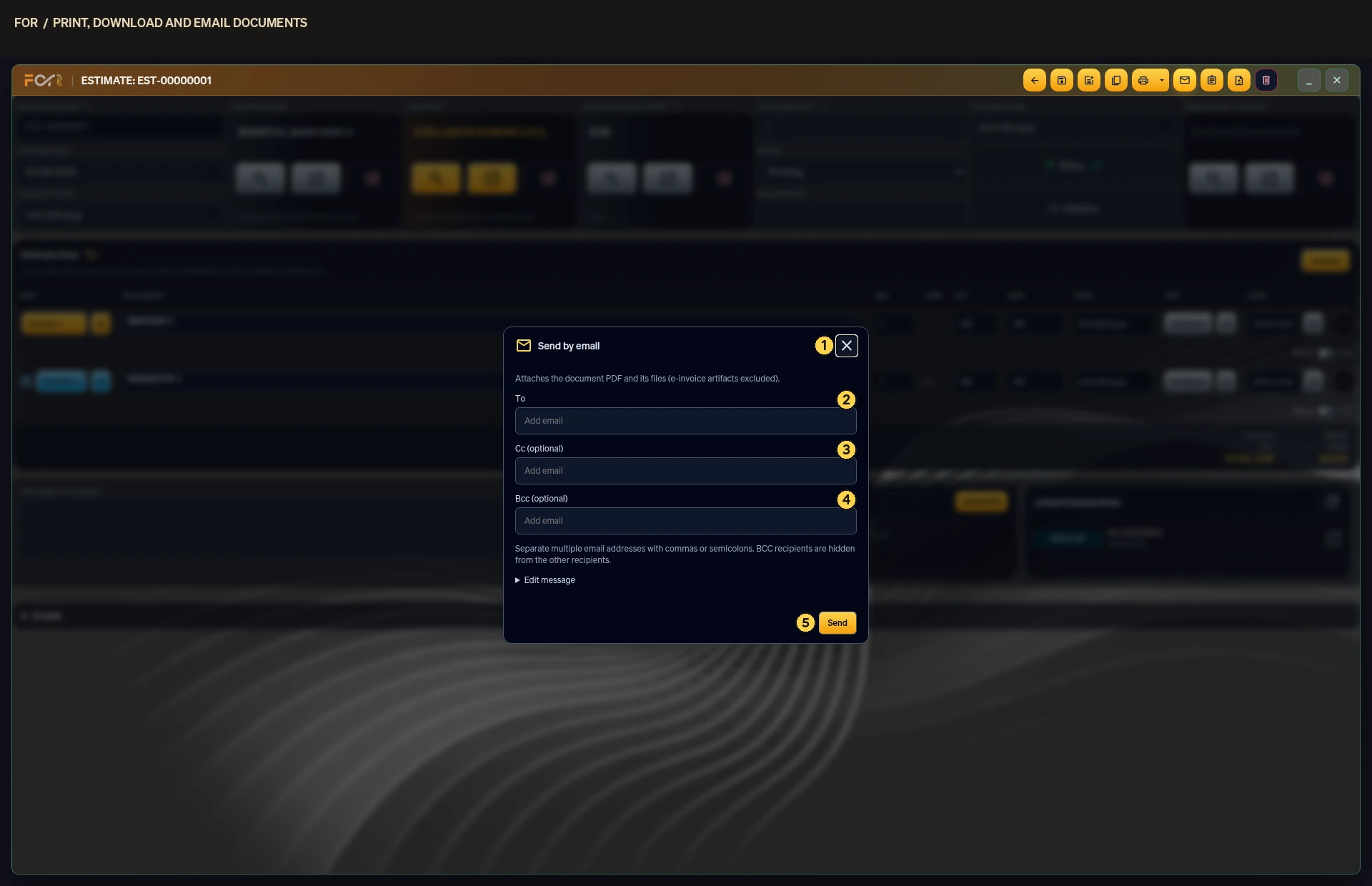
- 1
Close / Cancel
Leave the composer without authorizing another send. It does not retract an already-submitted email.
- 2
To
Verify the actual customer/vendor recipients. A prefilled contact is a proposal, not proof that it is the correct recipient for this document.
- 3
CC
Visible copy recipients. Every recipient can see these addresses; include only people entitled to the document.
- 4
BCC
Hidden copy recipients. Their addresses are not shown to the other recipients, but they receive the document.
- 5
Send
Submit the reviewed message and files to the selected recipients. Keep the original operation if the response is uncertain.
How to work here
Use the document's own actions so its saved values, branding, template and delivery permissions remain together.
- Save any changes required by the document's saved-only print policy and select the intended template where a selector is offered.
- For a PDF, queue the job and open the result in Background queue. For email, review the complete composer, including every address and attachment.
- Confirm email only once, then inspect its recorded submission/history. A timeout is not permission to send a duplicate.
Every field and control
Use the exact label or hover over an icon to match it to this reference. A missing action is not the same as an empty field: check its availability below.
Print template
FieldChoose the permitted saved/default layout for this document type. It changes presentation, not the document's tax or financial values.
Availability: Shown when the corresponding workflow and your permissions allow it; review required markers and any disabled-state explanation.
To
FieldVerify the actual customer/vendor recipients. A prefilled contact is a proposal, not proof that it is the correct recipient for this document.
Availability: Shown when the corresponding workflow and your permissions allow it; review required markers and any disabled-state explanation.
CC
FieldVisible copy recipients. Every recipient can see these addresses; include only people entitled to the document.
Availability: Shown when the corresponding workflow and your permissions allow it; review required markers and any disabled-state explanation.
BCC
FieldHidden copy recipients. Their addresses are not shown to the other recipients, but they receive the document.
Availability: Shown when the corresponding workflow and your permissions allow it; review required markers and any disabled-state explanation.
Subject · recorded email
FieldThe document email subject is generated from its document context and can be read in recorded email details. The ordinary document composer does not offer a subject editor.
Availability: Shown when the corresponding workflow and your permissions allow it; review required markers and any disabled-state explanation.
Message
FieldStart from the company's document-type default, then write the intended recipient-facing explanation. Review before sending.
Availability: Shown when the corresponding workflow and your permissions allow it; review required markers and any disabled-state explanation.
Attachments
FieldSelect only the permitted files belonging to this document. Distinguish the generated PDF from supplementary evidence.
Availability: Shown when the corresponding workflow and your permissions allow it; review required markers and any disabled-state explanation.
Send
ActionSubmit the reviewed message and files to the selected recipients. Keep the original operation if the response is uncertain.
Availability: Only when offered by the current screen, role and saved workflow state. Read any confirmation before proceeding.
Email history
ActionInspect prior messages and their actual submission result; a saved address or planned job is not a delivered-mail receipt.
Availability: Only when offered by the current screen, role and saved workflow state. Read any confirmation before proceeding.
Close / Cancel
ActionLeave the composer without authorizing another send. It does not retract an already-submitted email.
Availability: Only when offered by the current screen, role and saved workflow state. Read any confirmation before proceeding.
Watch the workflow

This recording is temporarily unavailable. Please try again later.
Italian fiscal workflow
Check an e-invoice and its files
Read the steps
- Open the sent invoice's electronic status and retrieve its available document files.

This recording is temporarily unavailable. Please try again later.
Shared workflow
Create and customize document templates
Read the steps
- Open Settings > Documents and launch Template Builder for invoices.
- Move fields and adjust their text styles, alignment and position.
- Position the company logo and review the totals and footer on the last page.
- Save a named template and generate its PDF preview.
- Inspect the generated PDF before using the saved template.
- Open an invoice and choose the saved template from its Print menu.
- Open the background print result and inspect the final document.