
Documents settings
Configure titles, language, printed details, footers and per-document email defaults. A presentation setting never changes tax calculations or saved amounts.
Open this screen
Sidebar → Settings → Documents.
When it is available
Available to users whose company roles permit this work. Country, subscription, company settings and the saved record's state can narrow the available controls.
QuickBooks connection
This screen prepares or displays work in FOR; opening it does not write to QuickBooks. Where a later step creates an accounting document, that step is identified separately. FOR:CEO never sends its accounting entries to QuickBooks.
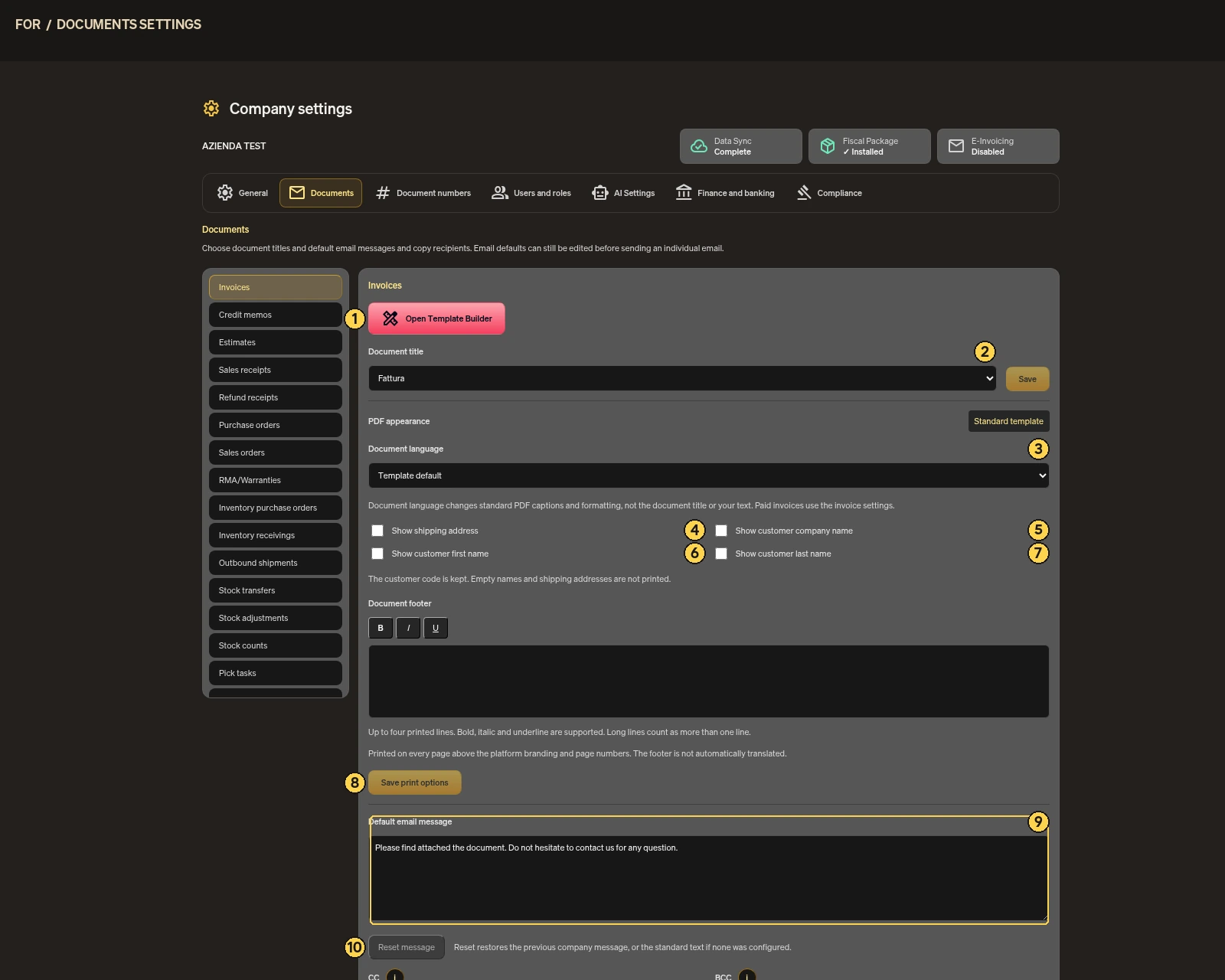
- 1
Open Template Builder
Open the selected document type's layout editor when authorized. Print/email preferences and the layout's separate Save/Publish remain distinct.
- 2
Save · document title
Save the selected title or reviewed custom title only. This does not save the email body, print options or template layout.
- 3
Document language
Choose supported standard captions/date presentation, or retain Template default. Stored names, product descriptions and your custom title/footer remain unchanged.
- 4
Show shipping address
Print the available shipping address in compatible layouts. An absent address is not replaced with an invented destination.
- 5
Show customer company name
Include or omit the available customer company name in compatible PDFs. The customer code remains, and an empty name is not invented.
- 6
Show customer first name
Choose whether the saved first name is printed; this does not edit the customer record.
- 7
Show customer last name
Choose whether the saved last name is printed, independently from company/first name.
- 8
Save print options
Disabled in this example. Save compatible PDF language, detail and footer preferences for this document type. Disabled options belong to a custom or unverified template and must not be forced.
- 9
Default email message / Reset
Save a message for this type. Reset restores the previous/default fallback, while an explicitly saved empty message stays empty.
- 10
Reset message
Disabled in this example. Restore the earlier company message or standard text. Review the result and save the email defaults separately.
How to work here
Configure titles, language, printed details, footers and per-document email defaults. A presentation setting never changes tax calculations or saved amounts.
- Choose the document type from the vertical selector. Title and email settings are saved independently.
- Choose a predefined title or Custom. A custom title is 5–50 letters, digits and spaces; punctuation/symbols are not accepted.
- Review document language, customer-name/address switches and the bounded formatted footer. A supported custom layout can restrict language or other appearance controls.
- Set the default message and independent CC/BCC recipients for each supported type. Reset restores the default; saving an explicitly empty message keeps it empty.
Every field and control
Use the exact label or hover over an icon to match it to this reference. A missing action is not the same as an empty field: check its availability below.
Choose a literal printed title; it is not translated into the viewer's language. Save it separately from email text.
Availability: Shown when the corresponding workflow and your permissions allow it; review required markers and any disabled-state explanation.
Document language
FieldChoose supported standard captions/date presentation, or retain Template default. Stored names, product descriptions and your custom title/footer remain unchanged.
Availability: Shown when the corresponding workflow and your permissions allow it; review required markers and any disabled-state explanation.
Enable each printed customer-detail field independently; missing values stay absent and changing a footer does not opt into extra details.
Availability: Shown when the corresponding workflow and your permissions allow it; review required markers and any disabled-state explanation.
Choose the additional Shipment details deliberately. These show saved shipment facts; they do not create a lot, extend its expiry or change customer ownership.
Availability: Shown when the corresponding workflow and your permissions allow it; review required markers and any disabled-state explanation.
Save a message for this type. Reset restores the previous/default fallback, while an explicitly saved empty message stays empty.
Availability: Shown when the corresponding workflow and your permissions allow it; review required markers and any disabled-state explanation.
Choose from current company users and saved authorized intake email addresses. Pending invitations are not recipients. Open the information control to see where choices are maintained.
Availability: Shown when the corresponding workflow and your permissions allow it; review required markers and any disabled-state explanation.
Open Template Builder
ActionOpen the selected document type's layout editor when authorized. Print/email preferences and the layout's separate Save/Publish remain distinct.
Availability: Only when offered by the current screen, role and saved workflow state. Read any confirmation before proceeding.
Save · document title
ActionSave the selected title or reviewed custom title only. This does not save the email body, print options or template layout.
Availability: Only when offered by the current screen, role and saved workflow state. Read any confirmation before proceeding.
Save print options
ActionSave compatible PDF language, detail and footer preferences for this document type. Disabled options belong to a custom or unverified template and must not be forced.
Availability: Only when offered by the current screen, role and saved workflow state. Read any confirmation before proceeding.
Reset message
ActionRestore the earlier company message or standard text. Review the result and save the email defaults separately.
Availability: Only when offered by the current screen, role and saved workflow state. Read any confirmation before proceeding.
Read why company users and saved AI Settings addresses appear as copy choices. Selecting a copy does not grant company access or send an email.
Availability: Only when offered by the current screen, role and saved workflow state. Read any confirmation before proceeding.
Save email defaults
ActionSave the reviewed message and CC/BCC defaults for this document type. The final document composer can still be reviewed before sending.
Availability: Only when offered by the current screen, role and saved workflow state. Read any confirmation before proceeding.
Reload document defaults
ActionRecover the current saved preferences after a read/conflict error. Review unsaved changes before replacing the local form.
Availability: Only when offered by the current screen, role and saved workflow state. Read any confirmation before proceeding.
Custom document title
FieldEnter only the intended printed title when Custom is selected. Changing the title does not change the legal document type or its number.
Availability: Shown when the corresponding workflow and your permissions allow it; review required markers and any disabled-state explanation.
Include or omit the available customer company name in compatible PDFs. The customer code remains, and an empty name is not invented.
Availability: Shown when the corresponding workflow and your permissions allow it; review required markers and any disabled-state explanation.
Show customer first name
FieldChoose whether the saved first name is printed; this does not edit the customer record.
Availability: Shown when the corresponding workflow and your permissions allow it; review required markers and any disabled-state explanation.
Show customer last name
FieldChoose whether the saved last name is printed, independently from company/first name.
Availability: Shown when the corresponding workflow and your permissions allow it; review required markers and any disabled-state explanation.
Show shipping address
FieldPrint the available shipping address in compatible layouts. An absent address is not replaced with an invented destination.
Availability: Shown when the corresponding workflow and your permissions allow it; review required markers and any disabled-state explanation.
Show customer reference
FieldFor supported shipment layouts, use the linked sales order's customer reference.
Availability: Shown when the corresponding workflow and your permissions allow it; review required markers and any disabled-state explanation.
Show batch / lot number
FieldFor supported shipment layouts, print the actual shipped lot/batch information, not every lot held for that product.
Availability: Shown when the corresponding workflow and your permissions allow it; review required markers and any disabled-state explanation.
Show expiry date
FieldPrint available expiry information for the shipped goods; missing optional dates remain blank.
Availability: Shown when the corresponding workflow and your permissions allow it; review required markers and any disabled-state explanation.