
FOR:AGENT
Let a compatible external AI assistant work with the same native FOR:CEO company, under your current permissions and explicit approval policy.
Open this screen
FOR:CEO → Settings → AI Settings → External AI access (MCP). Use the FOR:AGENT connection guide for your client.
When it is available
Available to users whose company roles permit this work. Country, subscription, company settings and the saved record's state can narrow the available controls.
QuickBooks connection
This screen prepares or displays work in FOR; opening it does not write to QuickBooks. Where a later step creates an accounting document, that step is identified separately. FOR:CEO never sends its accounting entries to QuickBooks.
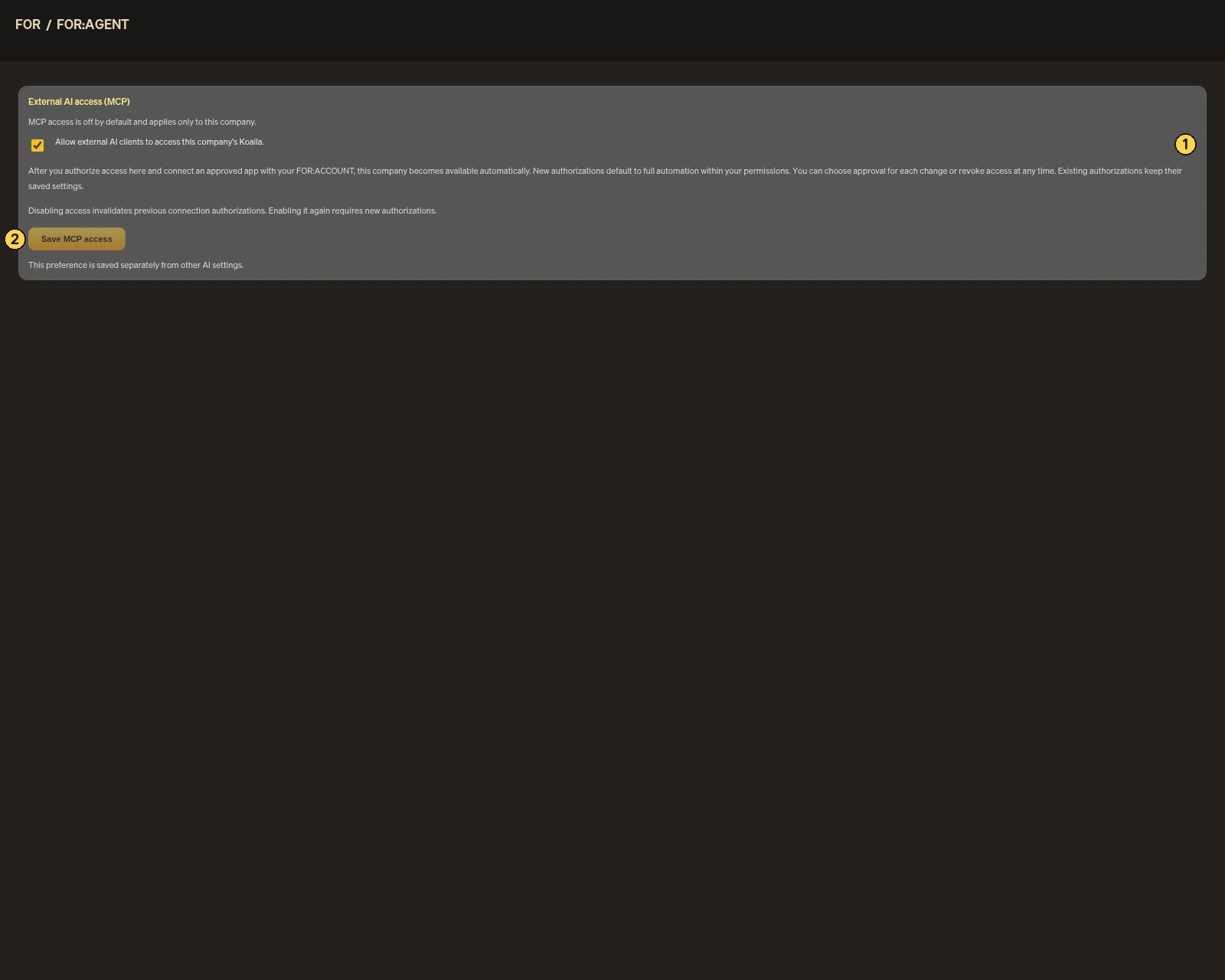
- 1
Allow external AI clients
Company-scoped enablement. Check the company and consent authority before switching it on.
- 2
Save MCP access
Disabled in this example. Save this separate preference after explicit confirmation. Saving general AI settings is not equivalent.
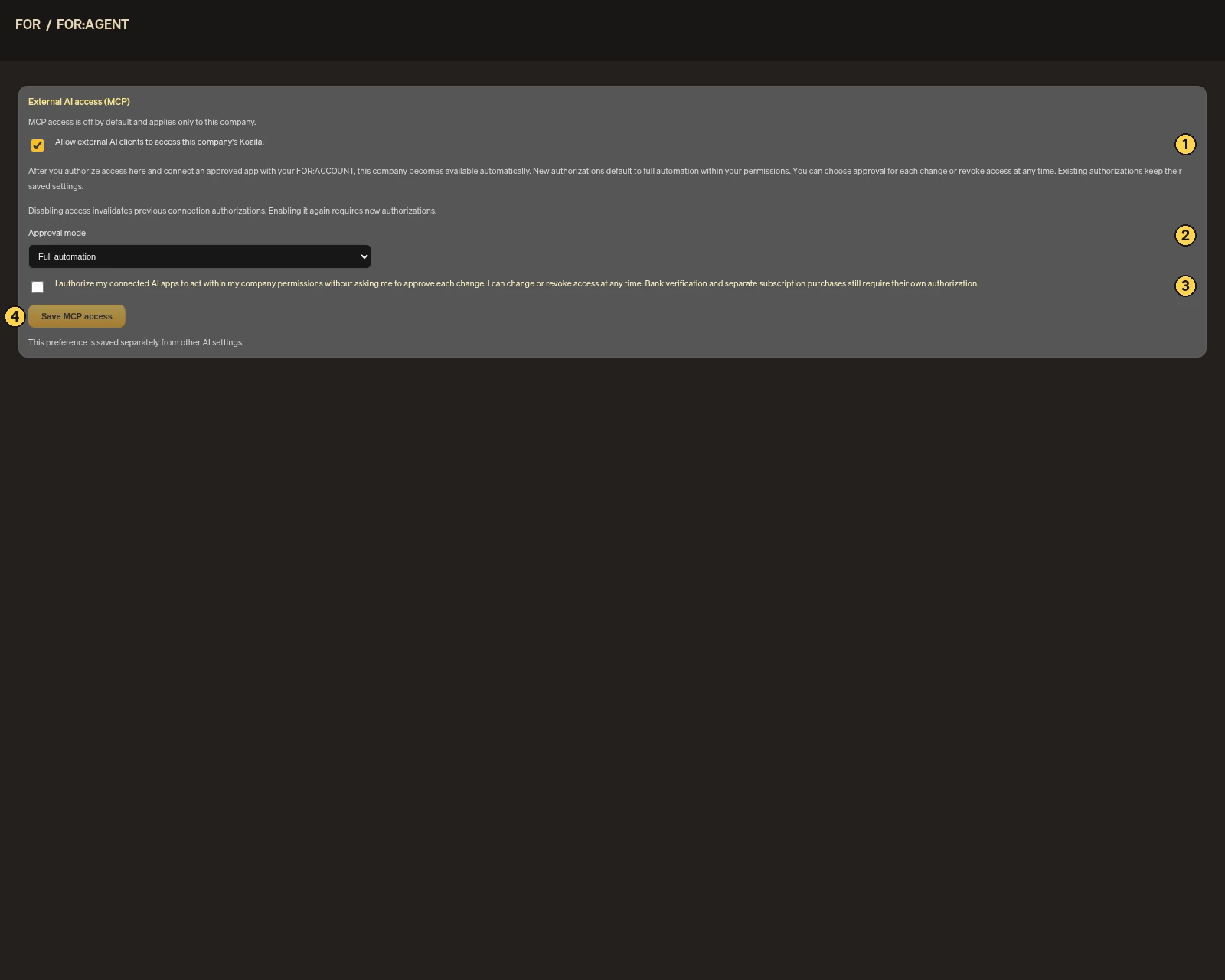
- 1
Allow external AI clients
Company-scoped enablement. Check the company and consent authority before switching it on.
- 2
Full automation / Ask before making changes
Choose how permitted changes are approved. Automation is bounded by your existing company permissions, not unlimited access.
- 3
Authorization checkbox
Read the exact notice for the selected mode before checking it; choosing a mode alone is not the final consent.
- 4
Save MCP access
Disabled in this example. Save this separate preference after explicit confirmation. Saving general AI settings is not equivalent.
How to work here
Let a compatible external AI assistant work with the same native FOR:CEO company, under your current permissions and explicit approval policy.
- Enable access for the exact company only if you are entitled to manage it. Review the consent notice and approval mode; access is initially off.
- New authorizations default to Full automation within your permissions. Choose Ask before making changes if you want individual change approvals. Existing authorizations keep their saved setting.
- Save MCP access separately, connect your approved AI client with your FOR account and confirm the selected company. Do not paste login tokens or private file links into public conversations.
- Describe the business outcome and review the same run until complete, blocked or awaiting approval. For files, use the delivered download link; an expired link requires refresh, not a duplicate invoice.
- Use Manage MCP connections and approvals to review/revoke access. Disabling the company invalidates prior authorizations; enabling again needs new authorization.
Every field and control
Use the exact label or hover over an icon to match it to this reference. A missing action is not the same as an empty field: check its availability below.
Company-scoped enablement. Check the company and consent authority before switching it on.
Availability: Shown when the corresponding workflow and your permissions allow it; review required markers and any disabled-state explanation.
Choose how permitted changes are approved. Automation is bounded by your existing company permissions, not unlimited access.
Availability: Shown when the corresponding workflow and your permissions allow it; review required markers and any disabled-state explanation.
Authorization checkbox
FieldRead the exact notice for the selected mode before checking it; choosing a mode alone is not the final consent.
Availability: Shown when the corresponding workflow and your permissions allow it; review required markers and any disabled-state explanation.
Save MCP access
ActionSave this separate preference after explicit confirmation. Saving general AI settings is not equivalent.
Availability: Only when offered by the current screen, role and saved workflow state. Read any confirmation before proceeding.
Open first-party connection management to inspect authorizations, pending reviews and revocation.
Availability: Only when offered by the current screen, role and saved workflow state. Read any confirmation before proceeding.
Review the exact company, proposed effect and current request before deciding. Approval of one task does not authorize unrelated work.
Availability: Only when offered by the current screen, role and saved workflow state. Read any confirmation before proceeding.
Revoke access
ActionStop the selected authorization through the management screen; review ongoing tasks separately rather than assuming already-completed accounting is undone.
Availability: Only when offered by the current screen, role and saved workflow state. Read any confirmation before proceeding.
Watch the workflow

This recording is temporarily unavailable. Please try again later.
FOR:AGENT / MCP — an authorized external agent operates a native FOR:CEO company.
An external agent creates an invoice
Read the steps
- Through FOR:AGENT and MCP, the external assistant lists authorized companies and finds the requested customer's records.
- The authorized task creates the invoice and returns its PDF. The result explicitly says it was not emailed to the customer.