
Purchase orders
Prepare a purchase commitment for financial/service lines. Use the separate Inventory purchase order when receiving physical stock is part of the process.
Open this screen
Command launcher → Finance → Purchase order. Choose New, Edit/Search or List only as offered.
When it is available
Available to users whose company roles permit this work. Country, subscription, company settings and the saved record's state can narrow the available controls.
QuickBooks connection
In FOR:LEDGER, supported saved accounting records are sent to QuickBooks Online and supported QuickBooks changes are synchronized back to FOR. Opening a list or preparing an unsaved form does not create a QuickBooks transaction. Synchronization is not guaranteed to be immediate or complete: verify the saved document and its status in FOR. FOR remains your accounting system of record under the Terms. FOR:CEO records the same work in FOR only.
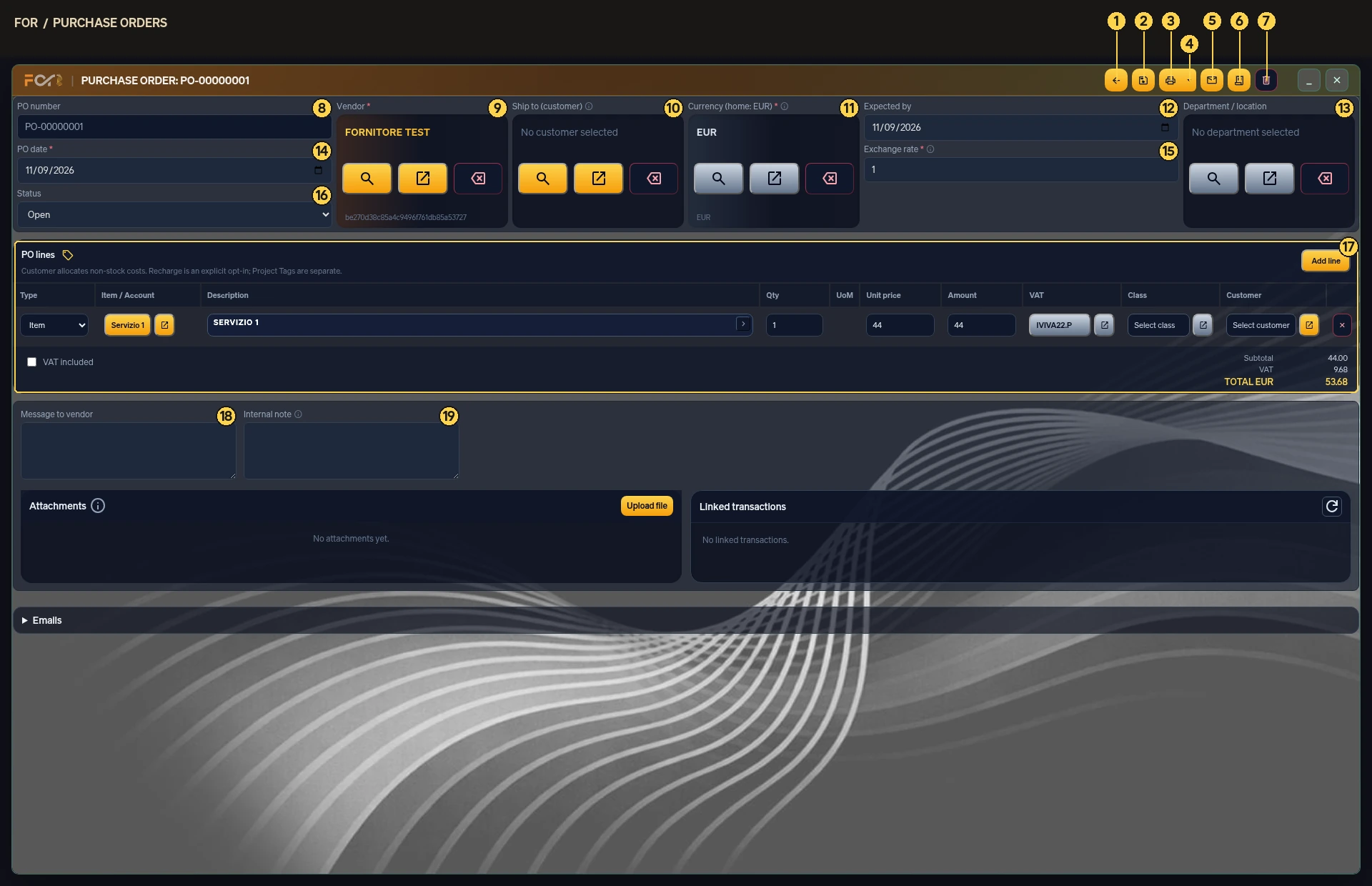
- 1
Back to list · left arrow
Return to the current document list. If the form has unsaved changes, decide explicitly whether to keep working or discard them. Going back is not Save and does not reverse a completed operation.
- 2
Save · disk
Validate and save the current form. On an accounting document this can post the financial transaction; on an operational draft it saves that stage only. Read the success or error message and final number. If the outcome is uncertain, reload/reconcile the same document instead of creating another.
- 3
Print / download PDF
Queue the FOR-generated document PDF using the selected print template and saved commercial values. Follow the Background queue to the completed file. Printing does not send an email or submit an electronic invoice.
- 4
Choose print template · arrow beside Print
Choose Company default or a permitted named template for this saved document. The choice is remembered for subsequent manual prints of this document; it does not change its amounts, replace earlier PDFs or change every document's company default. Open Template Builder only if its separate button is available. An unavailable remembered template must be reviewed rather than silently replaced.
- 5
Send by email · envelope
Open the document email composer, review To/CC/BCC, language, subject, message and included files, then confirm sending. This sends a real message; a PDF preview or a saved draft is not a send.
- 6
Convert to bill
Prepare the linked next-step form from the saved source. Review its source, dates, quantities, units, prices and tax before the new form's explicit Save or confirmation. Unsaved source changes are not an authorized replacement for saved values.
- 7
Delete · trash
Permanently remove an eligible non-posting document after reviewing its identity and confirmation. This is different from deactivating a master record. Do not delete a source merely to hide a completed downstream invoice or order.
- 8
PO number
Review the suggested business number/code before saving. Where numbering is managed, the final saved number is authoritative and may advance if another document used the suggestion. Do not change a number to conceal a duplicate or rewrite history.
- 9
Vendor
Read this saved-record summary before opening the row. Use the full form for the field's context and related documents; a list summary is not an editable posting field.
- 10
Ship to (customer)
Select the existing customer using the lookup, checking the displayed identity and context before choosing. The open-record icon reads the selected record when your role permits it; clear removes only the draft selection, not the referenced record.
- 11
Currency
Check which currency applies to this value. Transaction prices and supplier costs may be in a foreign currency, while stock carrying values and company budgets use the stated home-currency basis. Do not change the currency label to perform a conversion.
- 12
Expected by
Review the actual due/expiry date, not merely the document creation date. It controls the applicable deadline or validity window; changing it does not pay, renew, approve or transmit anything.
- 13
Department / location
Select the existing accounting location using the lookup, checking the displayed identity and context before choosing. The open-record icon reads the selected record when your role permits it; clear removes only the draft selection, not the referenced record.
- 14
PO date
Use the business date described by the caption. Document, registration, planned and actual dates have different meanings; the wrong date can put work in a different reporting or fulfillment period. New transaction dates may start at your local today; always verify imported or copied dates.
- 15
Exchange rate
The quoted rate is home-currency units for one unit of document currency. Review the date and whether the rate is a market reference, a manual choice or the already-recorded rate. An existing document's historical rate must not be silently replaced by today's quote.
- 16
Status
Read the saved lifecycle or review result. Downstream receipts, shipments, payments or approved work may determine it automatically. A status is not proof of a different process: shipped does not mean invoiced, and a prepared preview does not mean posted.
- 17
PO lines
Review whether the row is account-based or product-based, then choose the correct account/item, description, net amount and purchase tax. Customer/recharge fields are additional attribution, not a change to who owes the supplier.
- 18
Message to vendor
Write the message intended to appear on the commercial document. Review spelling, delivery instructions and purchase-order references before printing or emailing; private notes have a different purpose.
- 19
Internal note
Record the business explanation or reference needed to understand this work later. Internal notes are not the customer/vendor message. Keep source references already present and do not put access passwords or payment-card details here.
Complete the task
Prepare a purchase commitment for financial/service lines. Use the separate Inventory purchase order when receiving physical stock is part of the process.
- Select the vendor, order date, expected date, currency and purchase lines. Add the message intended for the vendor separately from internal notes.
- Save and confirm the order using the available native status action. A draft is not a supplier bill and posts no payable.
- Use Convert to bill when the supplier invoice arrives, then verify its own number, date, amounts and due date before saving.
Saved, read-only and unavailable states
The saved record and its source workflow determine which fields can change. Read-only values stay visible for review; they are not broken inputs. Save/discard unsaved edits before an action that requires a clean source. If the result of an operation is uncertain, inspect and reconcile that same operation rather than repeating a new write.
Every field and control
Use the exact label or hover over an icon to match it to this reference. A missing action is not the same as an empty field: check its availability below.
Search · magnifying glass
ActionSearch this company's selected list by the visible document number, business name or descriptive words. Confirm the active company first. Search results do not widen your role permissions; clear the search to return to the ordinary filtered list.
Availability: List and lookup views. A source-specific picker can intentionally offer fewer records than the full list.
Include retained inactive/completed records when the list offers this control. Open order views exclude Draft, Closed and Cancelled; completed pick/pack tasks are normally found through Show inactive. Historical visibility does not reactivate or reopen a record.
Availability: Only when the list supports inactive or lifecycle filtering; choices depend on the document type.
Previous / Next / page size
ActionMove through the current filtered result set. The count refers to those filters, not the whole company. Changing filters starts a new result set; a short page does not by itself prove that unrelated records do not exist.
Availability: Paged lists; Previous/Next is disabled when no page exists in that direction.
Open a row
ActionSelect the record's main name/number to open its form. Email and phone links have their own communication actions. A linked count or financial balance can open the corresponding transaction rail rather than edit that total.
Availability: Requires permission to open the record. Reference-only roles receive only the permitted context.
Back to list · left arrow
ActionReturn to the current document list. If the form has unsaved changes, decide explicitly whether to keep working or discard them. Going back is not Save and does not reverse a completed operation.
Availability: Ordinary forms; a guided batch or specialized workflow can manage navigation itself.
Minimize · minus
ActionKeep this workspace open as a colored taskbar tile. Select that tile to restore the same window. Minimizing is not Save and does not cancel an operation already submitted.
Availability: Hosted workspace windows.
Close window · X
ActionClose this window, not the underlying record. Respect any unsaved-change or unfinished-operation warning. Closing a window never reverses a posted document, dispatched shipment or sent email.
Availability: Hosted workspace windows; an active workflow can require waiting or confirming navigation.
New · plus
ActionOpen a new form in the selected company. Check required identity fields, default date, currency and number before entering details. Opening a form is not confirmation of a completed transaction.
Availability: Only for records that can be authored directly and for users with create permission. System activity records have no standalone New.
Save · disk
ActionValidate and save the current form. On an accounting document this can post the financial transaction; on an operational draft it saves that stage only. Read the success or error message and final number. If the outcome is uncertain, reload/reconcile the same document instead of creating another.
Availability: Editable records with write permission; disabled while loading/saving or when a required dependency is unresolved.
Print / download PDF
ActionQueue the FOR-generated document PDF using the selected print template and saved commercial values. Follow the Background queue to the completed file. Printing does not send an email or submit an electronic invoice.
Availability: Saved printable records. Native estimate/purchase-order lifecycle can require the appropriate sent/confirmed state; saved-only documents require saving edits first.
Choose Company default or a permitted named template for this saved document. The choice is remembered for subsequent manual prints of this document; it does not change its amounts, replace earlier PDFs or change every document's company default. Open Template Builder only if its separate button is available. An unavailable remembered template must be reviewed rather than silently replaced.
Availability: Saved supported documents when template customization is enabled for the company. Choosing a template requires permission; reading or printing a document does not grant template-authoring access.
Send by email · envelope
ActionOpen the document email composer and review To/CC/BCC and Message before confirming. The subject comes from the document; PDF language and included saved files follow the document's own settings. This sends a real message; a PDF preview or saved draft is not a send.
Availability: Only the document types and company settings offering email. In FOR:LEDGER, not every QuickBooks financial form has email; supported invoice/credit and operational actions use FOR delivery.
Delete · trash
ActionPermanently remove an eligible non-posting document after reviewing its identity and confirmation. This is different from deactivating a master record. Do not delete a source merely to hide a completed downstream invoice or order.
Availability: Saved eligible editable documents; dependencies, native lifecycle and company permissions can block deletion.
Open eligible choices for this exact field. Search by code/name and inspect the secondary description and badges. Product code matches take priority; Inventory, Non-inventory and Internal only explain eligibility, not interchangeable products.
Availability: Reference fields. Results can depend on customer/supplier, currency, warehouse, source line, active status and your role.
Open selected record
ActionOpen the selected customer, supplier, product, account or source document in its own workspace. Its category color follows the destination. This is navigation, not confirmation of the unsaved current form.
Availability: A resolved reference and permission to open it are required; read-only reference access does not grant master editing.
Clear selection · X
ActionRemove an editable field's current selection. It does not delete the referenced customer/product/document. Changing a party, currency or control account can require confirmation before incompatible draft applications are cleared.
Availability: Only editable, clearable selections; source-owned or required locked references stay protected.
Add row · plus
ActionAdd another editable row to the current document or collection. Select its product/account/source before quantities and values. Adding an empty row does not create the referenced master or post a separate transaction.
Availability: Editable line grids only; received electronic bills, consumed lines and source-owned activity grids may not offer it.
Remove row · minus / trash
ActionRemove an eligible draft row after checking its amount and links. It does not reverse stock already moved or amounts already invoiced. In a draft stock count, minus excludes a row from the count rather than counting it as zero.
Availability: Only where removal is offered and the row is not protected by downstream activity or source evidence.
Choose a supported evidence file, wait for upload completion and review its name before saving. Ordinary form files are limited to 25 MB each. A file upload alone is not a new accounting document or successful email.
Availability: Editable attachment panels. Protected original electronic documents have a separate read-only file area.
Open / download attachment
ActionRead the selected file belonging to this document. Generated invoice PDF, supplier-original attachments and your manually uploaded files can be different files. A pending or failed retrieval is not the same as no attachment.
Availability: Available files and authorized document access. Reading does not modify the bill, trigger a new receipt or resend email.
Remove attachment
ActionRemove only an editable file association after checking that the evidence is no longer required. This does not delete the financial document; protected received originals cannot be removed through this control.
Availability: Only removable, non-protected attachments on an editable form.
Convert to bill
ActionPrepare the linked next-step form from the saved source. Review its source, dates, quantities, units, prices and tax before the new form's explicit Save or confirmation. Unsaved source changes are not an authorized replacement for saved values.
Availability: Saved source and permission to create/open the destination. Read any source-status or remaining-quantity warning.
PO #
ColumnRead this saved-record summary before opening the row. Use the full form for the field's context and related documents; a list summary is not an editable posting field.
Availability: Read-only display; inspect the originating workflow to change its result.
Date
ColumnUse the business date described by the caption. Document, registration, planned and actual dates have different meanings; the wrong date can put work in a different reporting or fulfillment period. New transaction dates may start at your local today; always verify imported or copied dates.
Availability: Read-only display; inspect the originating workflow to change its result.
Vendor
ColumnRead this saved-record summary before opening the row. Use the full form for the field's context and related documents; a list summary is not an editable posting field.
Availability: Read-only display; inspect the originating workflow to change its result.
Status
ColumnRead the saved lifecycle or review result. Downstream receipts, shipments, payments or approved work may determine it automatically. A status is not proof of a different process: shipped does not mean invoiced, and a prepared preview does not mean posted.
Availability: Read-only display; inspect the originating workflow to change its result.
Total
ColumnRead the calculated/saved amount and its currency. Total is the document value, tax is its tax component, and balance/remaining credit is what is still available after applications. A displayed zero is different from an unavailable value; do not overwrite a result to force reconciliation.
Availability: Read-only display; inspect the originating workflow to change its result.
Currency
ColumnCheck which currency applies to this value. Transaction prices and supplier costs may be in a foreign currency, while stock carrying values and company budgets use the stated home-currency basis. Do not change the currency label to perform a conversion.
Availability: Read-only display; inspect the originating workflow to change its result.
PO number
FieldReview the suggested business number/code before saving. Where numbering is managed, the final saved number is authoritative and may advance if another document used the suggestion. Do not change a number to conceal a duplicate or rewrite history.
Availability: Editable only when your role, document state and the source workflow allow it; not every country or document variant shows this field. Maximum 21 characters.
PO date
FieldUse the business date described by the caption. Document, registration, planned and actual dates have different meanings; the wrong date can put work in a different reporting or fulfillment period. New transaction dates may start at your local today; always verify imported or copied dates.
Availability: Required when this field is offered for an editable record.
Status
FieldRead the saved lifecycle or review result. Downstream receipts, shipments, payments or approved work may determine it automatically. A status is not proof of a different process: shipped does not mean invoiced, and a prepared preview does not mean posted. Choices: Open; Closed.
Availability: Editable only when your role, document state and the source workflow allow it; not every country or document variant shows this field.
Vendor
FieldSelect the existing supplier using the lookup, checking the displayed identity and context before choosing. The open-record icon reads the selected record when your role permits it; clear removes only the draft selection, not the referenced record.
Availability: Required when this field is offered for an editable record. Lookup results are limited to eligible records; a read-only lookup grants no editing permission.
Ship to (customer)
FieldSelect the existing customer using the lookup, checking the displayed identity and context before choosing. The open-record icon reads the selected record when your role permits it; clear removes only the draft selection, not the referenced record.
Availability: Editable only when your role, document state and the source workflow allow it; not every country or document variant shows this field. Lookup results are limited to eligible records; a read-only lookup grants no editing permission.
Currency
FieldCheck which currency applies to this value. Transaction prices and supplier costs may be in a foreign currency, while stock carrying values and company budgets use the stated home-currency basis. Do not change the currency label to perform a conversion.
Availability: Editable only when your role, document state and the source workflow allow it; not every country or document variant shows this field. Lookup results are limited to eligible records; a read-only lookup grants no editing permission.
Expected by
FieldReview the actual due/expiry date, not merely the document creation date. It controls the applicable deadline or validity window; changing it does not pay, renew, approve or transmit anything.
Availability: Editable only when your role, document state and the source workflow allow it; not every country or document variant shows this field.
Exchange rate
FieldThe quoted rate is home-currency units for one unit of document currency. Review the date and whether the rate is a market reference, a manual choice or the already-recorded rate. An existing document's historical rate must not be silently replaced by today's quote.
Availability: Editable only when your role, document state and the source workflow allow it; not every country or document variant shows this field.
PO lines
FieldReview whether the row is account-based or product-based, then choose the correct account/item, description, net amount and purchase tax. Customer/recharge fields are additional attribution, not a change to who owes the supplier.
Availability: Editable only when your role, document state and the source workflow allow it; not every country or document variant shows this field.
Department / location
FieldSelect the existing accounting location using the lookup, checking the displayed identity and context before choosing. The open-record icon reads the selected record when your role permits it; clear removes only the draft selection, not the referenced record.
Availability: Editable only when your role, document state and the source workflow allow it; not every country or document variant shows this field. Lookup results are limited to eligible records; a read-only lookup grants no editing permission.
Class
FieldSelect the existing class using the lookup, checking the displayed identity and context before choosing. The open-record icon reads the selected record when your role permits it; clear removes only the draft selection, not the referenced record.
Availability: Editable only when your role, document state and the source workflow allow it; not every country or document variant shows this field. Lookup results are limited to eligible records; a read-only lookup grants no editing permission.
Total
FieldRead the calculated/saved amount and its currency. Total is the document value, tax is its tax component, and balance/remaining credit is what is still available after applications. A displayed zero is different from an unavailable value; do not overwrite a result to force reconciliation.
Availability: Read-only display; inspect the originating workflow to change its result.
Tax calculation
FieldFor eligible non-US documents, Tax excluded treats entered prices as net and adds tax; Tax inclusive treats entered prices as gross. Review the displayed net/tax breakdown before saving. US purchase forms do not offer this VAT-inclusion switch. Choices: Tax excluded; Tax inclusive; Not applicable.
Availability: Editable only when your role, document state and the source workflow allow it; not every country or document variant shows this field.
Message to vendor
FieldWrite the message intended to appear on the commercial document. Review spelling, delivery instructions and purchase-order references before printing or emailing; private notes have a different purpose.
Availability: Editable only when your role, document state and the source workflow allow it; not every country or document variant shows this field. Maximum 4000 characters.
Internal note
FieldRecord the business explanation or reference needed to understand this work later. Internal notes are not the customer/vendor message. Keep source references already present and do not put access passwords or payment-card details here.
Availability: Editable only when your role, document state and the source workflow allow it; not every country or document variant shows this field. Maximum 4000 characters.
Add the relevant evidence files and verify their names before saving. Open/download reads the selected file; removing an editable attachment removes that association, not the original financial transaction. Protected received electronic files are read-only and cannot be removed from this panel.
Availability: Editable only when your role, document state and the source workflow allow it; not every country or document variant shows this field. FOR:CEO only.
Choose product-based or account-based entry only where allowed. Account lines use a selected account and amount; item lines use product quantities and unit prices. Source-owned VAT allocation rows cannot be converted freely.
Availability: Shown when the corresponding workflow and your permissions allow it; review required markers and any disabled-state explanation.
Lines · Item / Account
FieldSelect the correct cost/product. The bill account picker normally offers Expense, Other Expense and Cost of Goods Sold; Advanced users can explicitly reveal other eligible active types. Review the warning before choosing an asset/prepayment account.
Availability: Shown when the corresponding workflow and your permissions allow it; review required markers and any disabled-state explanation.
Review each physical and financial value. Account-based lines need the amount rather than an invented product quantity; received electronic lines preserve source descriptions and commercial amounts.
Availability: Shown when the corresponding workflow and your permissions allow it; review required markers and any disabled-state explanation.
Choose compatible purchase tax and optional financial attribution. Customer assignment applies to non-stock costs and does not turn the supplier bill into a customer invoice; project tags are separate.
Availability: Shown when the corresponding workflow and your permissions allow it; review required markers and any disabled-state explanation.
Apply the offered source row's compatible VAT treatment only to the matching eligible group. Review the resulting split and rates; it is not permission to flatten legally different tax treatments.
Availability: Only when offered by the current screen, role and saved workflow state. Read any confirmation before proceeding.
Watch the workflow

This recording is temporarily unavailable. Please try again later.
Shared workflow
Create a service purchase order
Read the steps
- Prepare a supplier order for services, with the agreed lines, amounts and commercial references.

This recording is temporarily unavailable. Please try again later.
Shared workflow
Create a bill from a service order
Read the steps
- Use the saved purchase order to prepare the supplier bill, retaining its source lines and references.