
Downtime events
Inspect recorded interruptions and their duration in the production context. Workflow pauses create their own downtime history.
Open this screen
Command launcher → Manufacturing → Downtime event. Choose New, Edit/Search or List only as offered.
When it is available
Available to users whose company roles permit this work. Country, subscription, company settings and the saved record's state can narrow the available controls.
QuickBooks connection
The operational document and its quantities are maintained in FOR, not as a QuickBooks inventory workflow. In FOR:LEDGER, a linked invoice, bill or payment is the supported accounting step written to QuickBooks; a stock receipt or shipment is not by itself another QuickBooks financial document. Do not create a duplicate accounting document for a completed linked step. FOR:CEO keeps the operation and its supported inventory-value accounting in FOR.
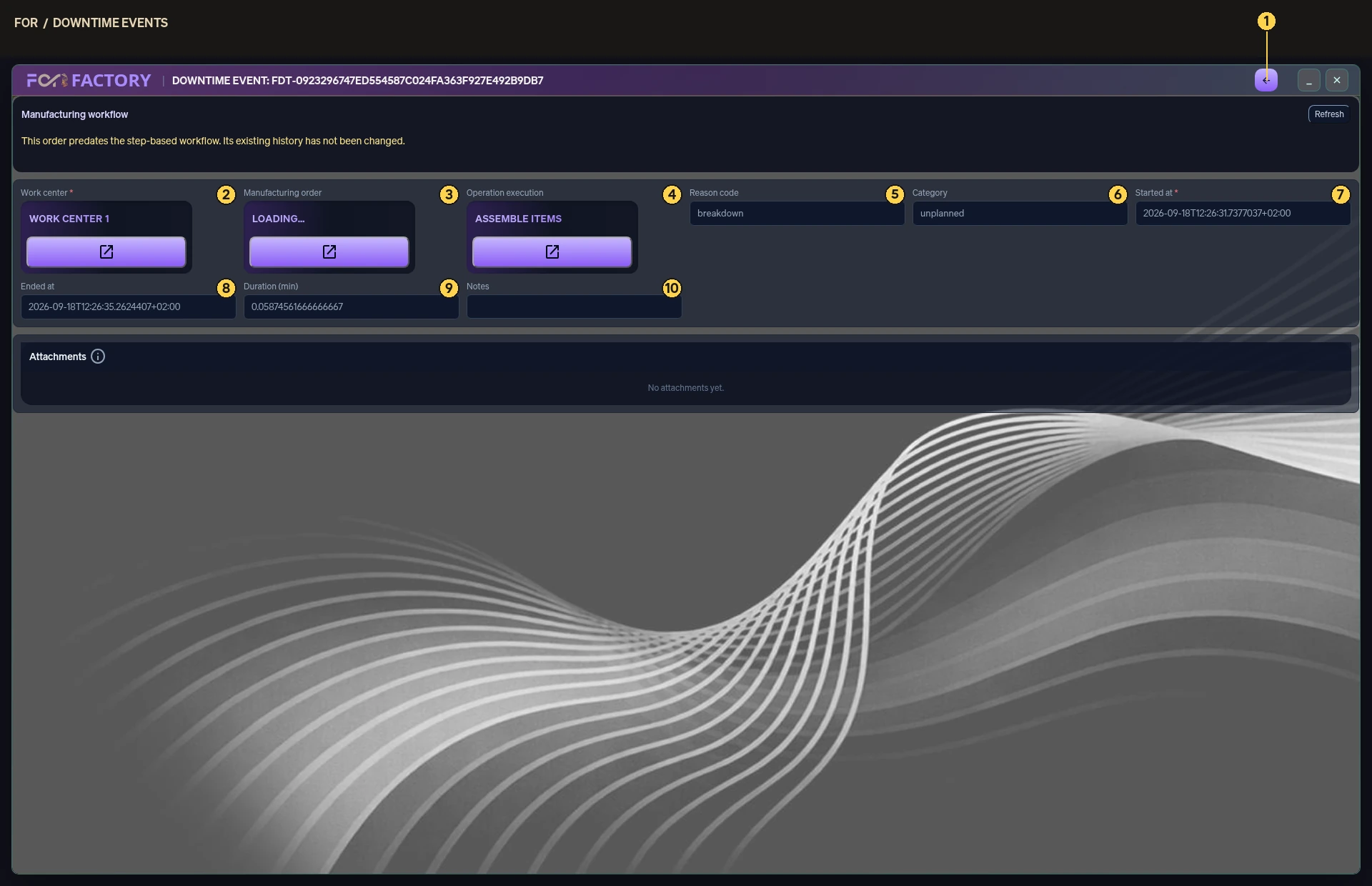
- 1
Back to list · left arrow
Return to the current document list. If the form has unsaved changes, decide explicitly whether to keep working or discard them. Going back is not Save and does not reverse a completed operation.
- 2
Work center
Read this saved-record summary before opening the row. Use the full form for the field's context and related documents; a list summary is not an editable posting field.
- 3
Manufacturing order
Select the existing manufacturing order using the lookup, checking the displayed identity and context before choosing. The open-record icon reads the selected record when your role permits it; clear removes only the draft selection, not the referenced record.
- 4
Operation execution
Select the existing operation execution using the lookup, checking the displayed identity and context before choosing. The open-record icon reads the selected record when your role permits it; clear removes only the draft selection, not the referenced record.
- 5
Reason code
Record the business explanation or reference needed to understand this work later. Internal notes are not the customer/vendor message. Keep source references already present and do not put access passwords or payment-card details here. Choices: Breakdown; Setup; Changeover; Material shortage; No operator; Quality; Planned maintenance; Other.
- 6
Category
Choose the actual business case shown by the available choices, such as purchase receiving versus customer return, material issue versus return, or good output versus scrap. Review the source and quantity controls after changing it; the cases have different stock and valuation effects. Choices: Planned; Unplanned.
- 7
Started at
Use the business date described by the caption. Document, registration, planned and actual dates have different meanings; the wrong date can put work in a different reporting or fulfillment period. New transaction dates may start at your local today; always verify imported or copied dates.
- 8
Ended at
Use the business date described by the caption. Document, registration, planned and actual dates have different meanings; the wrong date can put work in a different reporting or fulfillment period. New transaction dates may start at your local today; always verify imported or copied dates.
- 9
Duration (min)
Read the explicit planning/time unit and distinguish planned duration from recorded activity. Production Start/Pause/Resume owns actual timers. These planning/rate fields do not imply that all labor and overhead are automatically absorbed into inventory value.
- 10
Notes
Record the business explanation or reference needed to understand this work later. Internal notes are not the customer/vendor message. Keep source references already present and do not put access passwords or payment-card details here.
Complete the task
Inspect recorded interruptions and their duration in the production context. Workflow pauses create their own downtime history.
- Open the event from production history and verify order, work center, start/end and reason.
- Use reporting to compare durations; a downtime record does not itself change manufactured quantities.
- For a live operation, use Pause/Resume instead of inserting a disconnected downtime record.
Saved, read-only and unavailable states
The saved record and its source workflow determine which fields can change. Read-only values stay visible for review; they are not broken inputs. Save/discard unsaved edits before an action that requires a clean source. If the result of an operation is uncertain, inspect and reconcile that same operation rather than repeating a new write.
Every field and control
Use the exact label or hover over an icon to match it to this reference. A missing action is not the same as an empty field: check its availability below.
Search · magnifying glass
ActionSearch this company's selected list by the visible document number, business name or descriptive words. Confirm the active company first. Search results do not widen your role permissions; clear the search to return to the ordinary filtered list.
Availability: List and lookup views. A source-specific picker can intentionally offer fewer records than the full list.
Include retained inactive/completed records when the list offers this control. Open order views exclude Draft, Closed and Cancelled; completed pick/pack tasks are normally found through Show inactive. Historical visibility does not reactivate or reopen a record.
Availability: Only when the list supports inactive or lifecycle filtering; choices depend on the document type.
Previous / Next / page size
ActionMove through the current filtered result set. The count refers to those filters, not the whole company. Changing filters starts a new result set; a short page does not by itself prove that unrelated records do not exist.
Availability: Paged lists; Previous/Next is disabled when no page exists in that direction.
Open a row
ActionSelect the record's main name/number to open its form. Email and phone links have their own communication actions. A linked count or financial balance can open the corresponding transaction rail rather than edit that total.
Availability: Requires permission to open the record. Reference-only roles receive only the permitted context.
Back to list · left arrow
ActionReturn to the current document list. If the form has unsaved changes, decide explicitly whether to keep working or discard them. Going back is not Save and does not reverse a completed operation.
Availability: Ordinary forms; a guided batch or specialized workflow can manage navigation itself.
Minimize · minus
ActionKeep this workspace open as a colored taskbar tile. Select that tile to restore the same window. Minimizing is not Save and does not cancel an operation already submitted.
Availability: Hosted workspace windows.
Close window · X
ActionClose this window, not the underlying record. Respect any unsaved-change or unfinished-operation warning. Closing a window never reverses a posted document, dispatched shipment or sent email.
Availability: Hosted workspace windows; an active workflow can require waiting or confirming navigation.
Open eligible choices for this exact field. Search by code/name and inspect the secondary description and badges. Product code matches take priority; Inventory, Non-inventory and Internal only explain eligibility, not interchangeable products.
Availability: Reference fields. Results can depend on customer/supplier, currency, warehouse, source line, active status and your role.
Open selected record
ActionOpen the selected customer, supplier, product, account or source document in its own workspace. Its category color follows the destination. This is navigation, not confirmation of the unsaved current form.
Availability: A resolved reference and permission to open it are required; read-only reference access does not grant master editing.
Clear selection · X
ActionRemove an editable field's current selection. It does not delete the referenced customer/product/document. Changing a party, currency or control account can require confirmation before incompatible draft applications are cleared.
Availability: Only editable, clearable selections; source-owned or required locked references stay protected.
Choose a supported evidence file, wait for upload completion and review its name before saving. Ordinary form files are limited to 25 MB each. A file upload alone is not a new accounting document or successful email.
Availability: Editable attachment panels. Protected original electronic documents have a separate read-only file area.
Open / download attachment
ActionRead the selected file belonging to this document. Generated invoice PDF, supplier-original attachments and your manually uploaded files can be different files. A pending or failed retrieval is not the same as no attachment.
Availability: Available files and authorized document access. Reading does not modify the bill, trigger a new receipt or resend email.
Remove attachment
ActionRemove only an editable file association after checking that the evidence is no longer required. This does not delete the financial document; protected received originals cannot be removed through this control.
Availability: Only removable, non-protected attachments on an editable form.
Work center
ColumnRead this saved-record summary before opening the row. Use the full form for the field's context and related documents; a list summary is not an editable posting field.
Availability: Read-only display; inspect the originating workflow to change its result.
Reason
ColumnRecord the business explanation or reference needed to understand this work later. Internal notes are not the customer/vendor message. Keep source references already present and do not put access passwords or payment-card details here.
Availability: Read-only display; inspect the originating workflow to change its result.
Started
ColumnUse the business date described by the caption. Document, registration, planned and actual dates have different meanings; the wrong date can put work in a different reporting or fulfillment period. New transaction dates may start at your local today; always verify imported or copied dates.
Availability: Read-only display; inspect the originating workflow to change its result.
Ended
ColumnUse the business date described by the caption. Document, registration, planned and actual dates have different meanings; the wrong date can put work in a different reporting or fulfillment period. New transaction dates may start at your local today; always verify imported or copied dates.
Availability: Read-only display; inspect the originating workflow to change its result.
Min
ColumnRead this saved-record summary before opening the row. Use the full form for the field's context and related documents; a list summary is not an editable posting field.
Availability: Read-only display; inspect the originating workflow to change its result.
Work center
FieldSelect the existing active work center using the lookup, checking the displayed identity and context before choosing. The open-record icon reads the selected record when your role permits it; clear removes only the draft selection, not the referenced record.
Availability: Read-only display; inspect the originating workflow to change its result. Lookup results are limited to eligible records; a read-only lookup grants no editing permission.
Manufacturing order
FieldSelect the existing manufacturing order using the lookup, checking the displayed identity and context before choosing. The open-record icon reads the selected record when your role permits it; clear removes only the draft selection, not the referenced record.
Availability: Read-only display; inspect the originating workflow to change its result. Lookup results are limited to eligible records; a read-only lookup grants no editing permission.
Operation execution
FieldSelect the existing operation execution using the lookup, checking the displayed identity and context before choosing. The open-record icon reads the selected record when your role permits it; clear removes only the draft selection, not the referenced record.
Availability: Read-only display; inspect the originating workflow to change its result. Lookup results are limited to eligible records; a read-only lookup grants no editing permission.
Reason code
FieldRecord the business explanation or reference needed to understand this work later. Internal notes are not the customer/vendor message. Keep source references already present and do not put access passwords or payment-card details here. Choices: Breakdown; Setup; Changeover; Material shortage; No operator; Quality; Planned maintenance; Other.
Availability: Read-only display; inspect the originating workflow to change its result.
Category
FieldChoose the actual business case shown by the available choices, such as purchase receiving versus customer return, material issue versus return, or good output versus scrap. Review the source and quantity controls after changing it; the cases have different stock and valuation effects. Choices: Planned; Unplanned.
Availability: Read-only display; inspect the originating workflow to change its result.
Started at
FieldUse the business date described by the caption. Document, registration, planned and actual dates have different meanings; the wrong date can put work in a different reporting or fulfillment period. New transaction dates may start at your local today; always verify imported or copied dates.
Availability: Read-only display; inspect the originating workflow to change its result.
Ended at
FieldUse the business date described by the caption. Document, registration, planned and actual dates have different meanings; the wrong date can put work in a different reporting or fulfillment period. New transaction dates may start at your local today; always verify imported or copied dates.
Availability: Read-only display; inspect the originating workflow to change its result.
Duration (min)
FieldRead the explicit planning/time unit and distinguish planned duration from recorded activity. Production Start/Pause/Resume owns actual timers. These planning/rate fields do not imply that all labor and overhead are automatically absorbed into inventory value.
Availability: Read-only display; inspect the originating workflow to change its result.
Notes
FieldRecord the business explanation or reference needed to understand this work later. Internal notes are not the customer/vendor message. Keep source references already present and do not put access passwords or payment-card details here.
Availability: Read-only display; inspect the originating workflow to change its result. Maximum 4000 characters.
Add the relevant evidence files and verify their names before saving. Open/download reads the selected file; removing an editable attachment removes that association, not the original financial transaction. Protected received electronic files are read-only and cannot be removed from this panel.
Availability: Read-only display; inspect the originating workflow to change its result. FOR:CEO only.
End downtime
ActionClose only the active work-center downtime when this action is offered. Historical operation-pause events remain read-only.
Availability: Only when offered by the current screen, role and saved workflow state. Read any confirmation before proceeding.