
Fixed Assets import
Bring verified asset identities, original cost, service dates and independent book/tax residual evidence into reviewed draft plans.
Open this screen
FOR:DATA → the matching guided category.
When it is available
Available to users whose company roles permit this work. Country, subscription, company settings and the saved record's state can narrow the available controls.
QuickBooks connection
This screen prepares or displays work in FOR; opening it does not write to QuickBooks. Where a later step creates an accounting document, that step is identified separately. FOR:CEO never sends its accounting entries to QuickBooks.
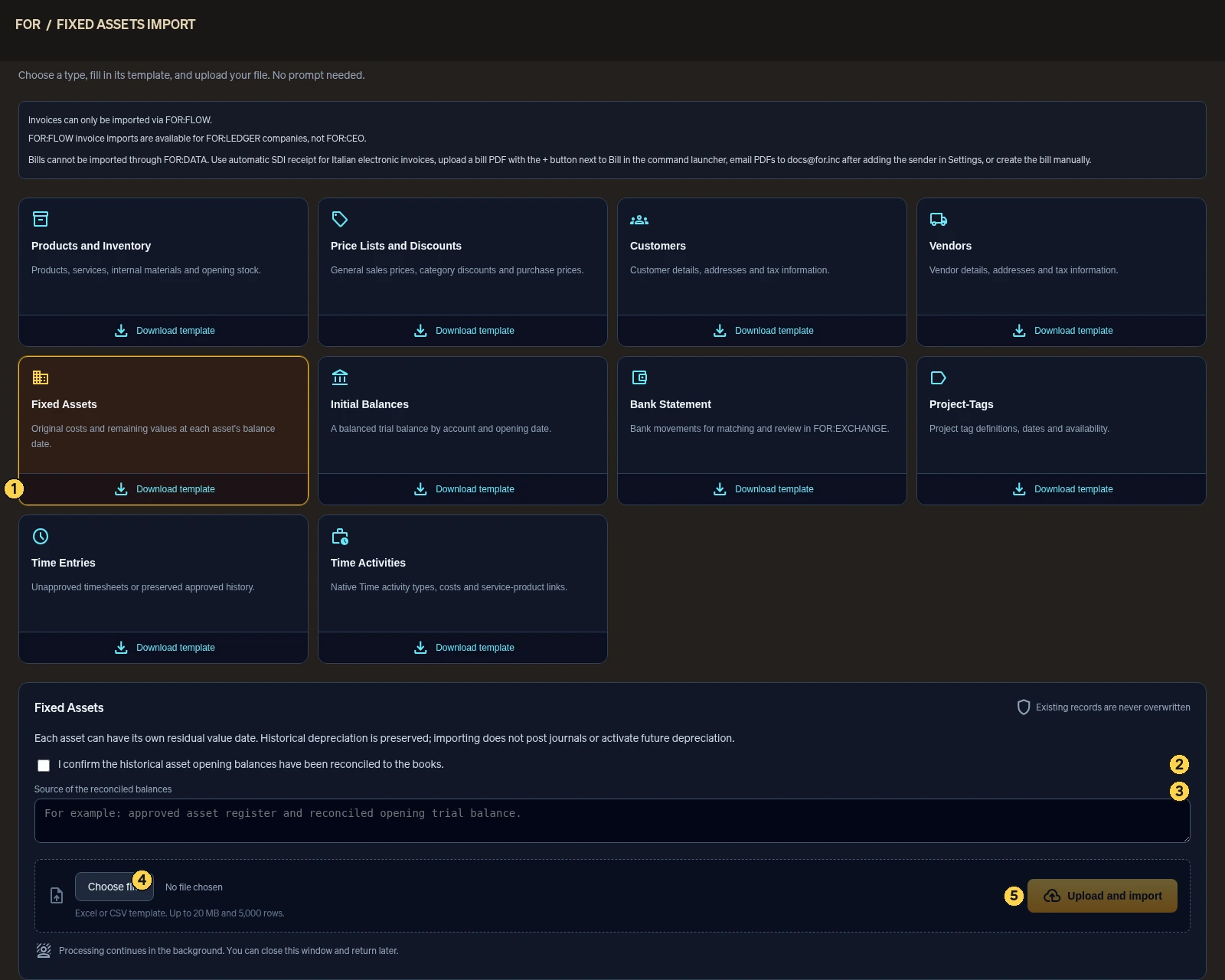
- 1
Download template
Download this category's current workbook for the selected company. Use its Import sheet and preserve the header names; Instructions and References explain accepted values.
- 2
I confirm the historical asset opening balances have been reconciled to the books.
Confirm only after reconciling the source asset register and opening accounts. Import does not perform that reconciliation for you.
- 3
Source of the reconciled balances
Identify the approved register and opening-balance evidence. A vague note is not a substitute for verified historical values.
- 4
Choose file
Choose one completed .xlsx or exact-template CSV, up to 20 MB and 5,000 rows. Selecting a file alone does not start import.
- 5
Upload and import
Disabled in this example. Start the reviewed file only when its required choices are complete. Stock and Time files can require an additional explicit confirmation before work starts.
How to work here
Bring verified asset identities, original cost, service dates and independent book/tax residual evidence into reviewed draft plans.
- Use the template's per-asset Residual value date, remaining book value and optional tax values.
- Confirm reconciled opening balances and their source. Zero and unknown are not interchangeable.
- Inspect all blocked rows before approval. Import creates no acquisition or historical journals and does not activate future depreciation.
Every field and control
Use the exact label or hover over an icon to match it to this reference. A missing action is not the same as an empty field: check its availability below.
Download template
ActionDownload this category's current workbook for the selected company. Use its Import sheet and preserve the header names; Instructions and References explain accepted values.
Availability: Only when offered by the current screen, role and saved workflow state. Read any confirmation before proceeding.
Choose file
ActionChoose one completed .xlsx or exact-template CSV, up to 20 MB and 5,000 rows. Selecting a file alone does not start import.
Availability: Only when offered by the current screen, role and saved workflow state. Read any confirmation before proceeding.
Upload and import
ActionStart the reviewed file only when its required choices are complete. Stock and Time files can require an additional explicit confirmation before work starts.
Availability: Only when offered by the current screen, role and saved workflow state. Read any confirmation before proceeding.
Refresh import status
ActionRead the same background import's progress and per-row results. Do not upload renamed copies to escape a blocked or uncertain row.
Availability: Only when offered by the current screen, role and saved workflow state. Read any confirmation before proceeding.
Import file
FieldSelect the prior upload to inspect. Its filename, status and row count refer to that run, not every file in the company.
Availability: Shown when the corresponding workflow and your permissions allow it; review required markers and any disabled-state explanation.
Row
FieldThe source workbook/CSV row used to locate an accepted, skipped or rejected entry.
Availability: Shown when the corresponding workflow and your permissions allow it; review required markers and any disabled-state explanation.
Record
FieldThe source business identity for this row. Open a returned created-record link to inspect the actual result.
Availability: Shown when the corresponding workflow and your permissions allow it; review required markers and any disabled-state explanation.
Status
FieldDistinguish queued/processing, created, existing/skipped, failed and needs-review results. A finished upload may still contain unresolved rows.
Availability: Shown when the corresponding workflow and your permissions allow it; review required markers and any disabled-state explanation.
Details
FieldRead the row-specific validation or result before correcting the source. Missing required references are not silently created.
Availability: Shown when the corresponding workflow and your permissions allow it; review required markers and any disabled-state explanation.
Previous
ActionRead the preceding page of up to 50 row results.
Availability: Only when offered by the current screen, role and saved workflow state. Read any confirmation before proceeding.
Next
ActionRead the next result page; the visible page alone is not the entire import.
Availability: Only when offered by the current screen, role and saved workflow state. Read any confirmation before proceeding.
Confirm only after reconciling the source asset register and opening accounts. Import does not perform that reconciliation for you.
Availability: Shown when the corresponding workflow and your permissions allow it; review required markers and any disabled-state explanation.
Identify the approved register and opening-balance evidence. A vague note is not a substitute for verified historical values.
Availability: Shown when the corresponding workflow and your permissions allow it; review required markers and any disabled-state explanation.