
Stock details and locations
Read product quantities in a clear warehouse scope before promising, purchasing or moving stock.
Open this screen
Inventory product list/form, or the stock-information icon on an eligible product/order line.
When it is available
Available to users whose company roles permit this work. Country, subscription, company settings and the saved record's state can narrow the available controls.
QuickBooks connection
This screen prepares or displays work in FOR; opening it does not write to QuickBooks. Where a later step creates an accounting document, that step is identified separately. FOR:CEO never sends its accounting entries to QuickBooks.
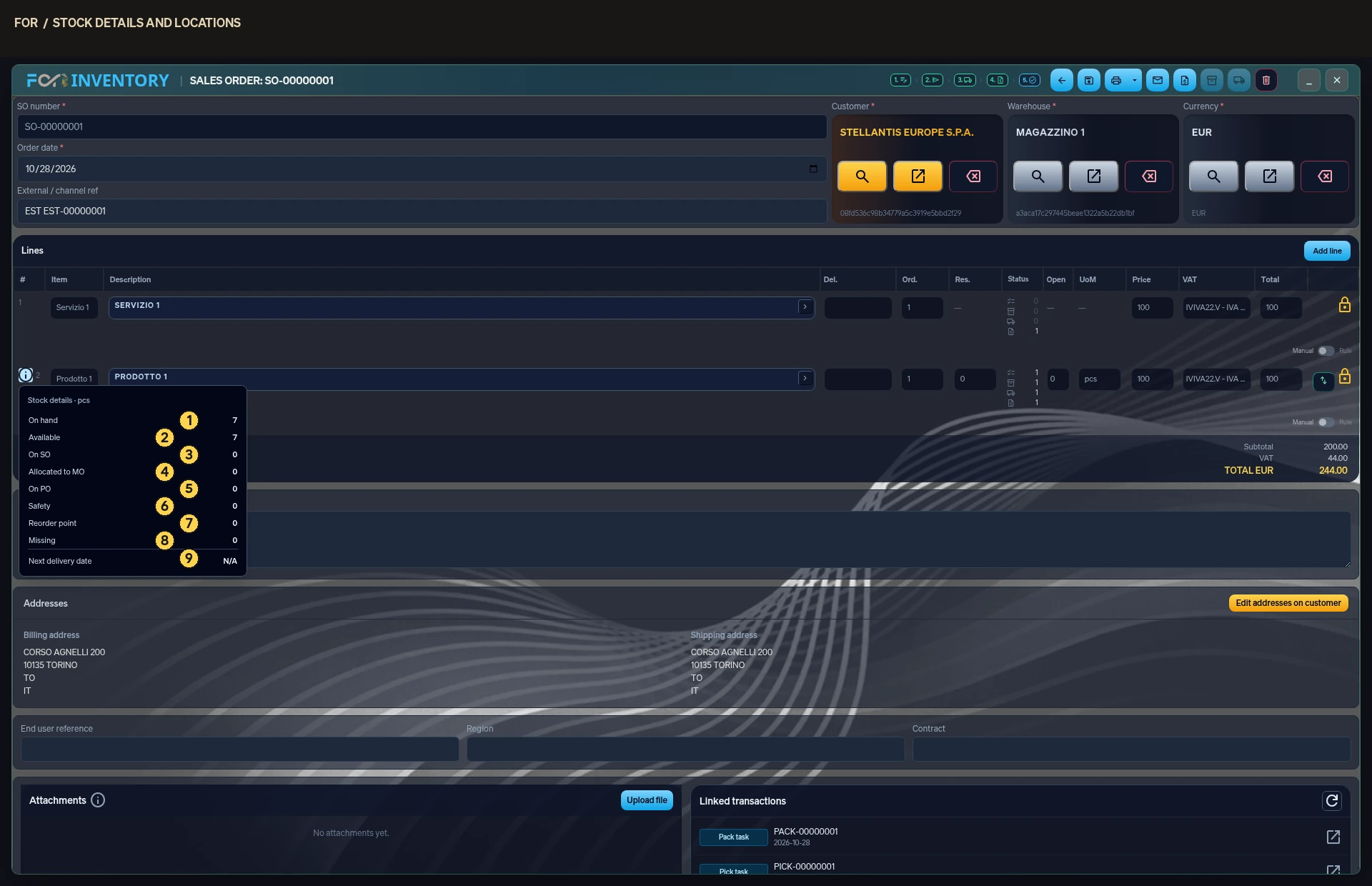
- 1
OH · On hand
Physical stock currently held in the selected scope, not necessarily free to promise.
- 2
AV · Available
Stock remaining available after the applicable commitments and eligibility rules. Check the selected order's own-reservation context.
- 3
SO / On SO
Active sales-order stock demand in the selected scope.
- 4
MO / Allocated to MO
Active unissued material reservations for manufacturing, not expected finished-goods production.
- 5
PO / On PO
Outstanding purchase supply in the selected scope, not already-accepted physical stock.
- 6
Safety
Configured safety-stock planning quantity.
- 7
Reorder / Reorder point
Configured purchase/manufacture threshold; it is not an automatic purchase order.
- 8
Missing
The shortage shown by the current planning calculation. A positive shortage is a signal to review sourcing, not permission to fabricate stock.
- 9
Next delivery date
Read the next expected supply date shown for this stock scope. It is a planning hint, not confirmation that goods have arrived; inspect the relevant open supply document.
How to work here
Read product quantities in a clear warehouse scope before promising, purchasing or moving stock.
- Confirm the selected product and warehouse. Stock hints on a sales order can credit that order's own reservation, not another order's.
- Read the quantities in stock units and open Stock locations for the current/history bin context.
- Follow the source order/movement to explain a commitment or discrepancy. Use supported receiving, adjustment, count or transfer for changes.
Every field and control
Use the exact label or hover over an icon to match it to this reference. A missing action is not the same as an empty field: check its availability below.
OH · On hand
FieldPhysical stock currently held in the selected scope, not necessarily free to promise.
Availability: Shown when the corresponding workflow and your permissions allow it; review required markers and any disabled-state explanation.
AV · Available
FieldStock remaining available after the applicable commitments and eligibility rules. Check the selected order's own-reservation context.
Availability: Shown when the corresponding workflow and your permissions allow it; review required markers and any disabled-state explanation.
To ship
FieldQuantity in the relevant uncompleted shipment/fulfillment pipeline; read it alongside order commitments rather than adding all displayed demand twice.
Availability: Shown when the corresponding workflow and your permissions allow it; review required markers and any disabled-state explanation.
SO / On SO
FieldActive sales-order stock demand in the selected scope.
Availability: Shown when the corresponding workflow and your permissions allow it; review required markers and any disabled-state explanation.
MO / Allocated to MO
FieldActive unissued material reservations for manufacturing, not expected finished-goods production.
Availability: Shown when the corresponding workflow and your permissions allow it; review required markers and any disabled-state explanation.
PO / On PO
FieldOutstanding purchase supply in the selected scope, not already-accepted physical stock.
Availability: Shown when the corresponding workflow and your permissions allow it; review required markers and any disabled-state explanation.
Safety
FieldConfigured safety-stock planning quantity.
Availability: Shown when the corresponding workflow and your permissions allow it; review required markers and any disabled-state explanation.
Reorder / Reorder point
FieldConfigured purchase/manufacture threshold; it is not an automatic purchase order.
Availability: Shown when the corresponding workflow and your permissions allow it; review required markers and any disabled-state explanation.
Missing
FieldThe shortage shown by the current planning calculation. A positive shortage is a signal to review sourcing, not permission to fabricate stock.
Availability: Shown when the corresponding workflow and your permissions allow it; review required markers and any disabled-state explanation.
Stock locations
ActionInspect current/previous/empty bins and coordinates. Historical presence is not current availability.
Availability: Only when offered by the current screen, role and saved workflow state. Read any confirmation before proceeding.
Review the explicit reservation override for the source line/order. Manual unallocation releases that commitment but does not cancel the customer's order or move physical stock.
Availability: Only when offered by the current screen, role and saved workflow state. Read any confirmation before proceeding.
Next delivery date
FieldRead the next expected supply date shown for this stock scope. It is a planning hint, not confirmation that goods have arrived; inspect the relevant open supply document.
Availability: Shown when the corresponding workflow and your permissions allow it; review required markers and any disabled-state explanation.