
Template Builder
Design the FOR-generated printed document without changing accounting amounts. Start from the real current layout and preserve required identity, tax and total fields.
Open this screen
Settings → Documents → choose the document type → Template Builder.
When it is available
Available to users whose company roles permit this work. Country, subscription, company settings and the saved record's state can narrow the available controls.
QuickBooks connection
This screen prepares or displays work in FOR; opening it does not write to QuickBooks. Where a later step creates an accounting document, that step is identified separately. FOR:CEO never sends its accounting entries to QuickBooks.
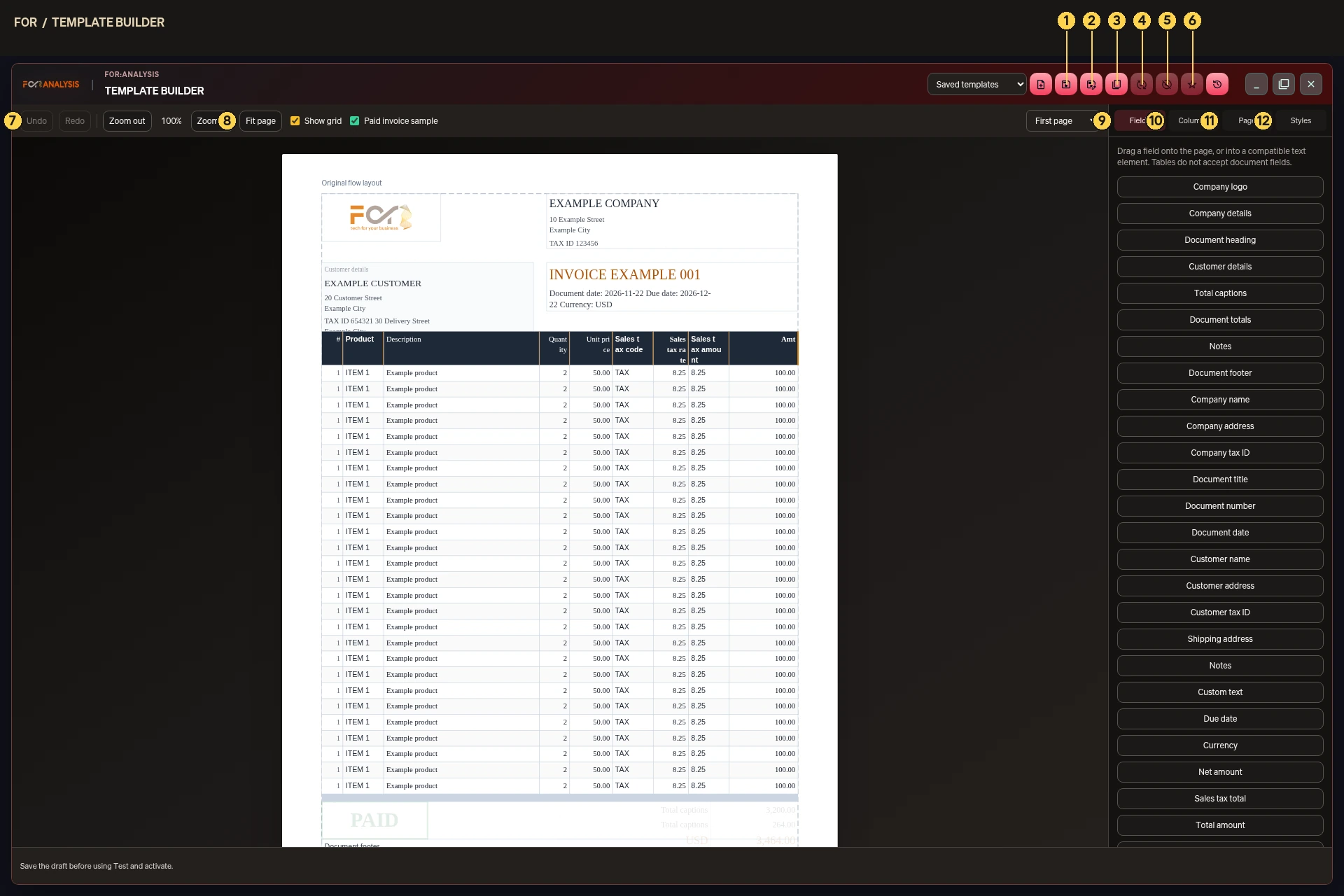
- 1
Save
Save edits as a draft after layout validation; activation is separate.
- 2
Save as new
Save the current edited design under a new valid name, preserving the original.
- 3
Duplicate
Copy the loaded saved version; unsaved edits require an explicit keep/discard decision.
- 4
Test and activate
Disabled in this example. Generate and review the actual preview, then confirm the version that may be used for real documents.
- 5
Deactivate template
Disabled in this example. Stop using the active custom layout through the offered action without deleting prior PDFs or rewriting document data.
- 6
Set as default
Disabled in this example. Select the reviewed eligible template for subsequent document output.
- 7
Undo / Redo
Disabled in this example. Move through local layout edits. This does not undo already-issued accounting documents.
- 8
Zoom / Fit page / grid
Adjust the editor view and snapping without changing printed dimensions. Verify fit at the actual visible workspace size.
- 9
Fields
Choose the document values to place. Drag onto empty permitted space; dropping onto compatible text adds its value token. Tables/images are not arbitrary text targets.
- 10
Columns
Choose supported table columns, order and width. Required invoice/credit columns cannot be hidden or reduced to unreadable zero width.
- 11
Page
Set orientation, margins and header/footer heights in millimetres. Keep every element inside printable, non-reserved space.
- 12
Styles
Set font, size, color, alignment and allowed date/number presentation. Formatting changes appearance, not the value binding or arithmetic.
How to work here
Design the FOR-generated printed document without changing accounting amounts. Start from the real current layout and preserve required identity, tax and total fields.
- Open the active template and inspect the page at 100% or Fit page. Choose first, middle or last page to check repeated headings, final totals and footer.
- Use Fields, Columns, Page and Styles. Drag a field into permitted header/footer space, or select a block and edit its position and formatting numerically.
- Review warnings for overlap, missing required values and reserved tax/branding areas. Keep required product, tax, net and amount columns readable.
- Save the draft, then Test and activate the reviewed version. A draft save is not a production template switch; inspect the generated PDF before making it the default.
Every field and control
Use the exact label or hover over an icon to match it to this reference. A missing action is not the same as an empty field: check its availability below.
Saved template selector
FieldOpen the chosen saved layout/revision. A newer unpublished draft and the active version are not necessarily identical.
Availability: Shown when the corresponding workflow and your permissions allow it; review required markers and any disabled-state explanation.
Fields
FieldChoose the document values to place. Drag onto empty permitted space; dropping onto compatible text adds its value token. Tables/images are not arbitrary text targets.
Availability: Shown when the corresponding workflow and your permissions allow it; review required markers and any disabled-state explanation.
Columns
FieldChoose supported table columns, order and width. Required invoice/credit columns cannot be hidden or reduced to unreadable zero width.
Availability: Shown when the corresponding workflow and your permissions allow it; review required markers and any disabled-state explanation.
Page
FieldSet orientation, margins and header/footer heights in millimetres. Keep every element inside printable, non-reserved space.
Availability: Shown when the corresponding workflow and your permissions allow it; review required markers and any disabled-state explanation.
Styles
FieldSet font, size, color, alignment and allowed date/number presentation. Formatting changes appearance, not the value binding or arithmetic.
Availability: Shown when the corresponding workflow and your permissions allow it; review required markers and any disabled-state explanation.
Position and size
FieldUse numeric X/Y/width/height as an accessible alternative to dragging. Arrow keys move the selected block; Shift makes larger steps and Alt temporarily bypasses grid snapping during drag.
Availability: Shown when the corresponding workflow and your permissions allow it; review required markers and any disabled-state explanation.
Choose first/every/last page where permitted. Original flow retains headings and trailing totals in their natural document position, rather than forcing them into every page footer.
Availability: Shown when the corresponding workflow and your permissions allow it; review required markers and any disabled-state explanation.
Zoom / Fit page / grid
FieldAdjust the editor view and snapping without changing printed dimensions. Verify fit at the actual visible workspace size.
Availability: Shown when the corresponding workflow and your permissions allow it; review required markers and any disabled-state explanation.
Apply to the selected text, paragraph, block or column heading/value. A bound value remains one value, not editable replacement text.
Availability: Shown when the corresponding workflow and your permissions allow it; review required markers and any disabled-state explanation.
New
ActionStart a new layout from the supported source for the selected document type.
Availability: Only when offered by the current screen, role and saved workflow state. Read any confirmation before proceeding.
Save
ActionSave edits as a draft after layout validation; activation is separate.
Availability: Only when offered by the current screen, role and saved workflow state. Read any confirmation before proceeding.
Save as new
ActionSave the current edited design under a new valid name, preserving the original.
Availability: Only when offered by the current screen, role and saved workflow state. Read any confirmation before proceeding.
Duplicate
ActionCopy the loaded saved version; unsaved edits require an explicit keep/discard decision.
Availability: Only when offered by the current screen, role and saved workflow state. Read any confirmation before proceeding.
Test and activate
ActionGenerate and review the actual preview, then confirm the version that may be used for real documents.
Availability: Only when offered by the current screen, role and saved workflow state. Read any confirmation before proceeding.
Deactivate template
ActionStop using the active custom layout through the offered action without deleting prior PDFs or rewriting document data.
Availability: Only when offered by the current screen, role and saved workflow state. Read any confirmation before proceeding.
Set as default
ActionSelect the reviewed eligible template for subsequent document output.
Availability: Only when offered by the current screen, role and saved workflow state. Read any confirmation before proceeding.
Undo / Redo
ActionMove through local layout edits. This does not undo already-issued accounting documents.
Availability: Only when offered by the current screen, role and saved workflow state. Read any confirmation before proceeding.
Edit opens Styles; Copy makes an independent block; Remove deletes only an allowed layout element. Move copied blocks out of overlaps before saving.
Availability: Only when offered by the current screen, role and saved workflow state. Read any confirmation before proceeding.
Watch the workflow

This recording is temporarily unavailable. Please try again later.
Shared workflow
Create and customize document templates
Read the steps
- Open Settings > Documents and launch Template Builder for invoices.
- Move fields and adjust their text styles, alignment and position.
- Position the company logo and review the totals and footer on the last page.
- Save a named template and generate its PDF preview.
- Inspect the generated PDF before using the saved template.
- Open an invoice and choose the saved template from its Print menu.
- Open the background print result and inspect the final document.