
Tax agencies
Review the tax authority associated with tax rates and sales/purchase tax treatment.
Open this screen
Command launcher → Setup → Tax agency. Choose New, Edit/Search or List only as offered.
When it is available
Available to users whose company roles permit this work. Country, subscription, company settings and the saved record's state can narrow the available controls.
QuickBooks connection
For QuickBooks-connected companies, these reference records can be read from QuickBooks. Changes saved in this form stay in FOR and are not written back to QuickBooks. In FOR:CEO, the records belong to FOR without a QuickBooks connection.
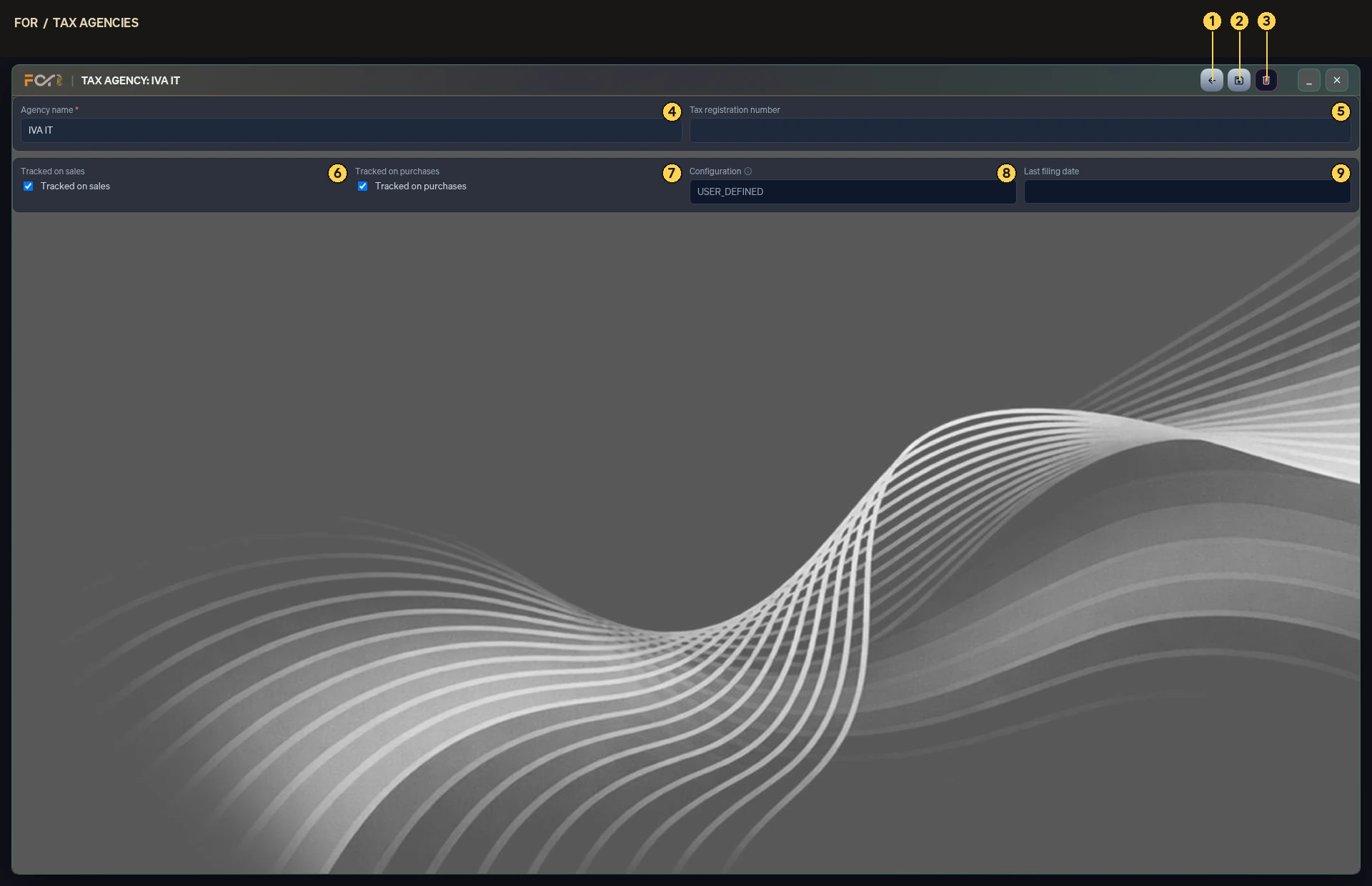
- 1
Back to list · left arrow
Return to the current document list. If the form has unsaved changes, decide explicitly whether to keep working or discard them. Going back is not Save and does not reverse a completed operation.
- 2
Save · disk
Validate and save the current form. On an accounting document this can post the financial transaction; on an operational draft it saves that stage only. Read the success or error message and final number. If the outcome is uncertain, reload/reconcile the same document instead of creating another.
- 3
Deactivate / Archive · trash
Remove the record from ordinary active choices while retaining its history. This is not a financial reversal. Project tags and budgets are archived with their historical assignments/amounts retained. Review the confirmation and any dependency warning; connected-bank accounts and protected tax/system choices may not be deactivated.
- 4
Agency name
Use a recognizable business name so other users can find the correct record. Search for an existing match before adding another. Renaming a record does not merge its history with another record.
- 5
Tax registration number
Enter the actual fiscal identifier appropriate to the record's country. Country and identifier are separate facts. A successful format check is not proof of tax registration or of entitlement to an exemption.
- 6
Tracked on sales
Review this classification in its financial/tax context. It describes the record's supported treatment; it does not independently establish a statutory exemption or authorize a tax filing. Managed US customer exemptions come from valid certificates, not the customer's old Taxable flag.
- 7
Tracked on purchases
Review this classification in its financial/tax context. It describes the record's supported treatment; it does not independently establish a statutory exemption or authorize a tax filing. Managed US customer exemptions come from valid certificates, not the customer's old Taxable flag.
- 8
Configuration
Read the business contract or configuration classification attached to this record. Use the owning settings/workflow for changes rather than treating a classification caption as a new transaction.
- 9
Last filing date
Use the business date described by the caption. Document, registration, planned and actual dates have different meanings; the wrong date can put work in a different reporting or fulfillment period. New transaction dates may start at your local today; always verify imported or copied dates.
Complete the task
Review the tax authority associated with tax rates and sales/purchase tax treatment.
- Search the existing list and open the intended record before choosing New; review the exact field reference below.
- Complete the required choices and review their business effect, then Save only when the form is editable and the values are correct.
- Reopen the saved result and follow the linked workflow rather than making disconnected duplicates.
Saved, read-only and unavailable states
The saved record and its source workflow determine which fields can change. Read-only values stay visible for review; they are not broken inputs. Save/discard unsaved edits before an action that requires a clean source. If the result of an operation is uncertain, inspect and reconcile that same operation rather than repeating a new write.
Every field and control
Use the exact label or hover over an icon to match it to this reference. A missing action is not the same as an empty field: check its availability below.
Search · magnifying glass
ActionSearch this company's selected list by the visible document number, business name or descriptive words. Confirm the active company first. Search results do not widen your role permissions; clear the search to return to the ordinary filtered list.
Availability: List and lookup views. A source-specific picker can intentionally offer fewer records than the full list.
Include retained inactive/completed records when the list offers this control. Open order views exclude Draft, Closed and Cancelled; completed pick/pack tasks are normally found through Show inactive. Historical visibility does not reactivate or reopen a record.
Availability: Only when the list supports inactive or lifecycle filtering; choices depend on the document type.
Previous / Next / page size
ActionMove through the current filtered result set. The count refers to those filters, not the whole company. Changing filters starts a new result set; a short page does not by itself prove that unrelated records do not exist.
Availability: Paged lists; Previous/Next is disabled when no page exists in that direction.
Open a row
ActionSelect the record's main name/number to open its form. Email and phone links have their own communication actions. A linked count or financial balance can open the corresponding transaction rail rather than edit that total.
Availability: Requires permission to open the record. Reference-only roles receive only the permitted context.
Back to list · left arrow
ActionReturn to the current document list. If the form has unsaved changes, decide explicitly whether to keep working or discard them. Going back is not Save and does not reverse a completed operation.
Availability: Ordinary forms; a guided batch or specialized workflow can manage navigation itself.
Minimize · minus
ActionKeep this workspace open as a colored taskbar tile. Select that tile to restore the same window. Minimizing is not Save and does not cancel an operation already submitted.
Availability: Hosted workspace windows.
Close window · X
ActionClose this window, not the underlying record. Respect any unsaved-change or unfinished-operation warning. Closing a window never reverses a posted document, dispatched shipment or sent email.
Availability: Hosted workspace windows; an active workflow can require waiting or confirming navigation.
New · plus
ActionOpen a new form in the selected company. Check required identity fields, default date, currency and number before entering details. Opening a form is not confirmation of a completed transaction.
Availability: Only for records that can be authored directly and for users with create permission. System activity records have no standalone New.
Save · disk
ActionValidate and save the current form. On an accounting document this can post the financial transaction; on an operational draft it saves that stage only. Read the success or error message and final number. If the outcome is uncertain, reload/reconcile the same document instead of creating another.
Availability: Editable records with write permission; disabled while loading/saving or when a required dependency is unresolved.
Deactivate / Archive · trash
ActionRemove the record from ordinary active choices while retaining its history. This is not a financial reversal. Project tags and budgets are archived with their historical assignments/amounts retained. Review the confirmation and any dependency warning; connected-bank accounts and protected tax/system choices may not be deactivated.
Availability: Saved editable records only where the action is offered; protected, standard or workflow-owned records can hide or refuse it.
Name
ColumnUse a recognizable business name so other users can find the correct record. Search for an existing match before adding another. Renaming a record does not merge its history with another record.
Availability: Read-only display; inspect the originating workflow to change its result.
Registration #
ColumnRead this saved-record summary before opening the row. Use the full form for the field's context and related documents; a list summary is not an editable posting field.
Availability: Read-only display; inspect the originating workflow to change its result.
On sales
ColumnRead this saved-record summary before opening the row. Use the full form for the field's context and related documents; a list summary is not an editable posting field.
Availability: Read-only display; inspect the originating workflow to change its result.
On purchases
ColumnRead this saved-record summary before opening the row. Use the full form for the field's context and related documents; a list summary is not an editable posting field.
Availability: Read-only display; inspect the originating workflow to change its result.
Agency name
FieldUse a recognizable business name so other users can find the correct record. Search for an existing match before adding another. Renaming a record does not merge its history with another record.
Availability: Required when this field is offered for an editable record. Maximum 100 characters.
Tax registration number
FieldEnter the actual fiscal identifier appropriate to the record's country. Country and identifier are separate facts. A successful format check is not proof of tax registration or of entitlement to an exemption.
Availability: Editable only when your role, document state and the source workflow allow it; not every country or document variant shows this field. Maximum 30 characters.
Tracked on sales
FieldReview this classification in its financial/tax context. It describes the record's supported treatment; it does not independently establish a statutory exemption or authorize a tax filing. Managed US customer exemptions come from valid certificates, not the customer's old Taxable flag.
Availability: Editable only when your role, document state and the source workflow allow it; not every country or document variant shows this field.
Tracked on purchases
FieldReview this classification in its financial/tax context. It describes the record's supported treatment; it does not independently establish a statutory exemption or authorize a tax filing. Managed US customer exemptions come from valid certificates, not the customer's old Taxable flag.
Availability: Editable only when your role, document state and the source workflow allow it; not every country or document variant shows this field.
Configuration
FieldRead the business contract or configuration classification attached to this record. Use the owning settings/workflow for changes rather than treating a classification caption as a new transaction.
Availability: Read-only display; inspect the originating workflow to change its result.
Last filing date
FieldUse the business date described by the caption. Document, registration, planned and actual dates have different meanings; the wrong date can put work in a different reporting or fulfillment period. New transaction dates may start at your local today; always verify imported or copied dates.
Availability: Read-only display; inspect the originating workflow to change its result.