
Companies
Select the company you are working for before opening forms, reports or integrations. One login may have different roles in different companies.
Open this screen
Sidebar → Companies.
When it is available
Available to users whose company roles permit this work. Country, subscription, company settings and the saved record's state can narrow the available controls.
QuickBooks connection
This screen prepares or displays work in FOR; opening it does not write to QuickBooks. Where a later step creates an accounting document, that step is identified separately. FOR:CEO never sends its accounting entries to QuickBooks.
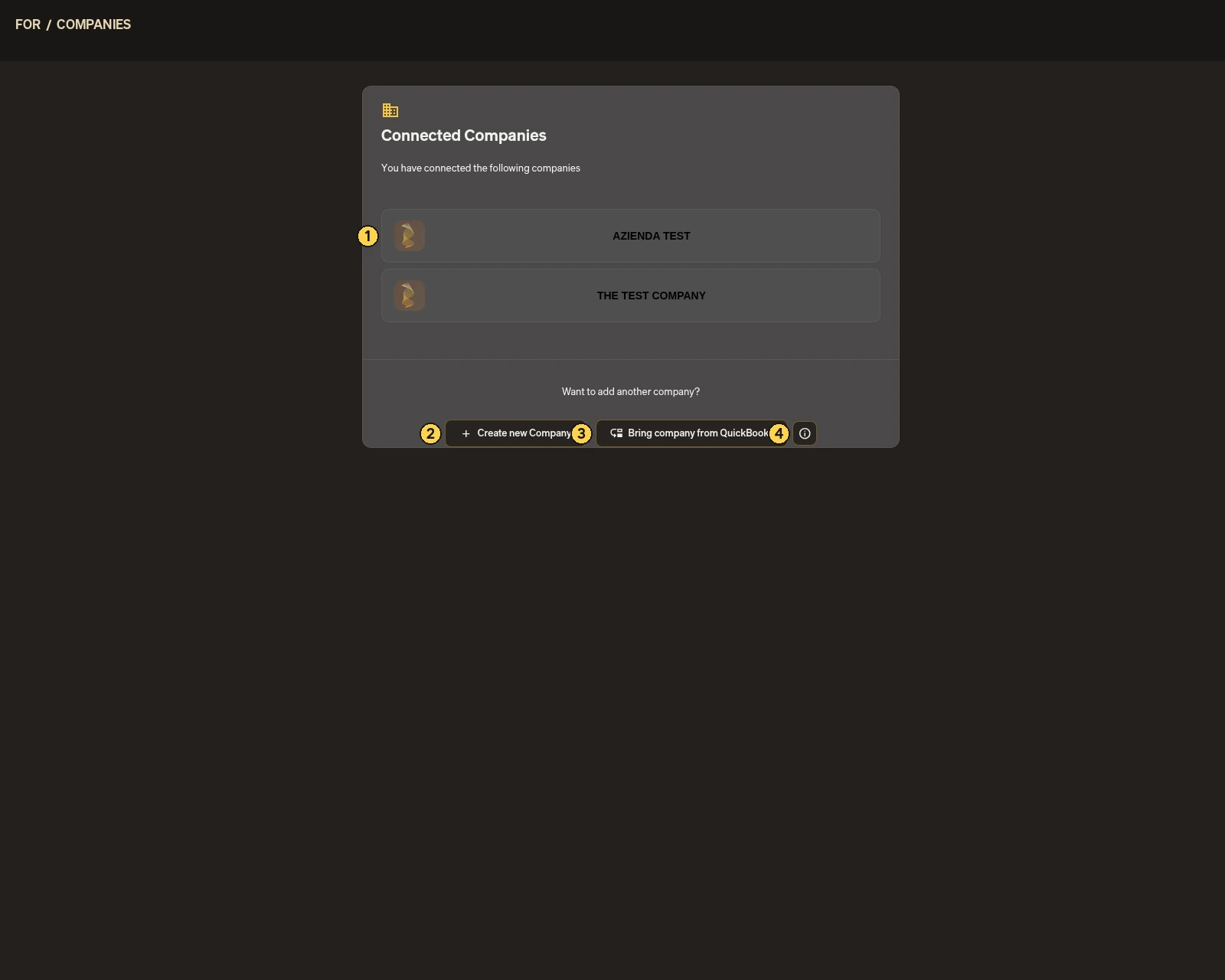
- 1
Company card
Select the company's name to work in that company. Check the Selected badge and the heading after switching; a disconnected company needs its connection reviewed rather than a duplicate setup.
- 2
Create new Company
Open the standalone-company setup. Completing the wizard creates a separate company; it does not import an existing company's books.
- 3
Bring company from QuickBooks
Start the offered transition for an existing connected business. Review source, destination, retained records and the final confirmation; do not use Create new Company as a shortcut for the same business.
- 4
Already using QuickBooks? · information
Read the explanation of bringing an existing QuickBooks company into the standalone product before selecting a setup path.
How to work here
Select the company you are working for before opening forms, reports or integrations. One login may have different roles in different companies.
- Read the company card's name and Selected/Disconnected badge, then select the intended company.
- Use Previous/Next when companies span more than one page. Do not treat an off-page company as missing.
- Use the offered Create new Company or Connect another Company action only for a genuinely new setup; use the onboarding chapter to choose the correct path.
Every field and control
Use the exact label or hover over an icon to match it to this reference. A missing action is not the same as an empty field: check its availability below.
Company card
ActionSelect the company's name to work in that company. Check the Selected badge and the heading after switching; a disconnected company needs its connection reviewed rather than a duplicate setup.
Availability: Only when offered by the current screen, role and saved workflow state. Read any confirmation before proceeding.
Open the standalone-company setup. Completing the wizard creates a separate company; it does not import an existing company's books.
Availability: Only when offered by the current screen, role and saved workflow state. Read any confirmation before proceeding.
Start the offered transition for an existing connected business. Review source, destination, retained records and the final confirmation; do not use Create new Company as a shortcut for the same business.
Availability: Only when offered by the current screen, role and saved workflow state. Read any confirmation before proceeding.
Connect another Company
ActionOpen the Intuit connection for the intended QuickBooks Online company. This reads supported QuickBooks data into FOR; it is not a switch to an unrelated company already connected.
Availability: Only when offered by the current screen, role and saved workflow state. Read any confirmation before proceeding.
Read the explanation of bringing an existing QuickBooks company into the standalone product before selecting a setup path.
Availability: Only when offered by the current screen, role and saved workflow state. Read any confirmation before proceeding.
Previous
ActionShow the preceding page of company cards without changing the selected company.
Availability: Only when offered by the current screen, role and saved workflow state. Read any confirmation before proceeding.
Next
ActionShow the next page when more companies are available. A company outside the current page has not been removed.
Availability: Only when offered by the current screen, role and saved workflow state. Read any confirmation before proceeding.