
Clock in/out
Record work for one employer while retaining one personal clock across company switches. Breaks pause worked time; closing the window does not clock out.
Open this screen
Sidebar → Time management, or the clock shortcut in the chat header.
When it is available
Available to users whose company roles permit this work. Country, subscription, company settings and the saved record's state can narrow the available controls.
QuickBooks connection
This screen prepares or displays work in FOR; opening it does not write to QuickBooks. Where a later step creates an accounting document, that step is identified separately. FOR:CEO never sends its accounting entries to QuickBooks.
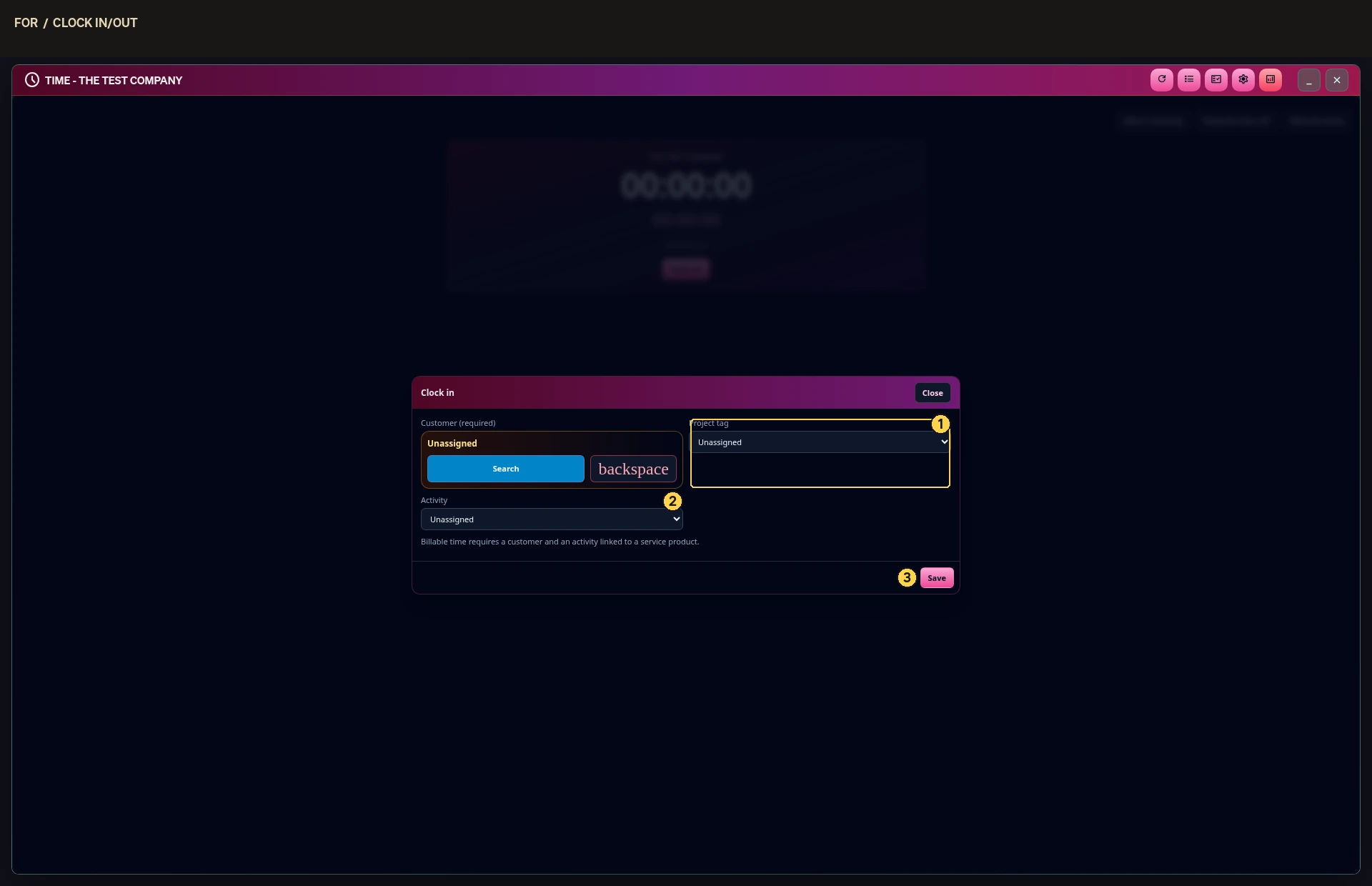
- 1
Project
Choose the actual Project Tag for the work, not an unrelated company or a different customer's project.
- 2
Activity
Choose an activity available to your team. An activity's service-product mapping is for later billing, not your payroll identity.
- 3
Save in the Clock in dialog
Confirm the reviewed work context and start the actual clock. Closing the dialog instead cancels the preparation.
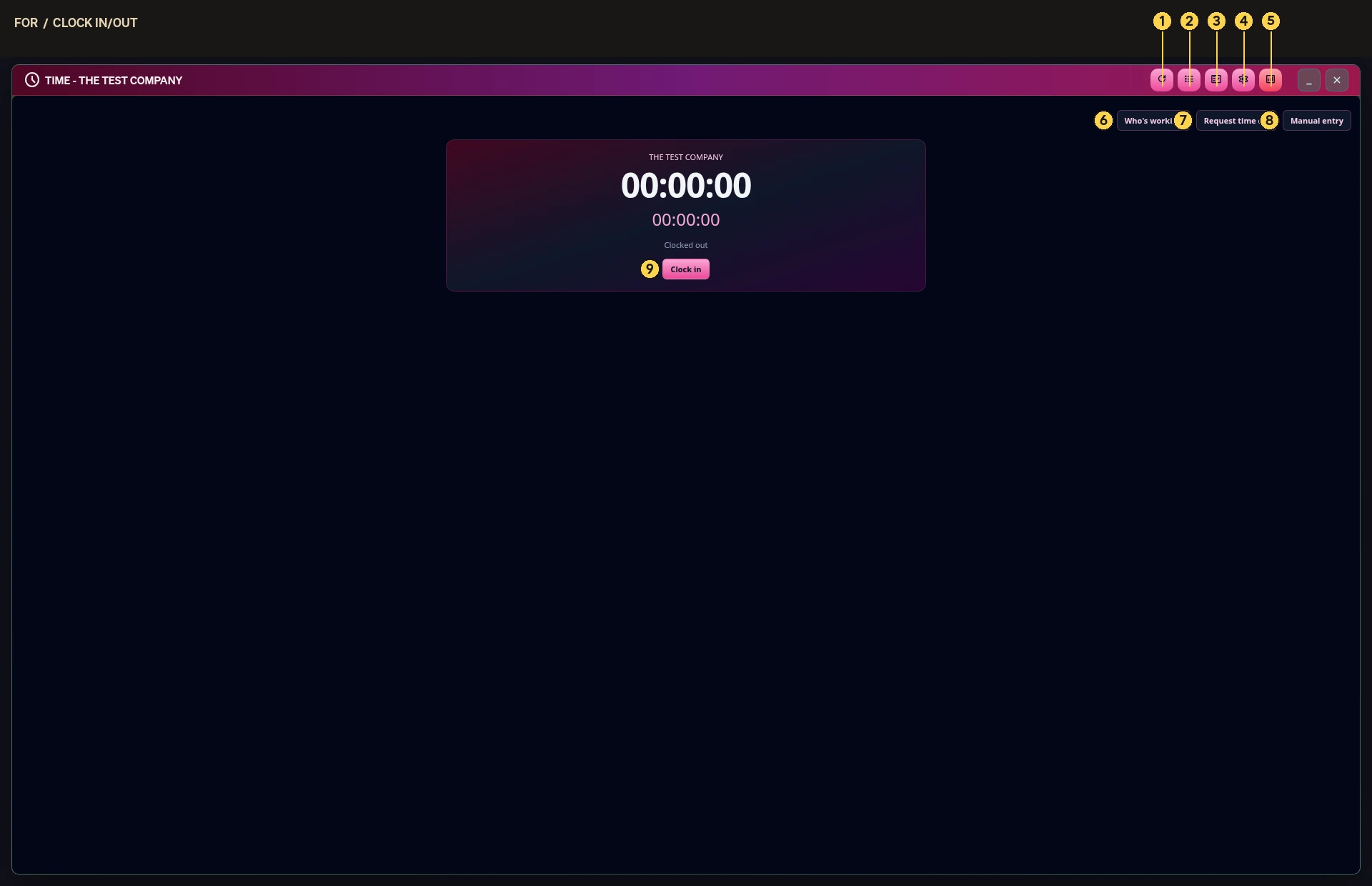
- 1
Refresh
Read current state and reconcile an uncertain original action. It is not a second clock-in or duplicate time entry.
- 2
Time activities
Open this Time view for the same employer. Navigation does not start/stop the clock, approve time or issue an invoice.
- 3
Time approvals
Open this Time view for the same employer. Navigation does not start/stop the clock, approve time or issue an invoice.
- 4
Time settings
Open this Time view for the same employer. Navigation does not start/stop the clock, approve time or issue an invoice.
- 5
Time activities report
Open this Time view for the same employer. Navigation does not start/stop the clock, approve time or issue an invoice.
- 6
Who's working
Read the permitted team/company presence view. It does not expose payroll or grant clock control over other people.
- 7
Request time off
Choose a permitted absence code and From/Through dates. Blank start/end means a full day; review partial-day times and note before submitting the real request.
- 8
Manual entry
Open the eligible manual-time form without starting the live clock. Save remains a separate, unapproved entry operation.
- 9
Clock in
Start the personal working clock for this employer and reviewed context.
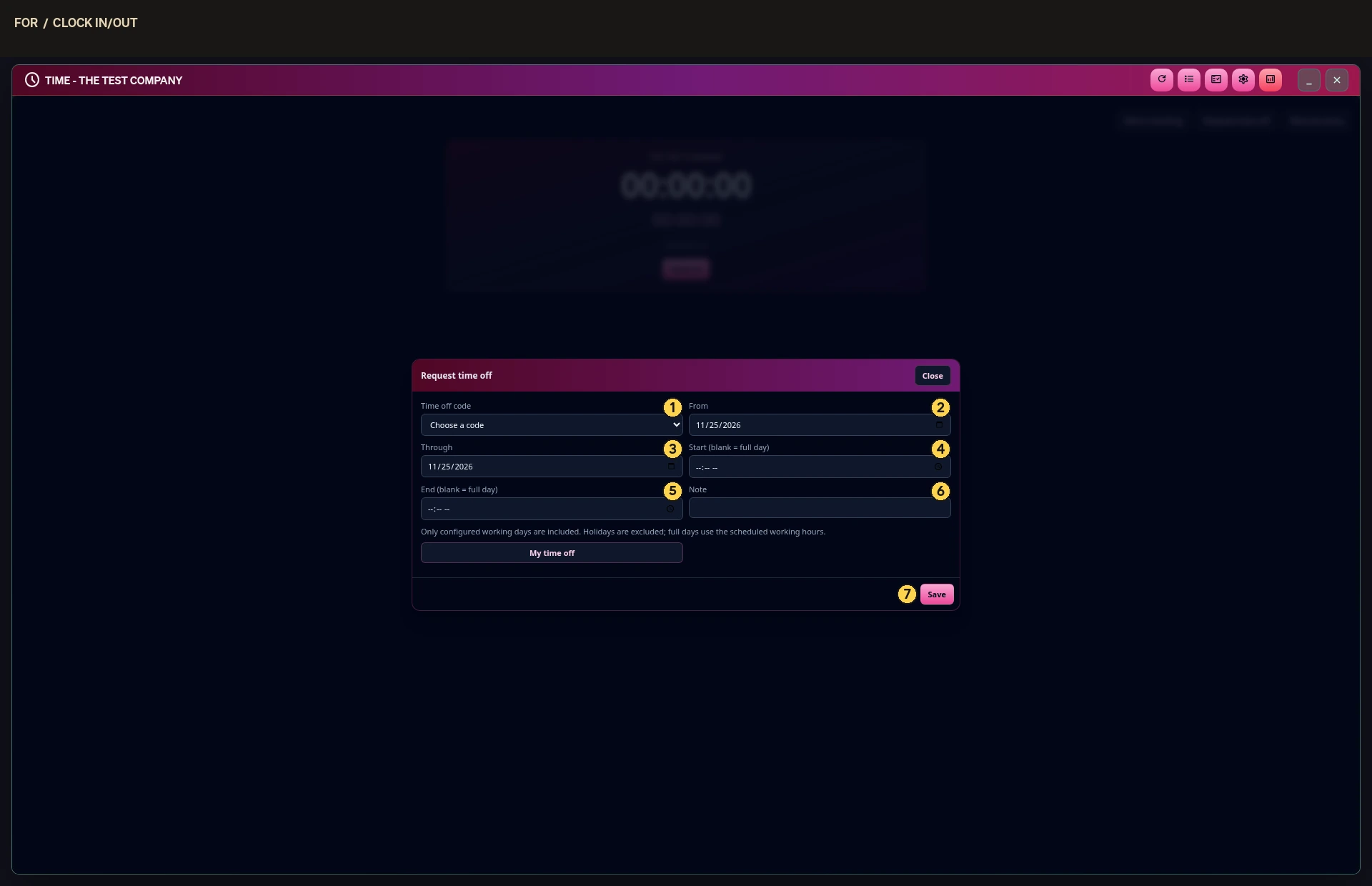
- 1
Time off code
Choose the employer's enabled absence category. Selecting a category is not approval of the request.
- 2
From
First requested employer-local date. Only configured working days are included, and holidays are excluded.
- 3
Through
Last requested date, inclusive. Review cross-month/year ranges before sending.
- 4
Start (blank = full day)
For a partial day enter the actual start time. Leave start/end blank for a full scheduled working day.
- 5
End (blank = full day)
For a partial day enter the matching end time; do not mix one blank boundary with an intended partial interval.
- 6
Note
Add the explanation needed by the reviewer without including unrelated confidential material.
- 7
Save time off request
Submit the reviewed dates/category as a request. It is not an automatic approved absence or a live clock change.
How to work here
Record work for one employer while retaining one personal clock across company switches. Breaks pause worked time; closing the window does not clock out.
- Check the employer named in the window and choose the customer, project and activity required by your team's settings.
- Clock in to start real work. Use Break when stopping work temporarily, Resume to return, and Clock out at the end.
- Use Change context when the work changes, and Save notes/Discard for optional notes. A notes-only edit does not start a new work interval.
- Open Time activities to verify recorded history and request time off through the offered panel.
Every field and control
Use the exact label or hover over an icon to match it to this reference. A missing action is not the same as an empty field: check its availability below.
Customer
FieldChoose the customer for this work if customer tracking is enabled. Team visibility limits can restrict the choices.
Availability: Shown when the corresponding workflow and your permissions allow it; review required markers and any disabled-state explanation.
Project
FieldChoose the actual Project Tag for the work, not an unrelated company or a different customer's project.
Availability: Shown when the corresponding workflow and your permissions allow it; review required markers and any disabled-state explanation.
Activity
FieldChoose an activity available to your team. An activity's service-product mapping is for later billing, not your payroll identity.
Availability: Shown when the corresponding workflow and your permissions allow it; review required markers and any disabled-state explanation.
Billable
FieldMark commercial intent only when the work is eligible. It neither grants invoice permission nor makes imported already-billed history billable again.
Availability: Shown when the corresponding workflow and your permissions allow it; review required markers and any disabled-state explanation.
Additional notes
FieldOptional single-line context, up to 100 characters, when Descriptive notes is enabled. Existing notes remain visible if the setting is later disabled.
Availability: Shown when the corresponding workflow and your permissions allow it; review required markers and any disabled-state explanation.
Clock in
ActionStart the personal working clock for this employer and reviewed context.
Availability: Only when offered by the current screen, role and saved workflow state. Read any confirmation before proceeding.
Break
ActionPause actual worked-time and cost accumulation without ending the shift.
Availability: Only when offered by the current screen, role and saved workflow state. Read any confirmation before proceeding.
Resume
ActionResume the same working clock after the break and validate the current context.
Availability: Only when offered by the current screen, role and saved workflow state. Read any confirmation before proceeding.
Clock out
ActionEnd the active working shift. Verify the resulting recorded time rather than closing the browser as a substitute.
Availability: Only when offered by the current screen, role and saved workflow state. Read any confirmation before proceeding.
Change context
ActionReview customer/project/activity for subsequent work. Previously recorded context is not silently rewritten.
Availability: Only when offered by the current screen, role and saved workflow state. Read any confirmation before proceeding.
Save notes / Discard
ActionSave or discard the current notes-only draft. Resolve it before changing the clock context.
Availability: Only when offered by the current screen, role and saved workflow state. Read any confirmation before proceeding.
Refresh
ActionRead current state and reconcile an uncertain original action. It is not a second clock-in or duplicate time entry.
Availability: Only when offered by the current screen, role and saved workflow state. Read any confirmation before proceeding.
Time activities
ActionOpen this Time view for the same employer. Navigation does not start/stop the clock, approve time or issue an invoice.
Availability: Clock and activity views require Time access; approvals require the relevant reviewing role; settings and reports require full company access.
Time approvals
ActionOpen this Time view for the same employer. Navigation does not start/stop the clock, approve time or issue an invoice.
Availability: Clock and activity views require Time access; approvals require the relevant reviewing role; settings and reports require full company access.
Time settings
ActionOpen this Time view for the same employer. Navigation does not start/stop the clock, approve time or issue an invoice.
Availability: Clock and activity views require Time access; approvals require the relevant reviewing role; settings and reports require full company access.
Time activities report
ActionOpen this Time view for the same employer. Navigation does not start/stop the clock, approve time or issue an invoice.
Availability: Clock and activity views require Time access; approvals require the relevant reviewing role; settings and reports require full company access.
Who's working
ActionRead the permitted team/company presence view. It does not expose payroll or grant clock control over other people.
Availability: Only when offered by the current screen, role and saved workflow state. Read any confirmation before proceeding.
Request time off
ActionChoose a permitted absence code and From/Through dates. Blank start/end means a full day; review partial-day times and note before submitting the real request.
Availability: Only when offered by the current screen, role and saved workflow state. Read any confirmation before proceeding.
Manual entry
ActionOpen the eligible manual-time form without starting the live clock. Save remains a separate, unapproved entry operation.
Availability: Only when offered by the current screen, role and saved workflow state. Read any confirmation before proceeding.
Time off code
FieldChoose the employer's enabled absence category. Selecting a category is not approval of the request.
Availability: Shown when the corresponding workflow and your permissions allow it; review required markers and any disabled-state explanation.
From
FieldFirst requested employer-local date. Only configured working days are included, and holidays are excluded.
Availability: Shown when the corresponding workflow and your permissions allow it; review required markers and any disabled-state explanation.
Through
FieldLast requested date, inclusive. Review cross-month/year ranges before sending.
Availability: Shown when the corresponding workflow and your permissions allow it; review required markers and any disabled-state explanation.
Start (blank = full day)
FieldFor a partial day enter the actual start time. Leave start/end blank for a full scheduled working day.
Availability: Shown when the corresponding workflow and your permissions allow it; review required markers and any disabled-state explanation.
End (blank = full day)
FieldFor a partial day enter the matching end time; do not mix one blank boundary with an intended partial interval.
Availability: Shown when the corresponding workflow and your permissions allow it; review required markers and any disabled-state explanation.
Note
FieldAdd the explanation needed by the reviewer without including unrelated confidential material.
Availability: Shown when the corresponding workflow and your permissions allow it; review required markers and any disabled-state explanation.
Save in the Clock in dialog
ActionConfirm the reviewed work context and start the actual clock. Closing the dialog instead cancels the preparation.
Availability: Only when offered by the current screen, role and saved workflow state. Read any confirmation before proceeding.
Save time off request
ActionSubmit the reviewed dates/category as a request. It is not an automatic approved absence or a live clock change.
Availability: Only when offered by the current screen, role and saved workflow state. Read any confirmation before proceeding.
Watch the workflow

This recording is temporarily unavailable. Please try again later.
FOR:CEO only — native Time workflow, shown as part of the FOR product portfolio.
Clock time against customer and project
Read the steps
- Clock in with customer, project and activity context, use break controls when needed, and clock out to close the session.