
Time activities and manual entry
Review the time you actually recorded. Manual entries remain unapproved and never change the live clock.
Open this screen
Time window → Time activities; choose Manual entry only when it is offered.
When it is available
Available to users whose company roles permit this work. Country, subscription, company settings and the saved record's state can narrow the available controls.
QuickBooks connection
This screen prepares or displays work in FOR; opening it does not write to QuickBooks. Where a later step creates an accounting document, that step is identified separately. FOR:CEO never sends its accounting entries to QuickBooks.
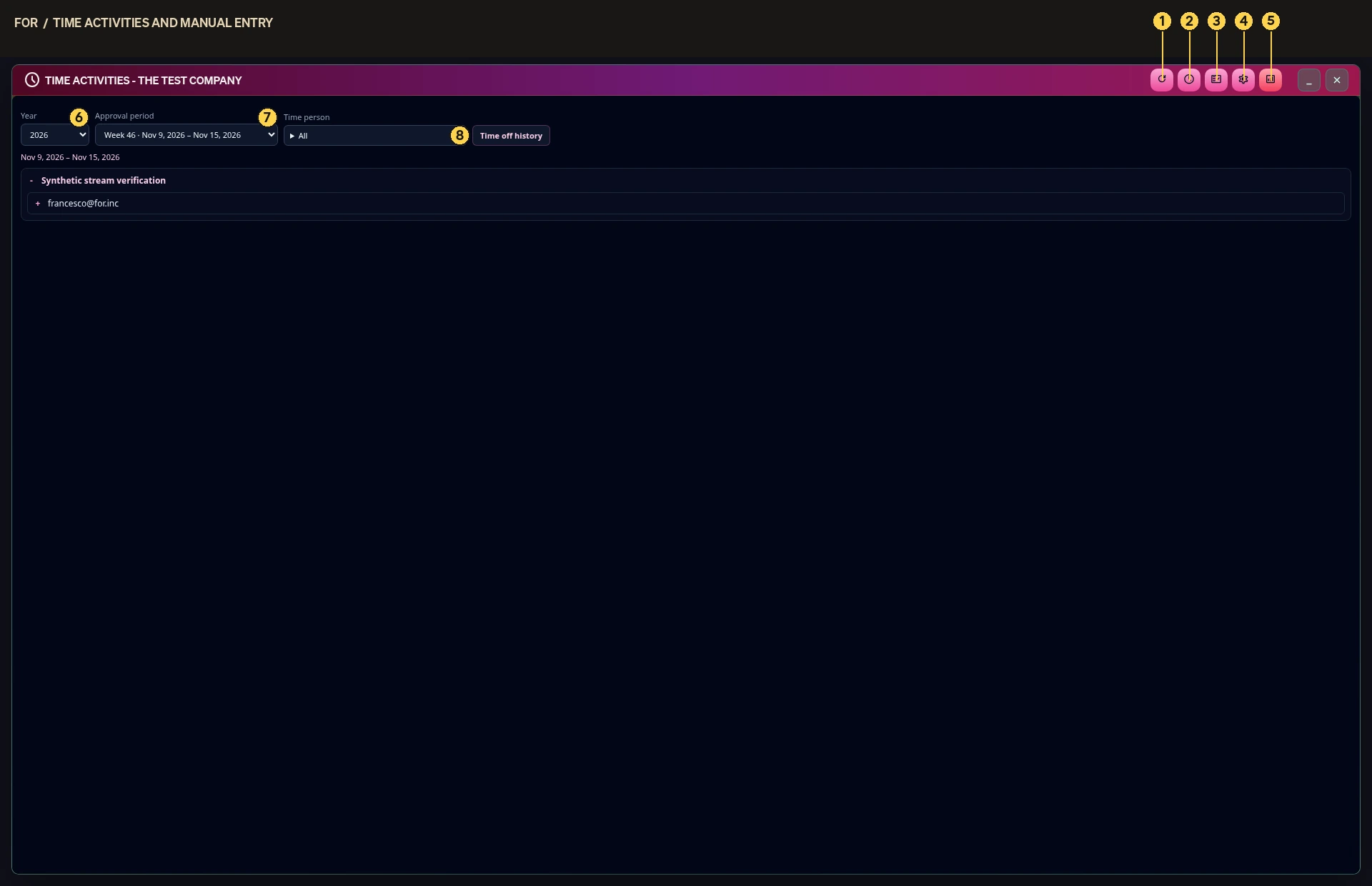
- 1
Refresh
Reload the current employer/view and reconcile its saved state. Review any unsaved-change warning first.
- 2
Clock in/out
Open this Time view for the same employer. Navigation does not start/stop the clock, approve time or issue an invoice.
- 3
Time approvals
Open this Time view for the same employer. Navigation does not start/stop the clock, approve time or issue an invoice.
- 4
Time settings
Open this Time view for the same employer. Navigation does not start/stop the clock, approve time or issue an invoice.
- 5
Time activities report
Open this Time view for the same employer. Navigation does not start/stop the clock, approve time or issue an invoice.
- 6
Year
Choose the reporting year, then one of the actual available approval periods. Do not infer missing history from the first default period.
- 7
Approval period
Read its exact start/end dates. Different team schedules can produce different periods; choose the intended one before reviewing or approving.
- 8
Time off history
Open the bounded absence history and review its status separately from working sessions.
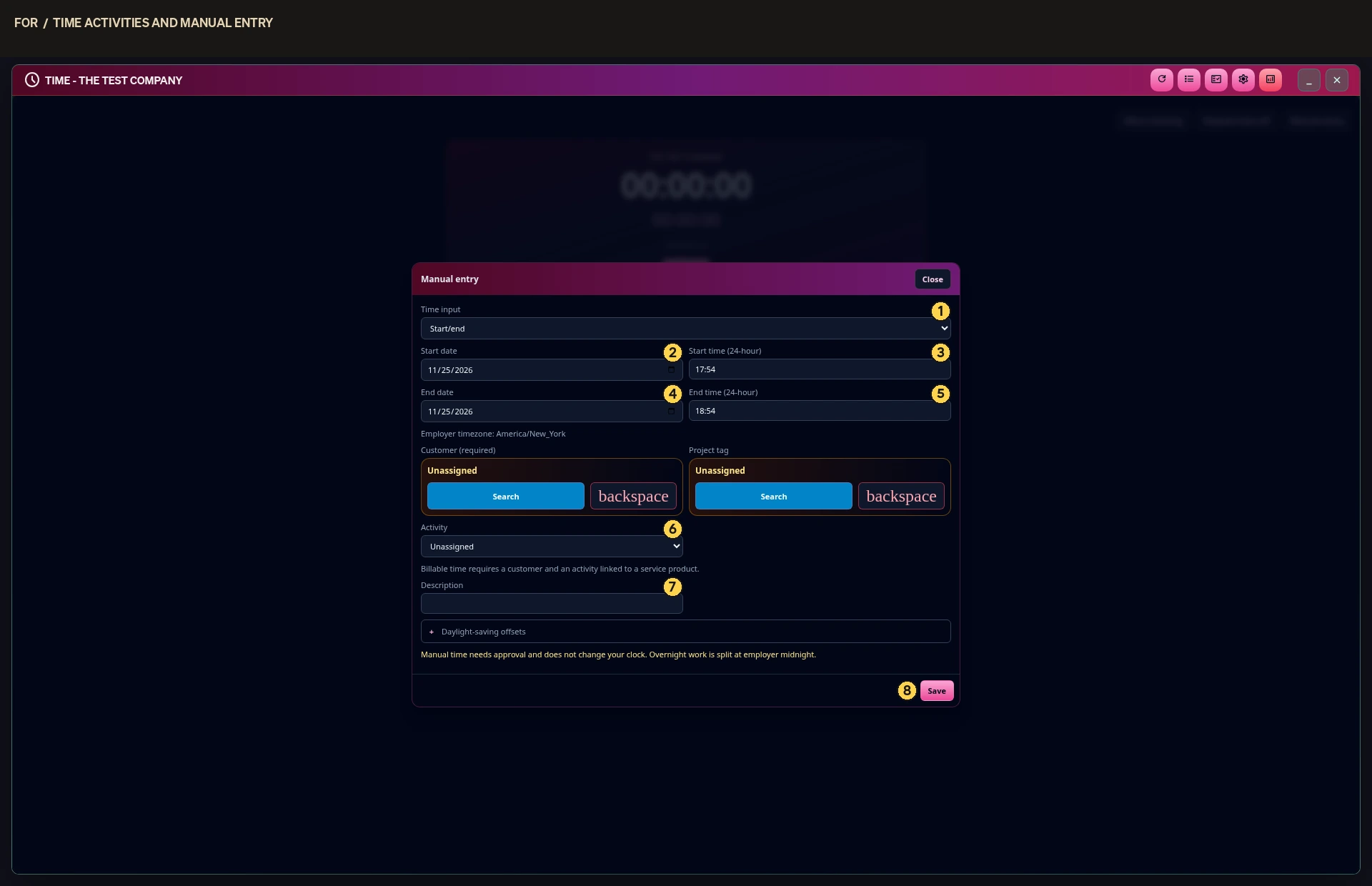
- 1
Time input · Start/end / Duration
Start/end records the specified interval. Duration searches for a continuous free block on the chosen employer working day; the proposed block must be reviewed before Save.
- 2
Start date
Choose the actual employer-local work date, not automatically the day you are entering the correction.
- 3
Start time (24-hour)
Enter the actual start in 24-hour format. On ambiguous daylight-saving dates, review the available offset choices.
- 4
End date
Choose the ending employer-local date. Overnight work is split at employer midnight rather than kept as one misleading calendar-day total.
- 5
End time (24-hour)
Enter an end after the intended start. Existing sessions and a running/pending clock can make an interval unavailable.
- 6
Activity
Choose the actual permitted work category. Its costing and billing setup remain separate from this entry's duration.
- 7
Description
Explain the manually recorded work, up to 2000 characters. Preserve meaningful source/context rather than using a description to disguise overlapping time.
- 8
Save manual entry
Save the reviewed allowed interval or reviewed duration block as unapproved time. It does not start, stop or change the live clock, and approval remains separate.
How to work here
Review the time you actually recorded. Manual entries remain unapproved and never change the live clock.
- Select the displayed period and employee scope. Employees can read their history even when self-editing is disabled.
- For eligible corrections, review the original date, start/end or duration, activity and reason before saving. Approved, billed, imported read-only or active sessions can be protected.
- For duration-only manual entry, find and review an available continuous block before saving. It must fit the selected date and existing work/absence constraints.
- A designated Time administrator may enter for eligible enabled people with manual timesheets permitted. Full company access alone does not automatically grant that delegation.
Every field and control
Use the exact label or hover over an icon to match it to this reference. A missing action is not the same as an empty field: check its availability below.
Limit the displayed history without changing it. The available employee scope follows your role and team responsibilities.
Availability: Shown when the corresponding workflow and your permissions allow it; review required markers and any disabled-state explanation.
Use the employer's local business date and review timezone/daylight-saving offsets when shown. Future or conflicting intervals cannot be entered as completed work.
Availability: Shown when the corresponding workflow and your permissions allow it; review required markers and any disabled-state explanation.
Use the selected entry mode consistently. If real timestamps and duration are both supplied, they must agree. Allocated timestamps for duration-only work are not original clock punches.
Availability: Shown when the corresponding workflow and your permissions allow it; review required markers and any disabled-state explanation.
Time person
FieldChoose the actual employee only when you are the designated Time administrator. The target's manual-entry permission and team constraints still apply.
Availability: Shown when the corresponding workflow and your permissions allow it; review required markers and any disabled-state explanation.
Manual entry
ActionPrepare a closed unapproved time session; it does not clock you or the selected employee in or out.
Availability: Only when offered by the current screen, role and saved workflow state. Read any confirmation before proceeding.
Find available block
ActionPreview a continuous available interval for the stated duration and date; review it before Save.
Availability: Only when offered by the current screen, role and saved workflow state. Read any confirmation before proceeding.
Edit
ActionCorrect an eligible closed, unapproved session with the required explanation. Existing billing/approval locks remain.
Availability: Only when offered by the current screen, role and saved workflow state. Read any confirmation before proceeding.
Delete
ActionProvide the required deletion reason and review the eligible unapproved session before confirming. This is not a way to erase approved payroll history.
Availability: Only when offered by the current screen, role and saved workflow state. Read any confirmation before proceeding.
Clock in/out
ActionOpen this Time view for the same employer. Navigation does not start/stop the clock, approve time or issue an invoice.
Availability: Clock and activity views require Time access; approvals require the relevant reviewing role; settings and reports require full company access.
Time approvals
ActionOpen this Time view for the same employer. Navigation does not start/stop the clock, approve time or issue an invoice.
Availability: Clock and activity views require Time access; approvals require the relevant reviewing role; settings and reports require full company access.
Time settings
ActionOpen this Time view for the same employer. Navigation does not start/stop the clock, approve time or issue an invoice.
Availability: Clock and activity views require Time access; approvals require the relevant reviewing role; settings and reports require full company access.
Time activities report
ActionOpen this Time view for the same employer. Navigation does not start/stop the clock, approve time or issue an invoice.
Availability: Clock and activity views require Time access; approvals require the relevant reviewing role; settings and reports require full company access.
Refresh
ActionReload the current employer/view and reconcile its saved state. Review any unsaved-change warning first.
Availability: Only when offered by the current screen, role and saved workflow state. Read any confirmation before proceeding.
Year
FieldChoose the reporting year, then one of the actual available approval periods. Do not infer missing history from the first default period.
Availability: Shown when the corresponding workflow and your permissions allow it; review required markers and any disabled-state explanation.
Approval period
FieldRead its exact start/end dates. Different team schedules can produce different periods; choose the intended one before reviewing or approving.
Availability: Shown when the corresponding workflow and your permissions allow it; review required markers and any disabled-state explanation.
Filter the eligible people visible to you. All means all within this access scope, not every employee in every company.
Availability: Shown when the corresponding workflow and your permissions allow it; review required markers and any disabled-state explanation.
View
FieldChoose the offered approval state. Changing the view does not approve, unapprove or delete its rows.
Availability: Shown when the corresponding workflow and your permissions allow it; review required markers and any disabled-state explanation.
Time off history
ActionOpen the bounded absence history and review its status separately from working sessions.
Availability: Only when offered by the current screen, role and saved workflow state. Read any confirmation before proceeding.
Start/end records the specified interval. Duration searches for a continuous free block on the chosen employer working day; the proposed block must be reviewed before Save.
Availability: Shown when the corresponding workflow and your permissions allow it; review required markers and any disabled-state explanation.
Start date
FieldChoose the actual employer-local work date, not automatically the day you are entering the correction.
Availability: Shown when the corresponding workflow and your permissions allow it; review required markers and any disabled-state explanation.
Start time (24-hour)
FieldEnter the actual start in 24-hour format. On ambiguous daylight-saving dates, review the available offset choices.
Availability: Shown when the corresponding workflow and your permissions allow it; review required markers and any disabled-state explanation.
End date
FieldChoose the ending employer-local date. Overnight work is split at employer midnight rather than kept as one misleading calendar-day total.
Availability: Shown when the corresponding workflow and your permissions allow it; review required markers and any disabled-state explanation.
End time (24-hour)
FieldEnter an end after the intended start. Existing sessions and a running/pending clock can make an interval unavailable.
Availability: Shown when the corresponding workflow and your permissions allow it; review required markers and any disabled-state explanation.
Customer (required)
FieldChoose an eligible customer when required by employer policy. A billable entry additionally needs a compatible activity/service.
Availability: Shown when the corresponding workflow and your permissions allow it; review required markers and any disabled-state explanation.
Project tag
FieldChoose an eligible project in the selected customer's/team's permitted context; it does not grant access to another company's project.
Availability: Shown when the corresponding workflow and your permissions allow it; review required markers and any disabled-state explanation.
Activity
FieldChoose the actual permitted work category. Its costing and billing setup remain separate from this entry's duration.
Availability: Shown when the corresponding workflow and your permissions allow it; review required markers and any disabled-state explanation.
Description
FieldExplain the manually recorded work, up to 2000 characters. Preserve meaningful source/context rather than using a description to disguise overlapping time.
Availability: Shown when the corresponding workflow and your permissions allow it; review required markers and any disabled-state explanation.
Daylight-saving offsets
FieldExpand only when the local date/time is ambiguous during a daylight-saving change and choose the offset that matches the actual work.
Availability: Shown when the corresponding workflow and your permissions allow it; review required markers and any disabled-state explanation.
Save manual entry
ActionSave the reviewed allowed interval or reviewed duration block as unapproved time. It does not start, stop or change the live clock, and approval remains separate.
Availability: Only when offered by the current screen, role and saved workflow state. Read any confirmation before proceeding.
Watch the workflow

This recording is temporarily unavailable. Please try again later.
FOR:CEO only — native Time workflow, shown as part of the FOR product portfolio.
Review unapproved time activities
Read the steps
- Select the person and period, then correct an eligible unapproved session's time, customer, project, activity or billable status.