
Time team and people
Maintain employer-specific people, teams, approvers and visibility. A Time person is not automatically a company login.
Open this screen
Time settings → Time team.
When it is available
Available to users whose company roles permit this work. Country, subscription, company settings and the saved record's state can narrow the available controls.
QuickBooks connection
This screen prepares or displays work in FOR; opening it does not write to QuickBooks. Where a later step creates an accounting document, that step is identified separately. FOR:CEO never sends its accounting entries to QuickBooks.
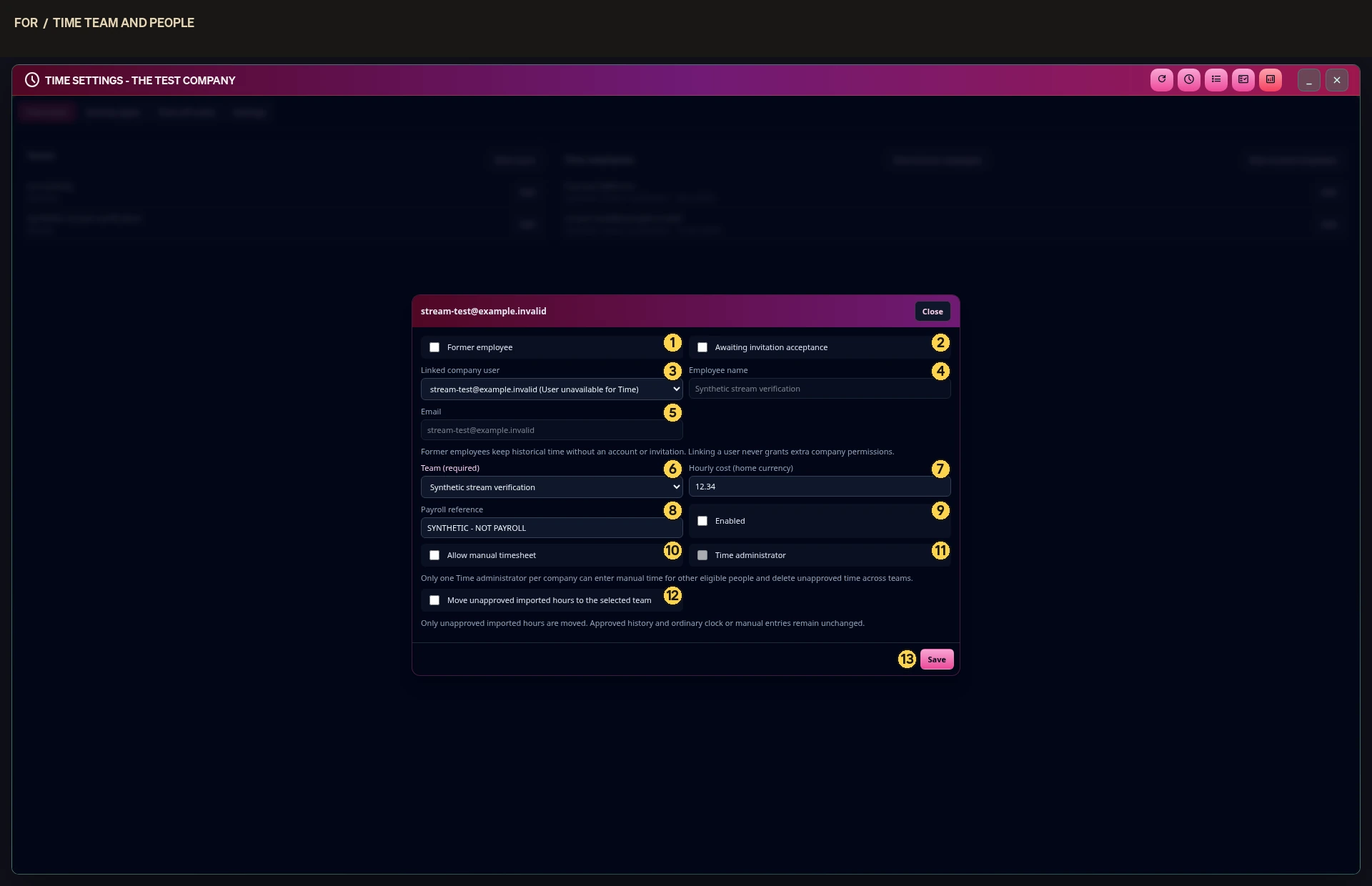
- 1
Former employee
Retain historical identity without a login or invitation. It clears active clock/manual/administrator permissions, not the retained source hours.
- 2
Awaiting invitation acceptance
Keep an imported or prepared person's identity before the company invitation is accepted. Provide name/email, but clocking, manual entry and Time administrator remain disabled until an eligible account is linked.
- 3
Linked company user
Choose an eligible accepted company member not already assigned to another active Time identity. Linking existing historical time requires deliberate confirmation.
- 4
Employee name
Enter the historical/invited person's name where editable. For a linked current user, the account supplies identity rather than a second independently editable profile.
- 5
Email
Required for an awaiting-invitation identity. An email value by itself does not grant company access or make an invitation accepted.
- 6
Team · Enabled
Offer the team for current work. Retained historical people may refer to an archived team, while new active assignments require an eligible active team.
- 7
Hourly cost
Maintain the internal cost basis only with full access. It is not the customer's selling rate and does not reprice accepted historical costs.
- 8
Payroll reference
Preserve the employer's payroll reference exactly, including any imported code. It is not the person's login or customer billing code.
- 9
Person · Enabled
Enable current Time work only after linking an eligible account and team. Former and awaiting-invitation people remain disabled for clocking.
- 10
Allow manual timesheet
Opt this person into eligible manual entries. It does not allow approved-session edits or alter the current clock.
- 11
Time administrator
One eligible designated person may record for allowed people and review/delete eligible unapproved activities. It grants no payroll, financial, setup or approval powers by itself.
- 12
Move unapproved imported hours to the selected team
Apply the selected team only to eligible unapproved imported history after reviewing the change. Approved history and ordinary clock/manual entries are not moved by this checkbox.
- 13
Save / Cancel in a team or person dialog
Save the reviewed identity and permissions, or cancel the dialog without applying its changes. Linking an account to historical time requires its own explicit review.
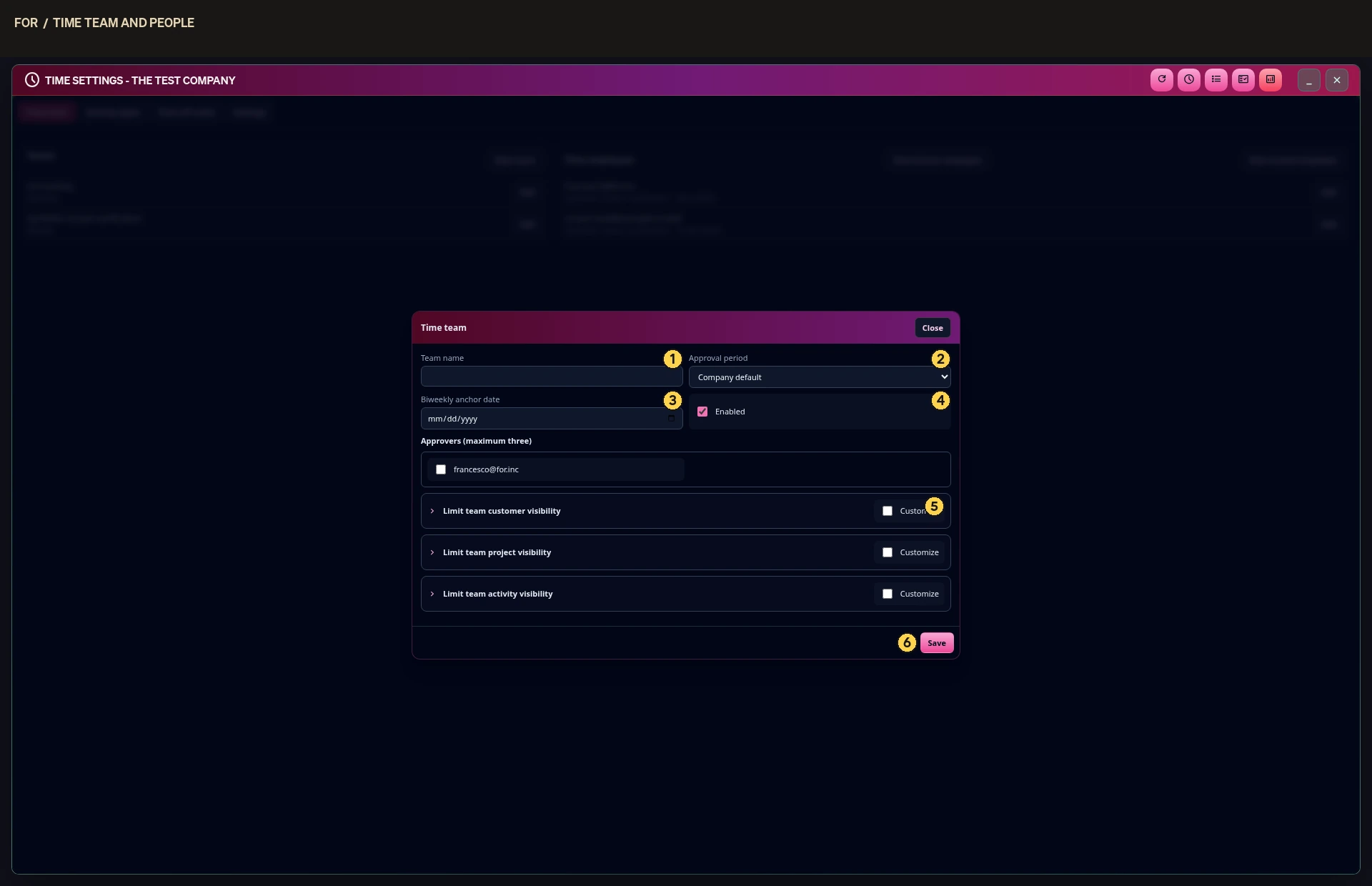
- 1
Team name
Use a meaningful employer-specific team name; a team is not a new legal company.
- 2
Team · Approval period
Choose Company default, Weekly, Biweekly or Monthly for this team. It determines the bounded periods offered to its reviewers.
- 3
Team · Biweekly anchor date
Align two-week team periods deliberately; it is not an employee start date.
- 4
Team · Enabled
Offer the team for current work. Retained historical people may refer to an archived team, while new active assignments require an eligible active team.
- 5
Customers / Projects / Activities · Customize / Reset
Unrestricted is the default. Customize requires at least one chosen value and retains selections across searches; Reset clears choices and turns customization off.
- 6
Save / Cancel in a team or person dialog
Save the reviewed identity and permissions, or cancel the dialog without applying its changes. Linking an account to historical time requires its own explicit review.
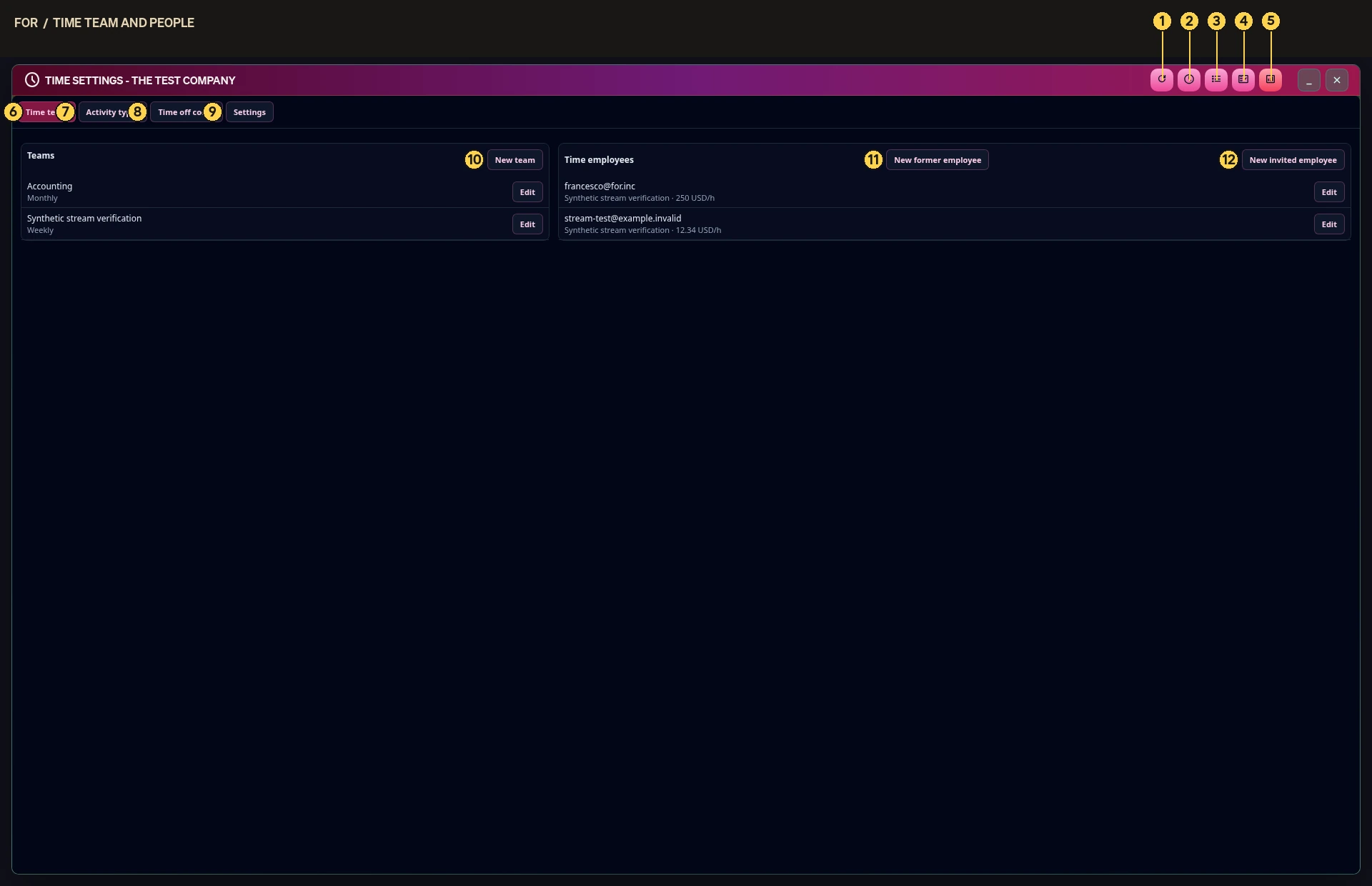
- 1
Refresh
Reload the current employer/view and reconcile its saved state. Review any unsaved-change warning first.
- 2
Clock in/out
Open this Time view for the same employer. Navigation does not start/stop the clock, approve time or issue an invoice.
- 3
Time activities
Open this Time view for the same employer. Navigation does not start/stop the clock, approve time or issue an invoice.
- 4
Time approvals
Open this Time view for the same employer. Navigation does not start/stop the clock, approve time or issue an invoice.
- 5
Time activities report
Open this Time view for the same employer. Navigation does not start/stop the clock, approve time or issue an invoice.
- 6
Time team
Switch to the employer's teams and people after resolving pending settings changes.
- 7
Activity types
Open the activity catalogue and its cost/billing choices.
- 8
Time off codes
Open absence categories, not an employee's actual leave request.
- 9
Settings
Return to tracking, schedule and permissions. Ordinary field changes autosave; calendar confirmation remains separate.
- 10
New team
Prepare a team, its period and approvers, then save the reviewed choices.
- 11
New former employee
Create a historical identity with no login or invitation. It cannot clock in or approve time.
- 12
New invited employee
Prepare the employee identity for pending invitation/history matching; this is not automatic company-access approval.
How to work here
Maintain employer-specific people, teams, approvers and visibility. A Time person is not automatically a company login.
- Create/select the team and review its approvers and optional customer/project/activity visibility restrictions.
- Link current employees only to eligible accepted company users. Choose the required team and review clocking, self-edit and Allow manual timesheet settings.
- Use New former employee for historical people without logins; this does not invite them or enable clocking. Link history later only after deliberate review.
- If needed, designate exactly one enabled linked person as Time administrator for the specific manual-entry delegation.
Every field and control
Use the exact label or hover over an icon to match it to this reference. A missing action is not the same as an empty field: check its availability below.
Identify the real person and payroll reference. Email alone does not link a company account or transfer historical ownership.
Availability: Shown when the corresponding workflow and your permissions allow it; review required markers and any disabled-state explanation.
Current clocking requires an eligible linked user and enabled person. Former employees stay historical-only until deliberately linked and enabled.
Availability: Shown when the corresponding workflow and your permissions allow it; review required markers and any disabled-state explanation.
Team
FieldRequired membership determines approvers and selection restrictions; it does not replace the user's company role.
Availability: Shown when the corresponding workflow and your permissions allow it; review required markers and any disabled-state explanation.
Approvers
FieldAssign eligible reviewers. Review self-approval separately; historical people without accounts cannot approve.
Availability: Shown when the corresponding workflow and your permissions allow it; review required markers and any disabled-state explanation.
Unrestricted is the default. Customize requires at least one chosen value and retains selections across searches; Reset clears choices and turns customization off.
Availability: Shown when the corresponding workflow and your permissions allow it; review required markers and any disabled-state explanation.
Hourly cost
FieldMaintain the internal cost basis only with full access. It is not the customer's selling rate and does not reprice accepted historical costs.
Availability: Shown when the corresponding workflow and your permissions allow it; review required markers and any disabled-state explanation.
Allow manual timesheet
FieldOpt this person into eligible manual entries. It does not allow approved-session edits or alter the current clock.
Availability: Shown when the corresponding workflow and your permissions allow it; review required markers and any disabled-state explanation.
Time administrator
FieldOne eligible designated person may record for allowed people and review/delete eligible unapproved activities. It grants no payroll, financial, setup or approval powers by itself.
Availability: Shown when the corresponding workflow and your permissions allow it; review required markers and any disabled-state explanation.
Team name
FieldUse a meaningful employer-specific team name; a team is not a new legal company.
Availability: Shown when the corresponding workflow and your permissions allow it; review required markers and any disabled-state explanation.
Team · Approval period
FieldChoose Company default, Weekly, Biweekly or Monthly for this team. It determines the bounded periods offered to its reviewers.
Availability: Shown when the corresponding workflow and your permissions allow it; review required markers and any disabled-state explanation.
Align two-week team periods deliberately; it is not an employee start date.
Availability: Shown when the corresponding workflow and your permissions allow it; review required markers and any disabled-state explanation.
Team · Enabled
FieldOffer the team for current work. Retained historical people may refer to an archived team, while new active assignments require an eligible active team.
Availability: Shown when the corresponding workflow and your permissions allow it; review required markers and any disabled-state explanation.
Select up to three eligible company users for this team. Review self-approval separately in Time settings.
Availability: Shown when the corresponding workflow and your permissions allow it; review required markers and any disabled-state explanation.
Keep an imported or prepared person's identity before the company invitation is accepted. Provide name/email, but clocking, manual entry and Time administrator remain disabled until an eligible account is linked.
Availability: Shown when the corresponding workflow and your permissions allow it; review required markers and any disabled-state explanation.
Apply the selected team only to eligible unapproved imported history after reviewing the change. Approved history and ordinary clock/manual entries are not moved by this checkbox.
Availability: Shown when the corresponding workflow and your permissions allow it; review required markers and any disabled-state explanation.
New team
ActionPrepare a team, its period and approvers, then save the reviewed choices.
Availability: Only when offered by the current screen, role and saved workflow state. Read any confirmation before proceeding.
New former employee
ActionCreate a historical identity with no login or invitation. It cannot clock in or approve time.
Availability: Only when offered by the current screen, role and saved workflow state. Read any confirmation before proceeding.
New invited employee
ActionPrepare the employee identity for pending invitation/history matching; this is not automatic company-access approval.
Availability: Only when offered by the current screen, role and saved workflow state. Read any confirmation before proceeding.
Save the reviewed identity and permissions, or cancel the dialog without applying its changes. Linking an account to historical time requires its own explicit review.
Availability: Only when offered by the current screen, role and saved workflow state. Read any confirmation before proceeding.
Employee name
FieldEnter the historical/invited person's name where editable. For a linked current user, the account supplies identity rather than a second independently editable profile.
Availability: Shown when the corresponding workflow and your permissions allow it; review required markers and any disabled-state explanation.
Required for an awaiting-invitation identity. An email value by itself does not grant company access or make an invitation accepted.
Availability: Shown when the corresponding workflow and your permissions allow it; review required markers and any disabled-state explanation.
Payroll reference
FieldPreserve the employer's payroll reference exactly, including any imported code. It is not the person's login or customer billing code.
Availability: Shown when the corresponding workflow and your permissions allow it; review required markers and any disabled-state explanation.
Linked company user
FieldChoose an eligible accepted company member not already assigned to another active Time identity. Linking existing historical time requires deliberate confirmation.
Availability: Shown when the corresponding workflow and your permissions allow it; review required markers and any disabled-state explanation.
Person · Enabled
FieldEnable current Time work only after linking an eligible account and team. Former and awaiting-invitation people remain disabled for clocking.
Availability: Shown when the corresponding workflow and your permissions allow it; review required markers and any disabled-state explanation.
Former employee
FieldRetain historical identity without a login or invitation. It clears active clock/manual/administrator permissions, not the retained source hours.
Availability: Shown when the corresponding workflow and your permissions allow it; review required markers and any disabled-state explanation.
Clock in/out
ActionOpen this Time view for the same employer. Navigation does not start/stop the clock, approve time or issue an invoice.
Availability: Clock and activity views require Time access; approvals require the relevant reviewing role; settings and reports require full company access.
Time activities
ActionOpen this Time view for the same employer. Navigation does not start/stop the clock, approve time or issue an invoice.
Availability: Clock and activity views require Time access; approvals require the relevant reviewing role; settings and reports require full company access.
Time approvals
ActionOpen this Time view for the same employer. Navigation does not start/stop the clock, approve time or issue an invoice.
Availability: Clock and activity views require Time access; approvals require the relevant reviewing role; settings and reports require full company access.
Time settings
ActionOpen this Time view for the same employer. Navigation does not start/stop the clock, approve time or issue an invoice.
Availability: Clock and activity views require Time access; approvals require the relevant reviewing role; settings and reports require full company access.
Time activities report
ActionOpen this Time view for the same employer. Navigation does not start/stop the clock, approve time or issue an invoice.
Availability: Clock and activity views require Time access; approvals require the relevant reviewing role; settings and reports require full company access.
Refresh
ActionReload the current employer/view and reconcile its saved state. Review any unsaved-change warning first.
Availability: Only when offered by the current screen, role and saved workflow state. Read any confirmation before proceeding.
Time team
ActionSwitch to the employer's teams and people after resolving pending settings changes.
Availability: Only when offered by the current screen, role and saved workflow state. Read any confirmation before proceeding.
Activity types
ActionOpen the activity catalogue and its cost/billing choices.
Availability: Only when offered by the current screen, role and saved workflow state. Read any confirmation before proceeding.
Time off codes
ActionOpen absence categories, not an employee's actual leave request.
Availability: Only when offered by the current screen, role and saved workflow state. Read any confirmation before proceeding.
Settings
ActionReturn to tracking, schedule and permissions. Ordinary field changes autosave; calendar confirmation remains separate.
Availability: Only when offered by the current screen, role and saved workflow state. Read any confirmation before proceeding.
Watch the workflow

This recording is temporarily unavailable. Please try again later.
FOR:CEO only — native Time workflow, shown as part of the FOR product portfolio.
Configure company Time
Read the steps
- Review tracking requirements, approval periods, working hours, teams and activities. Project time costs are analytical, not payroll execution.