
Time approvals
Review a complete employee approval period rather than approving isolated visible rows without their context.
Open this screen
Time window → Time approvals.
When it is available
Available to users whose company roles permit this work. Country, subscription, company settings and the saved record's state can narrow the available controls.
QuickBooks connection
This screen prepares or displays work in FOR; opening it does not write to QuickBooks. Where a later step creates an accounting document, that step is identified separately. FOR:CEO never sends its accounting entries to QuickBooks.
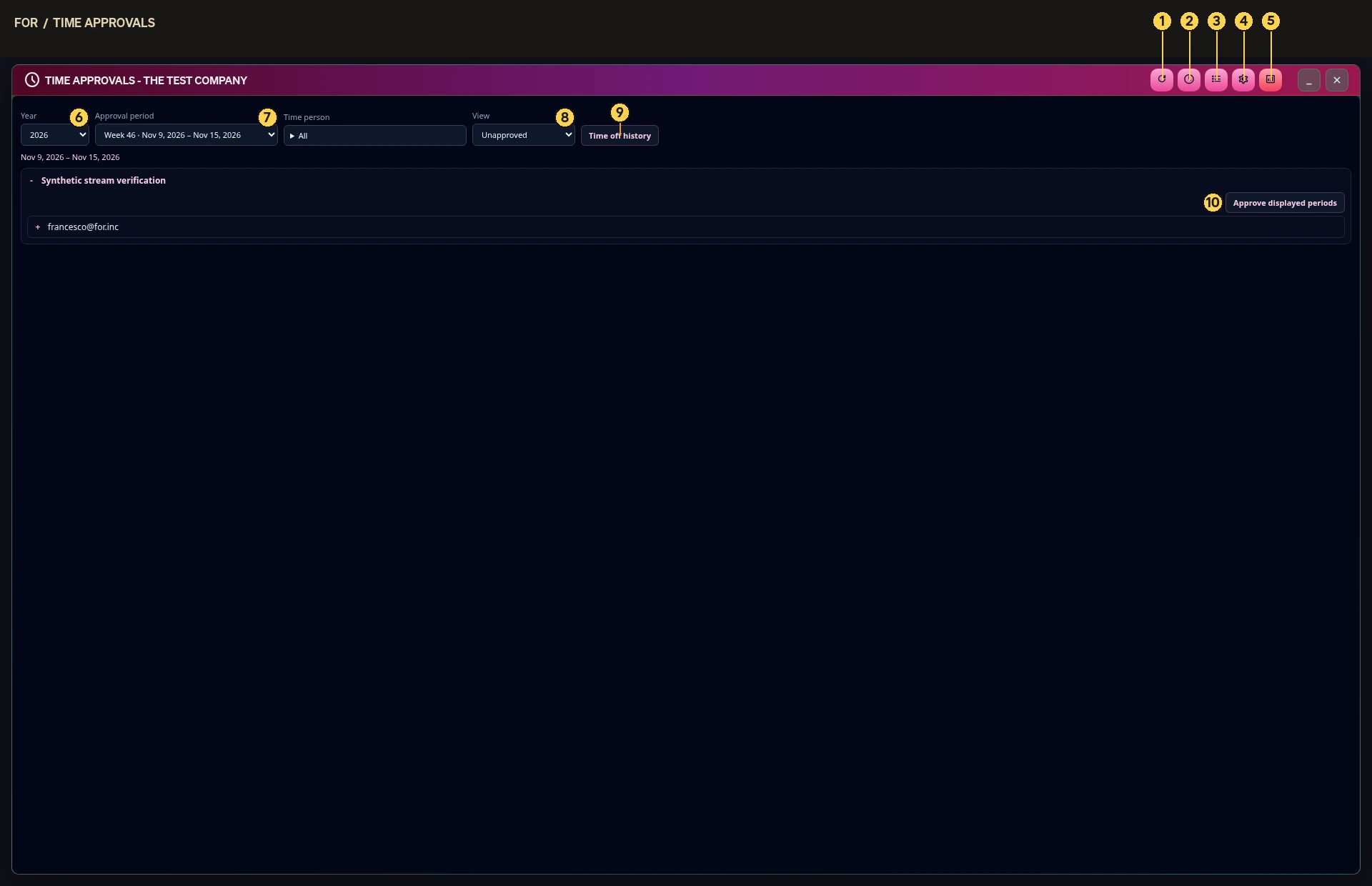
- 1
Refresh
Reload the current employer/view and reconcile its saved state. Review any unsaved-change warning first.
- 2
Clock in/out
Open this Time view for the same employer. Navigation does not start/stop the clock, approve time or issue an invoice.
- 3
Time activities
Open this Time view for the same employer. Navigation does not start/stop the clock, approve time or issue an invoice.
- 4
Time settings
Open this Time view for the same employer. Navigation does not start/stop the clock, approve time or issue an invoice.
- 5
Time activities report
Open this Time view for the same employer. Navigation does not start/stop the clock, approve time or issue an invoice.
- 6
Year
Choose the reporting year, then one of the actual available approval periods. Do not infer missing history from the first default period.
- 7
Approval period
Read its exact start/end dates. Different team schedules can produce different periods; choose the intended one before reviewing or approving.
- 8
View
Choose the offered approval state. Changing the view does not approve, unapprove or delete its rows.
- 9
Time off history
Open the bounded absence history and review its status separately from working sessions.
- 10
Approve displayed periods
Review the actual employee periods in the preview, including any excess-hours acknowledgment, before confirming. This is not approval of undisplayed people or the entire year.
How to work here
Review a complete employee approval period rather than approving isolated visible rows without their context.
- Choose the team/person and approval period you are authorized to review. Check expected work, actual work, breaks, absences and corrections.
- Resolve missing or conflicting time before approval. Any one assigned team approver may suffice, but self-approval has its own company setting.
- Approve the reviewed period and verify its state. Reopening/unapproving is blocked where protected billing or accepted history prevents change.
Every field and control
Use the exact label or hover over an icon to match it to this reference. A missing action is not the same as an empty field: check its availability below.
The scope and schedule determine the reviewable period; choosing another display period does not change the employee's approval policy.
Availability: Shown when the corresponding workflow and your permissions allow it; review required markers and any disabled-state explanation.
Approve
ActionConfirm the complete reviewed period, not just the page currently visible.
Availability: Only when offered by the current screen, role and saved workflow state. Read any confirmation before proceeding.
Unapprove / reopen
ActionUse only the offered eligible reversal after checking billing and history protections.
Availability: Only when offered by the current screen, role and saved workflow state. Read any confirmation before proceeding.
Edit activity
ActionReview an eligible correction in the shared edit dialog; it retains the same company/person/date context.
Availability: Only when offered by the current screen, role and saved workflow state. Read any confirmation before proceeding.
Clock in/out
ActionOpen this Time view for the same employer. Navigation does not start/stop the clock, approve time or issue an invoice.
Availability: Clock and activity views require Time access; approvals require the relevant reviewing role; settings and reports require full company access.
Time activities
ActionOpen this Time view for the same employer. Navigation does not start/stop the clock, approve time or issue an invoice.
Availability: Clock and activity views require Time access; approvals require the relevant reviewing role; settings and reports require full company access.
Time settings
ActionOpen this Time view for the same employer. Navigation does not start/stop the clock, approve time or issue an invoice.
Availability: Clock and activity views require Time access; approvals require the relevant reviewing role; settings and reports require full company access.
Time activities report
ActionOpen this Time view for the same employer. Navigation does not start/stop the clock, approve time or issue an invoice.
Availability: Clock and activity views require Time access; approvals require the relevant reviewing role; settings and reports require full company access.
Refresh
ActionReload the current employer/view and reconcile its saved state. Review any unsaved-change warning first.
Availability: Only when offered by the current screen, role and saved workflow state. Read any confirmation before proceeding.
Year
FieldChoose the reporting year, then one of the actual available approval periods. Do not infer missing history from the first default period.
Availability: Shown when the corresponding workflow and your permissions allow it; review required markers and any disabled-state explanation.
Approval period
FieldRead its exact start/end dates. Different team schedules can produce different periods; choose the intended one before reviewing or approving.
Availability: Shown when the corresponding workflow and your permissions allow it; review required markers and any disabled-state explanation.
Filter the eligible people visible to you. All means all within this access scope, not every employee in every company.
Availability: Shown when the corresponding workflow and your permissions allow it; review required markers and any disabled-state explanation.
View
FieldChoose the offered approval state. Changing the view does not approve, unapprove or delete its rows.
Availability: Shown when the corresponding workflow and your permissions allow it; review required markers and any disabled-state explanation.
Time off history
ActionOpen the bounded absence history and review its status separately from working sessions.
Availability: Only when offered by the current screen, role and saved workflow state. Read any confirmation before proceeding.
Approve displayed periods
ActionReview the actual employee periods in the preview, including any excess-hours acknowledgment, before confirming. This is not approval of undisplayed people or the entire year.
Availability: Only when offered by the current screen, role and saved workflow state. Read any confirmation before proceeding.
Watch the workflow

This recording is temporarily unavailable. Please try again later.
FOR:CEO only — native Time workflow, shown as part of the FOR product portfolio.
Review Time approval periods
Read the steps
- Review the person's approval periods. Only completed team periods can be approved; the current unfinished period remains blocked.