
Product Catalogue
Browse the permitted product catalogue and its commercial presentation. Internal-only materials are not automatically customer-sale products.
Open this screen
Reports → Product Catalogue when present in your company's catalogue, or its supported parent-report drilldown.
When it is available
Available to users whose company roles permit this work. Country, subscription, company settings and the saved record's state can narrow the available controls.
QuickBooks connection
This screen prepares or displays work in FOR; opening it does not write to QuickBooks. Where a later step creates an accounting document, that step is identified separately. FOR:CEO never sends its accounting entries to QuickBooks.
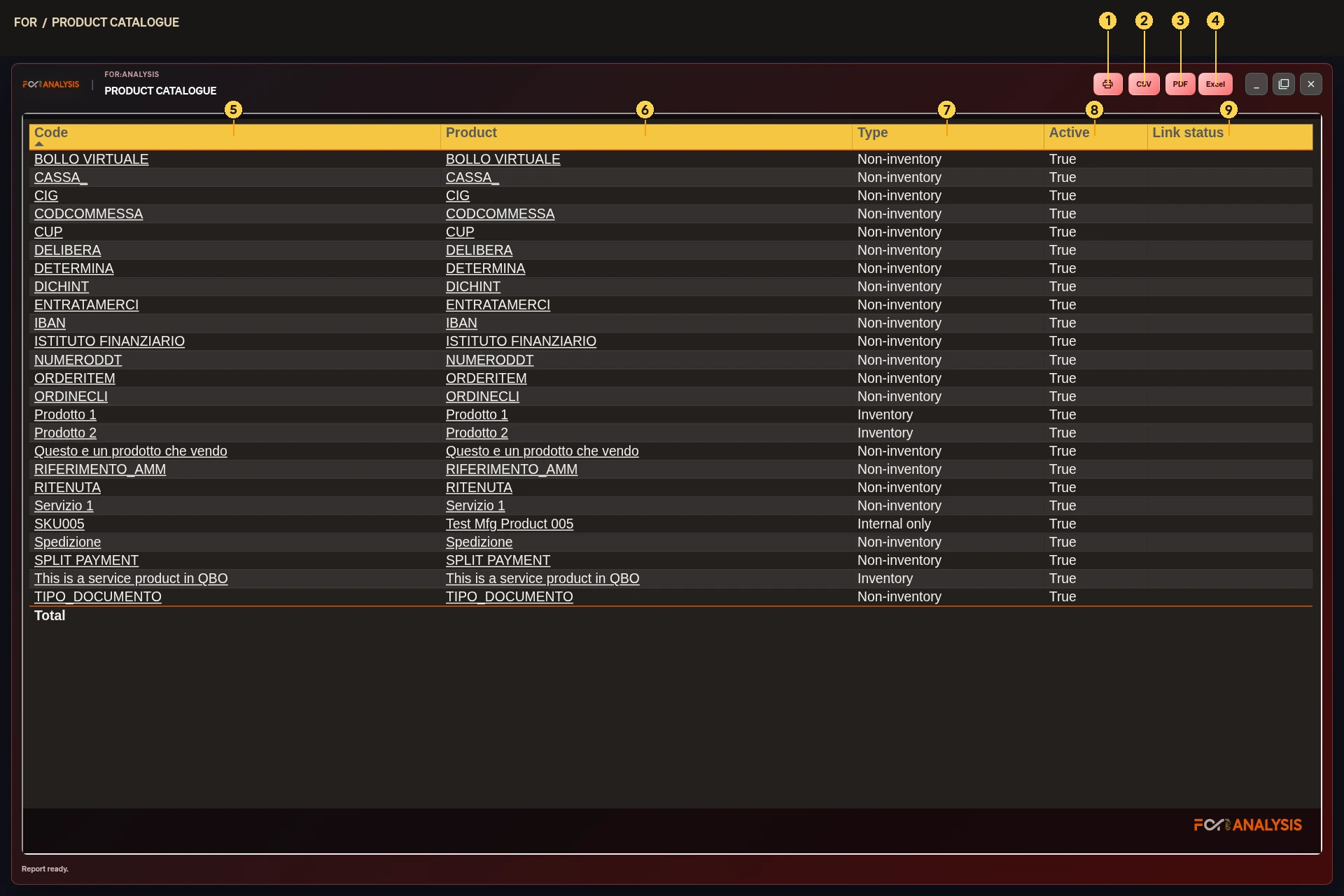
- 1
Print report to PDF · printer
Open the browser's print flow for the interactive report and its current filters, then choose the browser's PDF destination if required. This is separate from the dedicated paginated PDF/Excel buttons and is not a guarantee of a complete legal-format register export.
- 2
CSV / visible data
Export the supported interactive data selection. Visible-data exports have row/visual limits and are not a substitute for a full paginated compliance export.
- 3
PDF / Legal Format PDF
Use the offered paginated PDF for the selected view and filters when available. It is different from the interactive visible-page PDF. A rendering error must be resolved, not silently treated as a successful alternate file.
- 4
Excel / Legal Format Excel
Export the supported paginated result with the same filters. Excel is not offered by every report; the budget-template workbook is not an actual-versus-budget report export.
- 5
Code
The recognizable product code used to distinguish similar descriptions. The financial sales code and inventory SKU can be related but are not always the same identifier.
- 6
Product
The product or expense account attached to the source row. Item-based and account-based lines are not interchangeable; a service is not physical stock.
- 7
Type
Identify what the row represents before interpreting its sign or amount: invoice, credit, payment, expense, journal or another displayed type. In an account master view, Type instead identifies the account's category.
- 8
Active
Whether the displayed product/master is active for current selection. Historical transactions can still refer to an inactive record.
- 9
Link status
Whether the source row can be linked to the expected product/document context. Review an unresolved link instead of assuming a similar description identifies the same record.
How to work here
Browse the permitted product catalogue and its commercial presentation. Internal-only materials are not automatically customer-sale products.
- Verify the company, report title and available date basis before opening.
- Read the selected page and its filters; inspect source detail for a balance or amount requiring explanation.
- Export only through the formats actually offered, preserving the view and period. Read-only reporting makes no QuickBooks writes.
Pages and drilldown views
The published English report uses these page captions: PRODUCT CATALOGUE. Use the report's page selector for offered pages; contextual detail views can require opening a linked amount or source from their parent. The window title identifies the report even when a page retains a shortened caption.
Every field and control
Use the exact label or hover over an icon to match it to this reference. A missing action is not the same as an empty field: check its availability below.
Use only the period modes offered for this report. A period report measures a span; an As of report is a closing snapshot. Preserve the selected dates when following drilldown and export.
Availability: Shown when the corresponding workflow and your permissions allow it; review required markers and any disabled-state explanation.
Open report / Apply period
ActionLoad the selected company/report/view with the reviewed date choice. If the requested period is too large, narrow it or use the offered calendar period; no invisible truncation should be assumed.
Availability: Only when offered by the current screen, role and saved workflow state. Read any confirmation before proceeding.
Select the intended statement/register/detail view. A changed page can expose different measures and filters; check the heading before interpreting totals.
Availability: Shown when the corresponding workflow and your permissions allow it; review required markers and any disabled-state explanation.
Review active filters such as account, customer, state, register or project. Clear only the intended display filter; company access stays fixed. A filtered subtotal is not automatically the whole-company total.
Availability: Shown when the corresponding workflow and your permissions allow it; review required markers and any disabled-state explanation.
Follow a supported linked amount to its transaction detail or a document link to the actual authorized form. The selected company, period and group context should travel with it; a read-only report does not grant document editing.
Availability: Only when offered by the current screen, role and saved workflow state. Read any confirmation before proceeding.
PDF / Legal Format PDF
ActionUse the offered paginated PDF for the selected view and filters when available. It is different from the interactive visible-page PDF. A rendering error must be resolved, not silently treated as a successful alternate file.
Availability: Only when offered by the current screen, role and saved workflow state. Read any confirmation before proceeding.
Excel / Legal Format Excel
ActionExport the supported paginated result with the same filters. Excel is not offered by every report; the budget-template workbook is not an actual-versus-budget report export.
Availability: Only when offered by the current screen, role and saved workflow state. Read any confirmation before proceeding.
CSV / visible data
ActionExport the supported interactive data selection. Visible-data exports have row/visual limits and are not a substitute for a full paginated compliance export.
Availability: Only when offered by the current screen, role and saved workflow state. Read any confirmation before proceeding.
Open the browser's print flow for the interactive report and its current filters, then choose the browser's PDF destination if required. This is separate from the dedicated paginated PDF/Excel buttons and is not a guarantee of a complete legal-format register export.
Availability: Only when offered by the current screen, role and saved workflow state. Read any confirmation before proceeding.
Back to summary
ActionReturn from a supported detail view to its originating summary without treating navigation as a new report definition.
Availability: Only when offered by the current screen, role and saved workflow state. Read any confirmation before proceeding.
Code
ColumnThe recognizable product code used to distinguish similar descriptions. The financial sales code and inventory SKU can be related but are not always the same identifier.
Availability: Read-only report column, measure or selector in the corresponding page/drilldown. Some fields appear only in detail, expanded groups or the available status panel.
Product
ColumnThe product or expense account attached to the source row. Item-based and account-based lines are not interchangeable; a service is not physical stock.
Availability: Read-only report column, measure or selector in the corresponding page/drilldown. Some fields appear only in detail, expanded groups or the available status panel.
Type
ColumnIdentify what the row represents before interpreting its sign or amount: invoice, credit, payment, expense, journal or another displayed type. In an account master view, Type instead identifies the account's category.
Availability: Read-only report column, measure or selector in the corresponding page/drilldown. Some fields appear only in detail, expanded groups or the available status panel.
Active
ColumnWhether the displayed product/master is active for current selection. Historical transactions can still refer to an inactive record.
Availability: Read-only report column, measure or selector in the corresponding page/drilldown. Some fields appear only in detail, expanded groups or the available status panel.
Link status
ColumnWhether the source row can be linked to the expected product/document context. Review an unresolved link instead of assuming a similar description identifies the same record.
Availability: Read-only report column, measure or selector in the corresponding page/drilldown. Some fields appear only in detail, expanded groups or the available status panel.