
Support tickets
Keep the problem, evidence and replies in one company-bound ticket. Use exact document references so support can investigate the right event.
Open this screen
Sidebar → Manage Support Tickets.
When it is available
Available to users whose company roles permit this work. Country, subscription, company settings and the saved record's state can narrow the available controls.
QuickBooks connection
This screen prepares or displays work in FOR; opening it does not write to QuickBooks. Where a later step creates an accounting document, that step is identified separately. FOR:CEO never sends its accounting entries to QuickBooks.
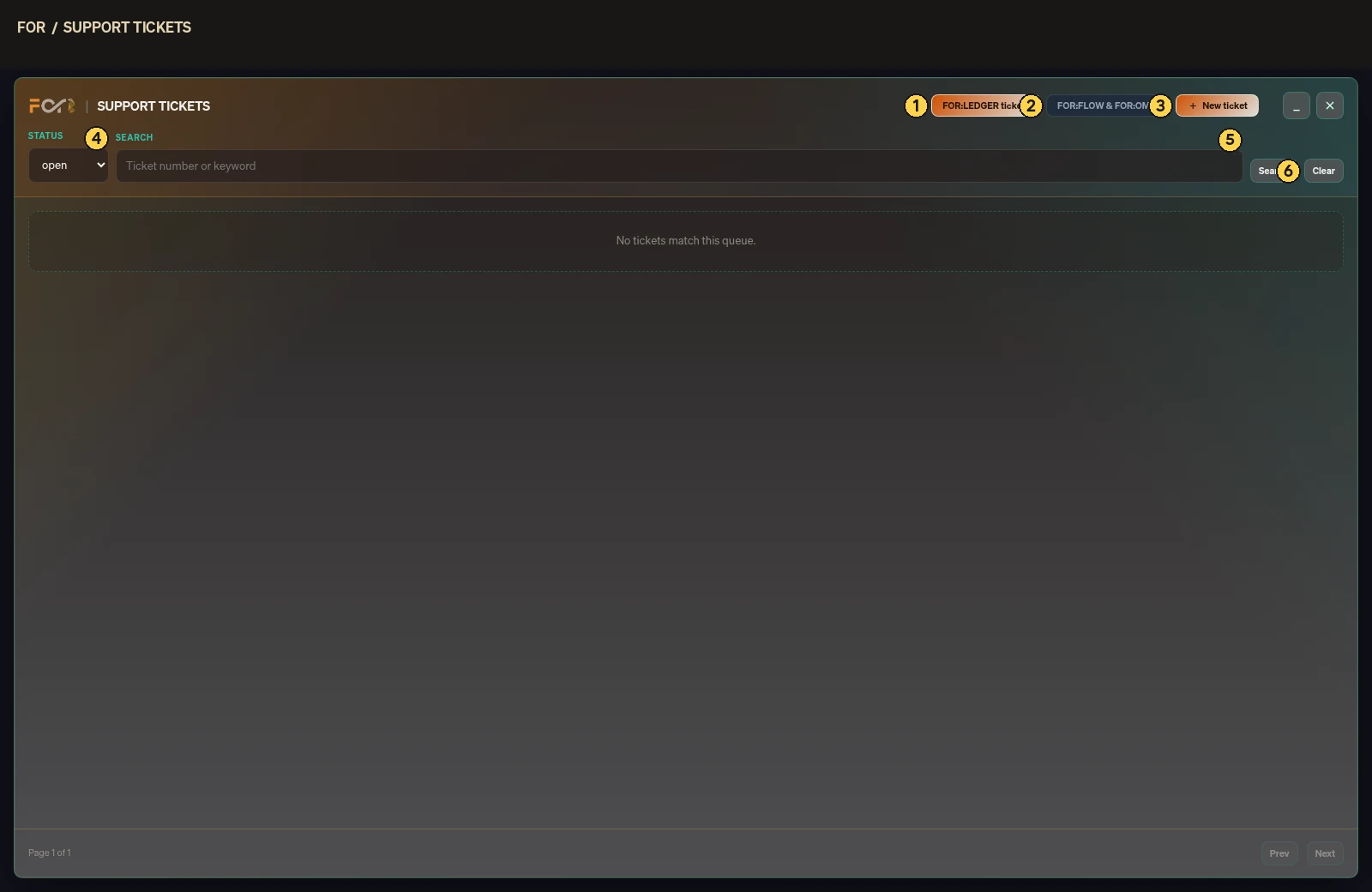
- 1
FOR:LEDGER tickets
Show the ordinary application-support queue for your company.
- 2
FOR:FLOW & FOR:OMNI
Show connector-related support separately from the ordinary queue; changing queues does not close tickets.
- 3
New ticket
Open the structured form after checking for an existing ticket about the same problem.
- 4
Status
Filter open, resolved or closed tickets. A resolved response can still require your retry/confirmation; read the actual conversation.
- 5
Search
Run the entered ticket search; use a concrete document or symptom keyword.
- 6
Clear
Clear the search text and reload the selected queue. This does not delete tickets.
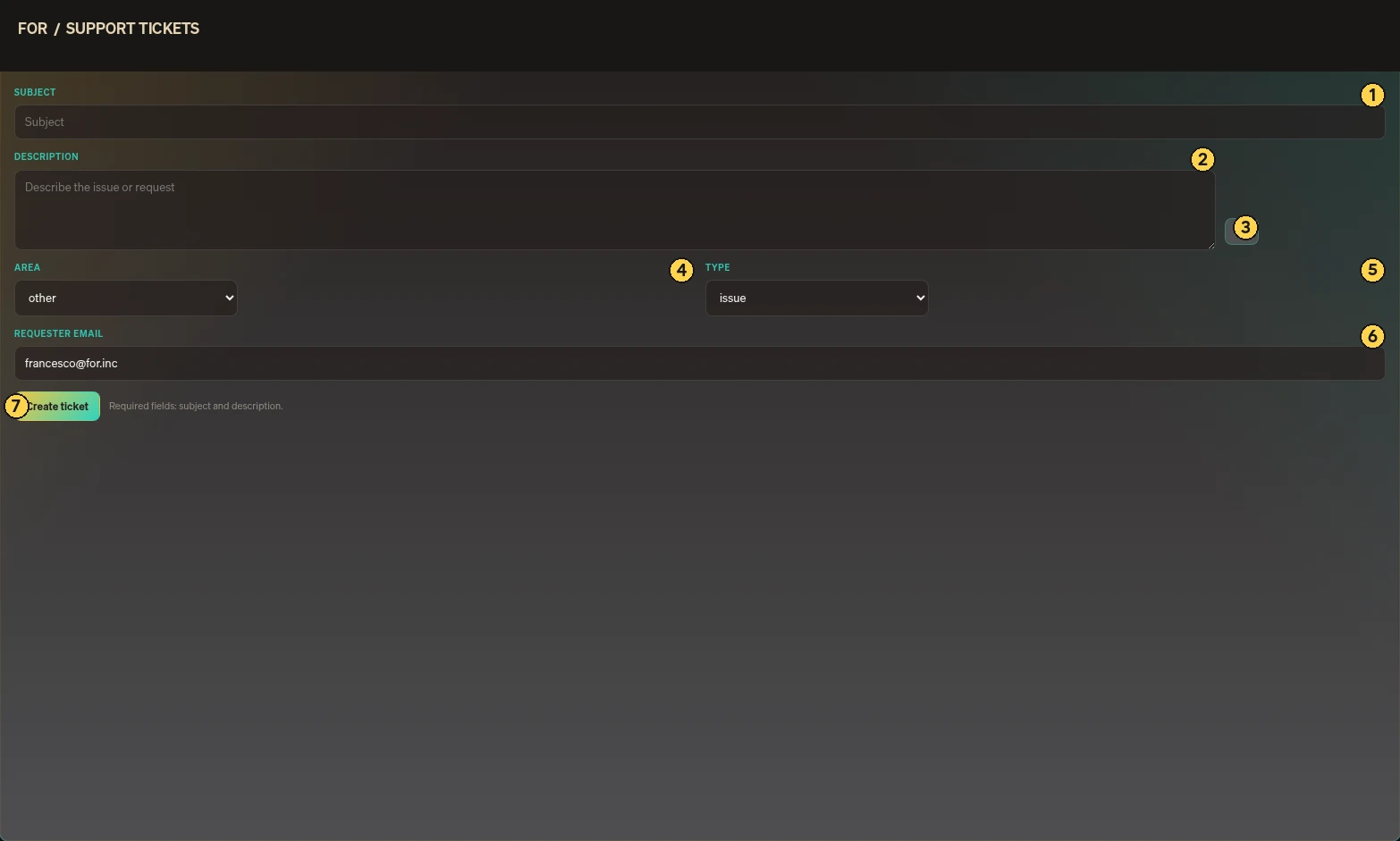
- 1
Subject
Summarize the specific issue, not just 'help' or 'urgent'.
- 2
Description / attachments
Include company context, exact document number/date, steps, expected result and error text. Upload only evidence you are entitled to share.
- 3
Ticket files / Attachments
Attach relevant screenshots or files to the draft. Review filename/removal controls; uploading evidence alone does not submit the ticket.
- 4
Area
Choose the affected feature so the ticket is routed correctly; use Other only when no category fits.
- 5
Type
Classify the request as issue, request, bug, presale or billing. A bug selection describes your request; it does not prove a code defect.
- 6
Requester email
Read the requester/notification addresses resolved for the signed-in company user. This field is read-only on the customer form.
- 7
Create ticket
Create the ticket once after reviewing its company and content.
How to work here
Keep the problem, evidence and replies in one company-bound ticket. Use exact document references so support can investigate the right event.
- Search existing tickets before creating another for the same problem.
- Choose New/Create ticket, give a precise subject, the affected area and a reproducible description including expected versus actual behavior.
- Attach relevant evidence without passwords or card details. Submit once and keep the ticket number.
- Reply in the existing conversation and follow requests for specific document/date information. If meeting slots are offered, confirm the intended slot and timezone.
Every field and control
Use the exact label or hover over an icon to match it to this reference. A missing action is not the same as an empty field: check its availability below.
Subject
FieldSummarize the specific issue, not just 'help' or 'urgent'.
Availability: Shown when the corresponding workflow and your permissions allow it; review required markers and any disabled-state explanation.
Area
FieldChoose the affected feature so the ticket is routed correctly; use Other only when no category fits.
Availability: Shown when the corresponding workflow and your permissions allow it; review required markers and any disabled-state explanation.
Include company context, exact document number/date, steps, expected result and error text. Upload only evidence you are entitled to share.
Availability: Shown when the corresponding workflow and your permissions allow it; review required markers and any disabled-state explanation.
Create ticket
ActionCreate the ticket once after reviewing its company and content.
Availability: Only when offered by the current screen, role and saved workflow state. Read any confirmation before proceeding.
Public reply
FieldWrite the information intended for the support conversation; it is not a private note to yourself.
Availability: Shown when the corresponding workflow and your permissions allow it; review required markers and any disabled-state explanation.
Send reply
ActionAppend the reviewed reply and its attachments to this ticket rather than opening another duplicate.
Availability: Only when offered by the current screen, role and saved workflow state. Read any confirmation before proceeding.
Select only an offered valid slot and verify its timezone before confirmation. Cancelling a dialog does not confirm a meeting.
Availability: Only when offered by the current screen, role and saved workflow state. Read any confirmation before proceeding.
Type
FieldClassify the request as issue, request, bug, presale or billing. A bug selection describes your request; it does not prove a code defect.
Availability: Shown when the corresponding workflow and your permissions allow it; review required markers and any disabled-state explanation.
Requester email
FieldRead the requester/notification addresses resolved for the signed-in company user. This field is read-only on the customer form.
Availability: Shown when the corresponding workflow and your permissions allow it; review required markers and any disabled-state explanation.
Status
FieldFilter open, resolved or closed tickets. A resolved response can still require your retry/confirmation; read the actual conversation.
Availability: Shown when the corresponding workflow and your permissions allow it; review required markers and any disabled-state explanation.
Search
FieldSearch by ticket number or a specific keyword within the current company and selected ticket queue.
Availability: Shown when the corresponding workflow and your permissions allow it; review required markers and any disabled-state explanation.
New ticket
ActionOpen the structured form after checking for an existing ticket about the same problem.
Availability: Only when offered by the current screen, role and saved workflow state. Read any confirmation before proceeding.
Ticket files / Attachments
ActionAttach relevant screenshots or files to the draft. Review filename/removal controls; uploading evidence alone does not submit the ticket.
Availability: Only when offered by the current screen, role and saved workflow state. Read any confirmation before proceeding.
Search
ActionRun the entered ticket search; use a concrete document or symptom keyword.
Availability: Only when offered by the current screen, role and saved workflow state. Read any confirmation before proceeding.
Clear
ActionClear the search text and reload the selected queue. This does not delete tickets.
Availability: Only when offered by the current screen, role and saved workflow state. Read any confirmation before proceeding.
FOR:LEDGER tickets
ActionShow the ordinary application-support queue for your company.
Availability: Only when offered by the current screen, role and saved workflow state. Read any confirmation before proceeding.
FOR:FLOW & FOR:OMNI
ActionShow connector-related support separately from the ordinary queue; changing queues does not close tickets.
Availability: Only when offered by the current screen, role and saved workflow state. Read any confirmation before proceeding.