
General settings
Review company identity, country, fiscal-package state, company branding and operational preferences without confusing them with individual document edits.
Open this screen
Sidebar → Settings → General.
When it is available
Available to users whose company roles permit this work. Country, subscription, company settings and the saved record's state can narrow the available controls.
QuickBooks connection
This screen prepares or displays work in FOR; opening it does not write to QuickBooks. Where a later step creates an accounting document, that step is identified separately. FOR:CEO never sends its accounting entries to QuickBooks.
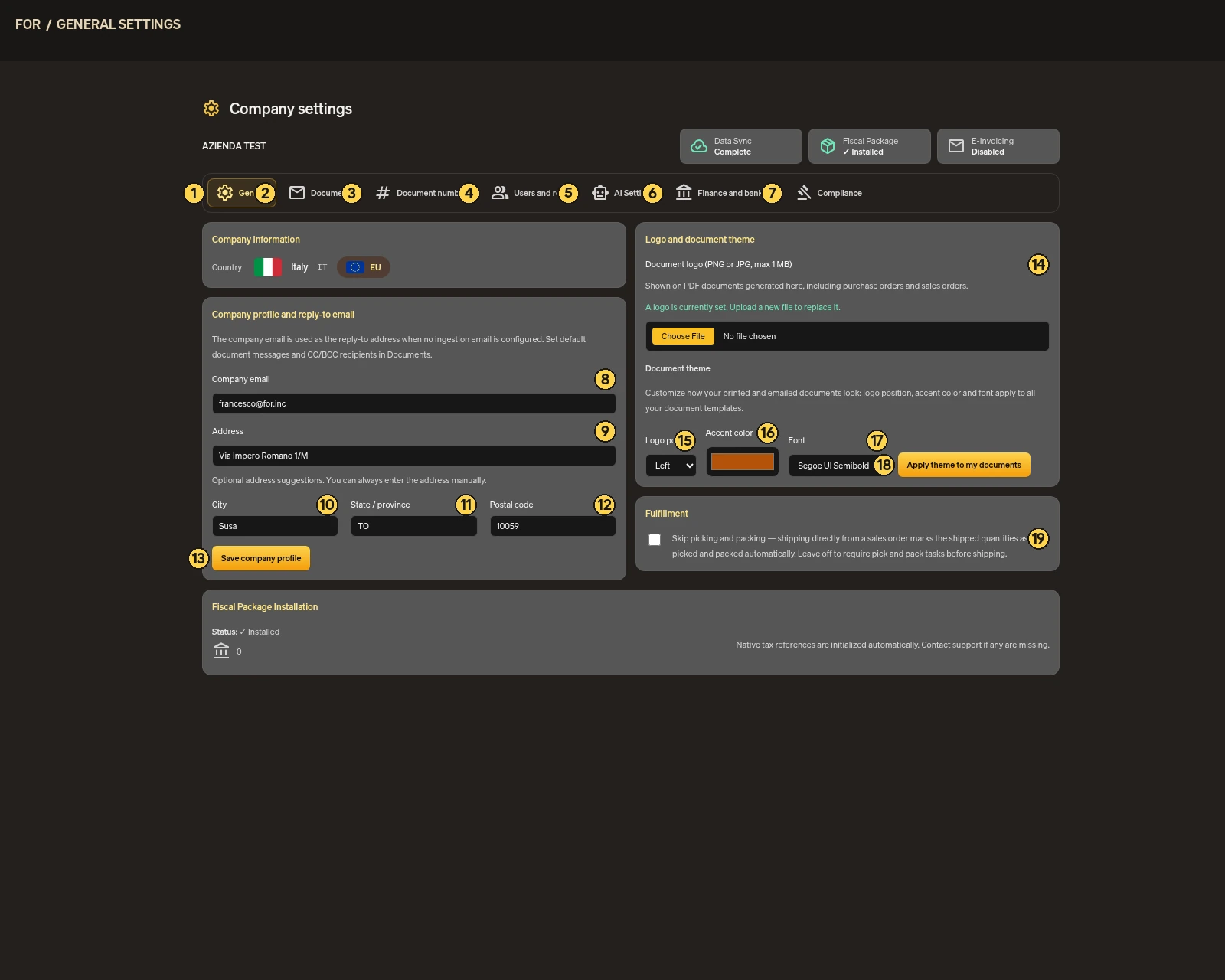
- 1
General
Open this settings section without saving another panel's changes. Review the current company and save notices; Users and roles requires full company access.
- 2
Documents
Open this settings section without saving another panel's changes. Review the current company and save notices; Users and roles requires full company access.
- 3
Document numbers
Open this settings section without saving another panel's changes. Review the current company and save notices; Users and roles requires full company access.
- 4
Users and roles
Open this settings section without saving another panel's changes. Review the current company and save notices; Users and roles requires full company access.
- 5
AI Settings
Open this settings section without saving another panel's changes. Review the current company and save notices; Users and roles requires full company access.
- 6
Finance and banking
Open this settings section without saving another panel's changes. Review the current company and save notices; Users and roles requires full company access.
- 7
Compliance
Open this settings section without saving another panel's changes. Review the current company and save notices; Users and roles requires full company access.
- 8
Company email
For native companies, this is the reply address when no configured intake address takes precedence; document CC/BCC are configured separately.
- 9
Address
Enter the company's real street address, including building/unit information needed on documents. Review address suggestions before accepting them.
- 10
City
Enter the legal/company-address city, not the customer's delivery city.
- 11
State / province
Use the subdivision appropriate to the company's country; check any required abbreviated format.
- 12
Postal code
Keep the complete postal/ZIP code, including leading zeros. It is part of the company address, not a sales-tax registration choice.
- 13
Save company profile
Save only the reviewed native profile fields and verify the success notice.
- 14
Document logo
Upload PNG/JPG up to 1 MB. Replacing the logo affects subsequent supported output, not every already-generated PDF.
- 15
Logo position
Choose left or right for compatible document templates; review custom-template restrictions.
- 16
Accent color
Choose a readable document accent. It changes presentation, not the application launcher category colors.
- 17
Font
Choose an offered document font and verify the resulting PDF, particularly long names and multilingual text.
- 18
Apply theme to my documents
Apply the compatible theme to subsequent document output. Custom or unverified layouts can require separate review instead of being overwritten.
- 19
Skip picking and packing
When enabled, direct sales-order shipment marks the shipped quantities picked/packed through the supported route. Leave off to require actual pick and pack tasks first; stock/tracking/dispatch checks still apply.
How to work here
Review company identity, country, fiscal-package state, company branding and operational preferences without confusing them with individual document edits.
- Check the Data Sync, Fiscal Package and E-Invoicing cards for readiness; a green card for one area does not prove the others are ready.
- On native companies, review the editable company profile and fiscal calendar. Country/home-currency changes are not casual presentation preferences.
- Review inventory fulfillment, document branding and applicable default preferences. Save the intended section and verify its result.
Every field and control
Use the exact label or hover over an icon to match it to this reference. A missing action is not the same as an empty field: check its availability below.
Country / EU badge
FieldRead the company's actual jurisdiction; the EU badge indicates membership, not that every national filing is supported. Switzerland is not an EU VAT member.
Availability: Shown when the corresponding workflow and your permissions allow it; review required markers and any disabled-state explanation.
Company email
FieldFor native companies, this is the reply address when no configured intake address takes precedence; document CC/BCC are configured separately.
Availability: Shown when the corresponding workflow and your permissions allow it; review required markers and any disabled-state explanation.
Review the actual complete company address. Address suggestions are optional; accept only the intended location and complete unknown parts manually.
Availability: Shown when the corresponding workflow and your permissions allow it; review required markers and any disabled-state explanation.
Document logo
FieldUpload PNG/JPG up to 1 MB. Replacing the logo affects subsequent supported output, not every already-generated PDF.
Availability: Shown when the corresponding workflow and your permissions allow it; review required markers and any disabled-state explanation.
Logo position
FieldChoose left or right for compatible document templates; review custom-template restrictions.
Availability: Shown when the corresponding workflow and your permissions allow it; review required markers and any disabled-state explanation.
Accent color
FieldChoose a readable document accent. It changes presentation, not the application launcher category colors.
Availability: Shown when the corresponding workflow and your permissions allow it; review required markers and any disabled-state explanation.
Font
FieldChoose an offered document font and verify the resulting PDF, particularly long names and multilingual text.
Availability: Shown when the corresponding workflow and your permissions allow it; review required markers and any disabled-state explanation.
Skip picking and packing
FieldWhen enabled, direct sales-order shipment marks the shipped quantities picked/packed through the supported route. Leave off to require actual pick and pack tasks first; stock/tracking/dispatch checks still apply.
Availability: Shown when the corresponding workflow and your permissions allow it; review required markers and any disabled-state explanation.
Save company profile
ActionSave only the reviewed native profile fields and verify the success notice.
Availability: Only when offered by the current screen, role and saved workflow state. Read any confirmation before proceeding.
Apply theme to my documents
ActionApply the compatible theme to subsequent document output. Custom or unverified layouts can require separate review instead of being overwritten.
Availability: Only when offered by the current screen, role and saved workflow state. Read any confirmation before proceeding.
Read actual fiscal setup readiness. On a connected QuickBooks company, follow its tax-agency/purchase-tracking prerequisite before installation.
Availability: Only when offered by the current screen, role and saved workflow state. Read any confirmation before proceeding.
Review the country-specific installation before confirming. Native references initialize automatically; Swiss installation adds missing references while preserving existing accounts, rates, inactive choices and transactions.
Availability: Only when offered by the current screen, role and saved workflow state. Read any confirmation before proceeding.
Restart fiscal installation
ActionUse only the offered recovery after checking the current installation state; do not repeatedly start competing setup work.
Availability: Only when offered by the current screen, role and saved workflow state. Read any confirmation before proceeding.
General
ActionOpen this settings section without saving another panel's changes. Review the current company and save notices; Users and roles requires full company access.
Availability: Only when offered by the current screen, role and saved workflow state. Read any confirmation before proceeding.
Documents
ActionOpen this settings section without saving another panel's changes. Review the current company and save notices; Users and roles requires full company access.
Availability: Only when offered by the current screen, role and saved workflow state. Read any confirmation before proceeding.
Document numbers
ActionOpen this settings section without saving another panel's changes. Review the current company and save notices; Users and roles requires full company access.
Availability: Only when offered by the current screen, role and saved workflow state. Read any confirmation before proceeding.
Users and roles
ActionOpen this settings section without saving another panel's changes. Review the current company and save notices; Users and roles requires full company access.
Availability: Only when offered by the current screen, role and saved workflow state. Read any confirmation before proceeding.
AI Settings
ActionOpen this settings section without saving another panel's changes. Review the current company and save notices; Users and roles requires full company access.
Availability: Only when offered by the current screen, role and saved workflow state. Read any confirmation before proceeding.
Finance and banking
ActionOpen this settings section without saving another panel's changes. Review the current company and save notices; Users and roles requires full company access.
Availability: Only when offered by the current screen, role and saved workflow state. Read any confirmation before proceeding.
Compliance
ActionOpen this settings section without saving another panel's changes. Review the current company and save notices; Users and roles requires full company access.
Availability: Only when offered by the current screen, role and saved workflow state. Read any confirmation before proceeding.
Read initial synchronization status and open the related AI/settings section. Complete is not a promise that every later QuickBooks change has already arrived.
Availability: Only when offered by the current screen, role and saved workflow state. Read any confirmation before proceeding.
Read country-package availability and open General when offered. Installed does not activate every national filing or certify your tax treatment.
Availability: Only when offered by the current screen, role and saved workflow state. Read any confirmation before proceeding.
Open the country-appropriate electronic-invoicing settings. The status is distinct from the sending/acceptance result of an individual invoice.
Availability: Only when offered by the current screen, role and saved workflow state. Read any confirmation before proceeding.
Guided setup
ActionResume the offered essentials wizard: email, messaging, tax identity, then logo/color. Skip returns to ordinary settings for this visit; Finish requires the displayed validation.
Availability: Only when offered by the current screen, role and saved workflow state. Read any confirmation before proceeding.
Address
FieldEnter the company's real street address, including building/unit information needed on documents. Review address suggestions before accepting them.
Availability: Shown when the corresponding workflow and your permissions allow it; review required markers and any disabled-state explanation.
City
FieldEnter the legal/company-address city, not the customer's delivery city.
Availability: Shown when the corresponding workflow and your permissions allow it; review required markers and any disabled-state explanation.
State / province
FieldUse the subdivision appropriate to the company's country; check any required abbreviated format.
Availability: Shown when the corresponding workflow and your permissions allow it; review required markers and any disabled-state explanation.
Postal code
FieldKeep the complete postal/ZIP code, including leading zeros. It is part of the company address, not a sales-tax registration choice.
Availability: Shown when the corresponding workflow and your permissions allow it; review required markers and any disabled-state explanation.
Watch the workflow

This recording is temporarily unavailable. Please try again later.
Shared workflow
A tour of company settings
Read the steps
- General settings hold company information, reply-to details, logo and document theme.
- Documents lets you choose document titles and default email text, CC and BCC recipients.
- Document numbers controls prefixes and supported numbering options. Existing numbers are not rewritten.
- Invite colleagues with explicit roles and consult the permissions matrix before granting access.
- AI Settings controls authorized email and WhatsApp intake, processing preferences and external-agent access.
- Finance and banking brings together bank workflows, invoice-payment setup and accounting preferences.
- Compliance exposes the tax settings applicable to the company's country and enabled services.