
AI Settings
Control authorized document intake, selected automation preferences and external AI access separately.
Open this screen
Sidebar → Settings → AI Settings.
When it is available
Available to users whose company roles permit this work. Country, subscription, company settings and the saved record's state can narrow the available controls.
QuickBooks connection
This screen prepares or displays work in FOR; opening it does not write to QuickBooks. Where a later step creates an accounting document, that step is identified separately. FOR:CEO never sends its accounting entries to QuickBooks.
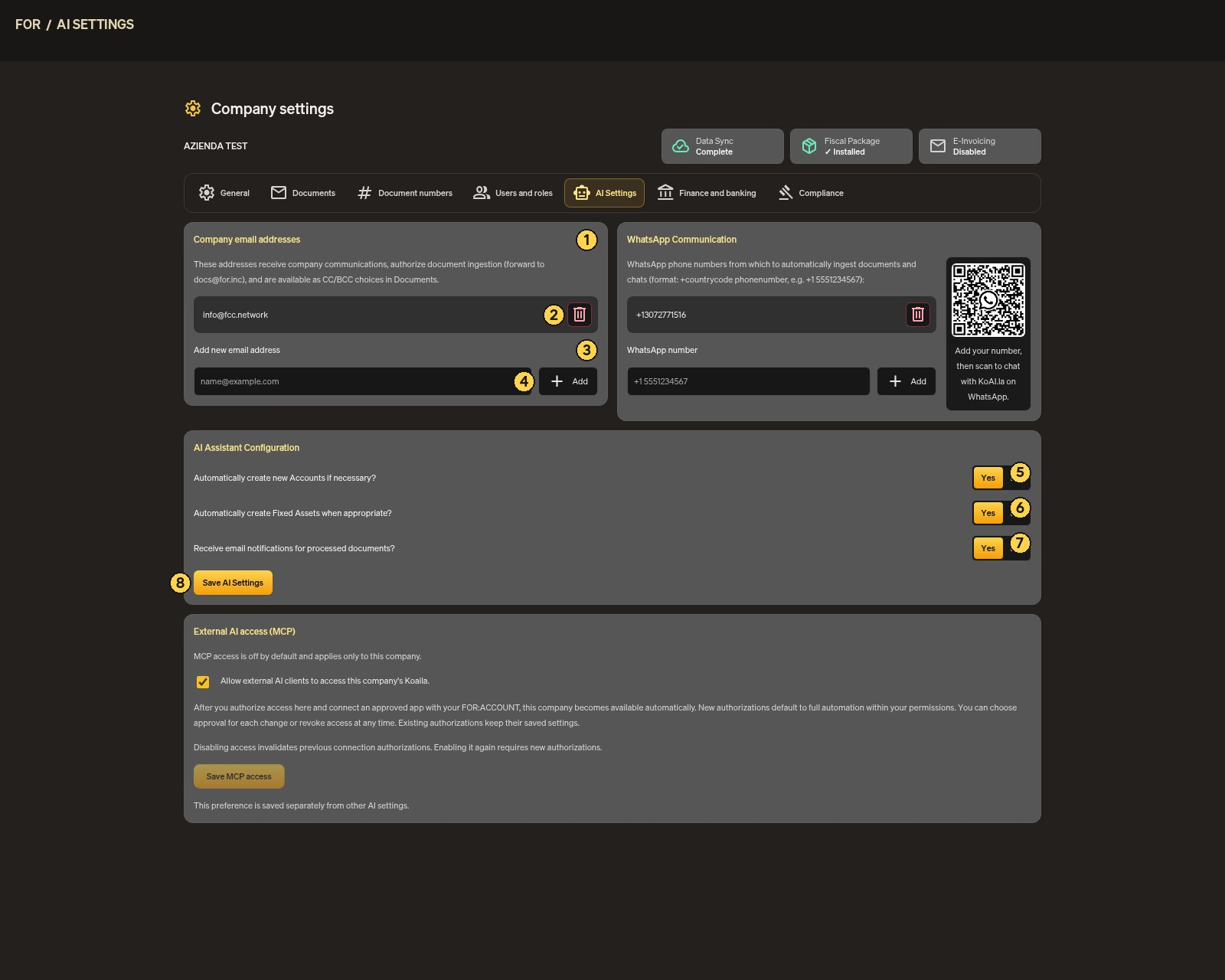
- 1
Company email addresses
Maintain addresses authorized for document intake and company communications. These also supply allowed document CC/BCC choices.
- 2
Remove · trash
Remove only the chosen address/number from the authorization list; this does not remove a company user.
- 3
Add new email address
Enter the real authorized sender before Add. Forward supported documents to docs@for.inc only from an authorized address for the intended company.
- 4
Add
Add the reviewed email/phone to the corresponding authorized list and inspect any format or duplication message.
- 5
Automatically create new Accounts if necessary?
Allow the documented accounting automation to create missing accounts when appropriate. It does not remove validation or authorize arbitrary account remapping.
- 6
Automatically create Fixed Assets when appropriate?
Eligible purchase capture prepares unapproved asset drafts; activation and future depreciation still require explicit review.
- 7
Receive email notifications for processed documents?
Choose whether processing notifications should be sent to the configured company recipients. This is separate from emailing the invoice buyer.
- 8
Save AI Settings
Save the reviewed automation/notification preferences. External AI access has a separate consent/save.
How to work here
Control authorized document intake, selected automation preferences and external AI access separately.
- Maintain the authorized sender email addresses and supported messaging channel. A sender must be authorized for the correct company.
- Review automatic account creation, fixed-asset draft capture and processing notifications. These switches have different effects; fixed-asset capture does not approve a depreciation plan.
- Save AI Settings. For FOR:AGENT, use its separate company consent and Save MCP access controls; saving general AI preferences does not grant external access.
Every field and control
Use the exact label or hover over an icon to match it to this reference. A missing action is not the same as an empty field: check its availability below.
Company email addresses
FieldMaintain addresses authorized for document intake and company communications. These also supply allowed document CC/BCC choices.
Availability: Shown when the corresponding workflow and your permissions allow it; review required markers and any disabled-state explanation.
Add new email address
FieldEnter the real authorized sender before Add. Forward supported documents to docs@for.inc only from an authorized address for the intended company.
Availability: Shown when the corresponding workflow and your permissions allow it; review required markers and any disabled-state explanation.
Messaging number / QR
FieldRegister the intended phone with international prefix, then use the displayed QR to open the supported conversation. A channel message is not an interactive browser form.
Availability: Shown when the corresponding workflow and your permissions allow it; review required markers and any disabled-state explanation.
Allow the documented accounting automation to create missing accounts when appropriate. It does not remove validation or authorize arbitrary account remapping.
Availability: Shown when the corresponding workflow and your permissions allow it; review required markers and any disabled-state explanation.
Eligible purchase capture prepares unapproved asset drafts; activation and future depreciation still require explicit review.
Availability: Shown when the corresponding workflow and your permissions allow it; review required markers and any disabled-state explanation.
Choose whether processing notifications should be sent to the configured company recipients. This is separate from emailing the invoice buyer.
Availability: Shown when the corresponding workflow and your permissions allow it; review required markers and any disabled-state explanation.
Add
ActionAdd the reviewed email/phone to the corresponding authorized list and inspect any format or duplication message.
Availability: Only when offered by the current screen, role and saved workflow state. Read any confirmation before proceeding.
Remove · trash
ActionRemove only the chosen address/number from the authorization list; this does not remove a company user.
Availability: Only when offered by the current screen, role and saved workflow state. Read any confirmation before proceeding.
Save AI Settings
ActionSave the reviewed automation/notification preferences. External AI access has a separate consent/save.
Availability: Only when offered by the current screen, role and saved workflow state. Read any confirmation before proceeding.
Watch the workflow

This recording is temporarily unavailable. Please try again later.
Shared workflow
A tour of company settings
Read the steps
- General settings hold company information, reply-to details, logo and document theme.
- Documents lets you choose document titles and default email text, CC and BCC recipients.
- Document numbers controls prefixes and supported numbering options. Existing numbers are not rewritten.
- Invite colleagues with explicit roles and consult the permissions matrix before granting access.
- AI Settings controls authorized email and WhatsApp intake, processing preferences and external-agent access.
- Finance and banking brings together bank workflows, invoice-payment setup and accounting preferences.
- Compliance exposes the tax settings applicable to the company's country and enabled services.