
Existing FOR:FLOW connections
Use this chapter only when the existing company's legacy FOR:FLOW entry is enabled. It is not a new universal integration offer or a native FOR:CEO module.
Open this screen
Sidebar → FOR:FLOW, when shown for the connected company.
When it is available
Available to users whose company roles permit this work. Country, subscription, company settings and the saved record's state can narrow the available controls.
QuickBooks connection
In FOR:LEDGER, supported saved accounting records are sent to QuickBooks Online and supported QuickBooks changes are synchronized back to FOR. Opening a list or preparing an unsaved form does not create a QuickBooks transaction. Synchronization is not guaranteed to be immediate or complete: verify the saved document and its status in FOR. FOR remains your accounting system of record under the Terms. FOR:CEO records the same work in FOR only.
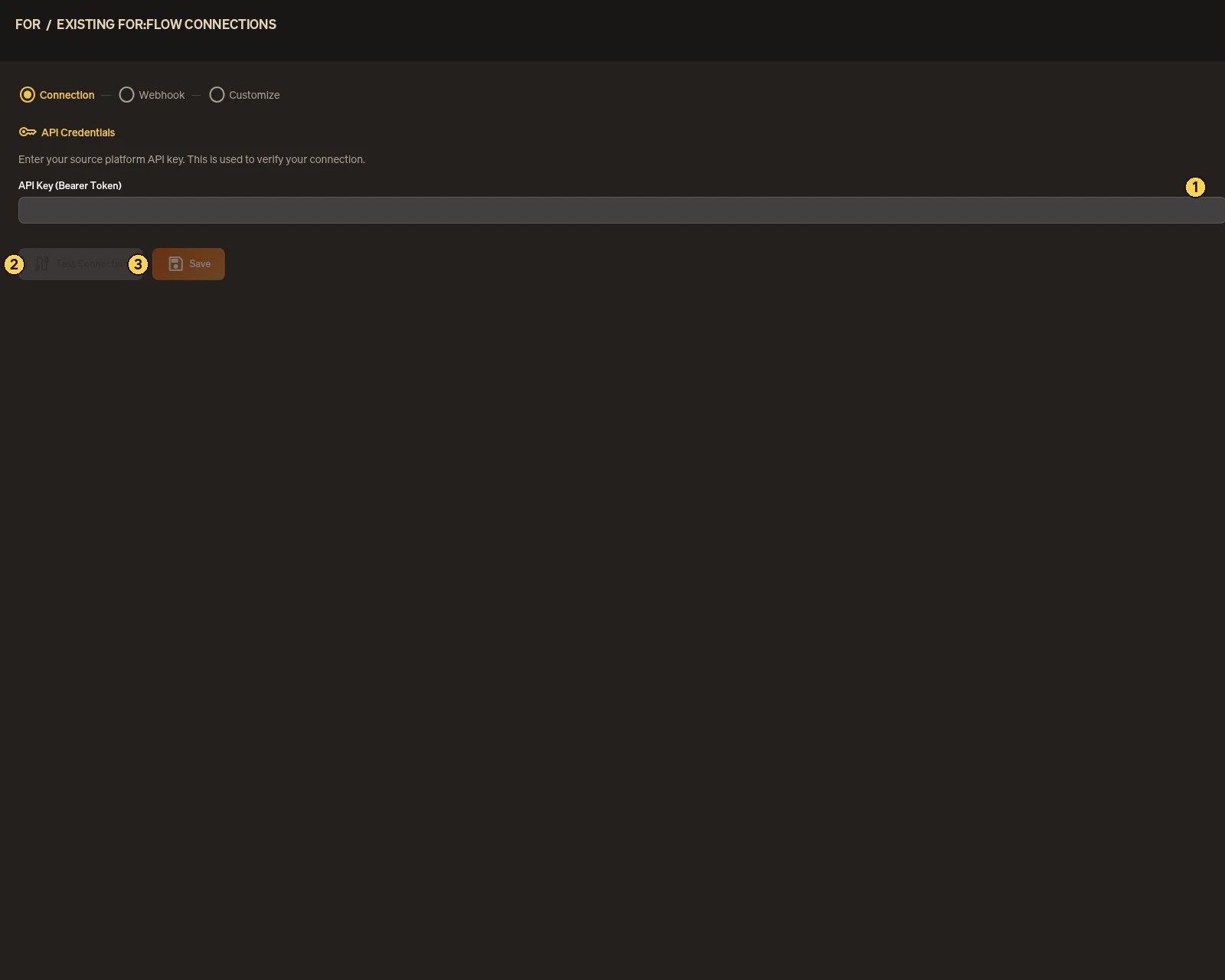
- 1
API Key (Bearer Token) / API Token
Enter the source platform's authorized credential only in this dedicated secure field. Never paste it into customization chat, a ticket or a public guide.
- 2
Test Connection
Disabled in this example. Check the entered credential using the offered source connection test. A successful test is not proof that business mappings or all historical imports are correct.
- 3
Save / Save & Continue
Disabled in this example. Save the reviewed connection details and proceed to the next setup step. Automatic source notifications can begin when connection and enabled rules are in place.
How to work here
Use this chapter only when the existing company's legacy FOR:FLOW entry is enabled. It is not a new universal integration offer or a native FOR:CEO module.
- Read the current source-specific customization before changing its business rules.
- Check the original source, queued/processed status and verified created record. Special consolidated-billing rules can intentionally defer individual sources.
- Raise a support ticket with exact source/document references when the output is wrong; do not repair by blindly reprocessing successful sources.
Connection, notifications and business rules
Different sources use a credential test, a notification address, an account identifier, file transfer or a deliberate data pull. Follow the steps actually shown for the chosen source. Connection makes data available; saved business rules decide which records should be created, matched, skipped or deferred. Review a representative source/output pair after setup instead of assuming every received item became an invoice.
Every field and control
Use the exact label or hover over an icon to match it to this reference. A missing action is not the same as an empty field: check its availability below.
Enter the source platform's authorized credential only in this dedicated secure field. Never paste it into customization chat, a ticket or a public guide.
Availability: Shown when the corresponding workflow and your permissions allow it; review required markers and any disabled-state explanation.
Webhook URL
FieldCopy the exact address shown for this connection into the source platform's notification settings. Do not invent an address or substitute another company's connection.
Availability: Shown when the corresponding workflow and your permissions allow it; review required markers and any disabled-state explanation.
Enter the source account/shop identifier exactly as configured there. It identifies whose incoming data belongs to this company; a display nickname is not a substitute.
Availability: Shown when the corresponding workflow and your permissions allow it; review required markers and any disabled-state explanation.
Registered identifiers
FieldReview each previously linked source account. Multiple shops can be registered when offered; add the new identifier rather than replacing another shop's identity.
Availability: Shown when the corresponding workflow and your permissions allow it; review required markers and any disabled-state explanation.
Test Connection
ActionCheck the entered credential using the offered source connection test. A successful test is not proof that business mappings or all historical imports are correct.
Availability: Only when offered by the current screen, role and saved workflow state. Read any confirmation before proceeding.
Save / Save & Continue
ActionSave the reviewed connection details and proceed to the next setup step. Automatic source notifications can begin when connection and enabled rules are in place.
Availability: Only when offered by the current screen, role and saved workflow state. Read any confirmation before proceeding.
Copy to clipboard
ActionCopy only the adjacent host, port, username or connection address. Keep credentials private and avoid pasting them into unrelated conversations.
Availability: Only when offered by the current screen, role and saved workflow state. Read any confirmation before proceeding.
I've configured the webhook
ActionContinue only after completing the source platform's required notification settings. This acknowledgement does not prove a source event has arrived.
Availability: Only when offered by the current screen, role and saved workflow state. Read any confirmation before proceeding.
Move to the next offered setup stage after checking the current stage. Review whether Continue also saves a newly entered account identifier.
Availability: Only when offered by the current screen, role and saved workflow state. Read any confirmation before proceeding.
Remove
ActionRemove only the selected source-account identifier. Previously created accounting documents are not automatically deleted.
Availability: Only when offered by the current screen, role and saved workflow state. Read any confirmation before proceeding.
Sync Now
ActionFor source-pull connections, request the displayed source window only after saving the intended rules. Receiving source records may start enabled transformations; it is not a harmless preview of all historical data.
Availability: Only when offered by the current screen, role and saved workflow state. Read any confirmation before proceeding.
Edit Transformation Rules
ActionReturn to customization and review the current saved behavior before changing it.
Availability: Only when offered by the current screen, role and saved workflow state. Read any confirmation before proceeding.
Edit Credentials
ActionReview or replace the source connection credential without confusing it with the business transformation rules.
Availability: Only when offered by the current screen, role and saved workflow state. Read any confirmation before proceeding.