
Users and roles
Grant only the company access a person needs. Roles combine; selecting several restricted roles does not turn them into Full access.
Open this screen
Sidebar → Settings → Users and roles.
When it is available
Available to users whose company roles permit this work. Country, subscription, company settings and the saved record's state can narrow the available controls.
QuickBooks connection
This screen prepares or displays work in FOR; opening it does not write to QuickBooks. Where a later step creates an accounting document, that step is identified separately. FOR:CEO never sends its accounting entries to QuickBooks.
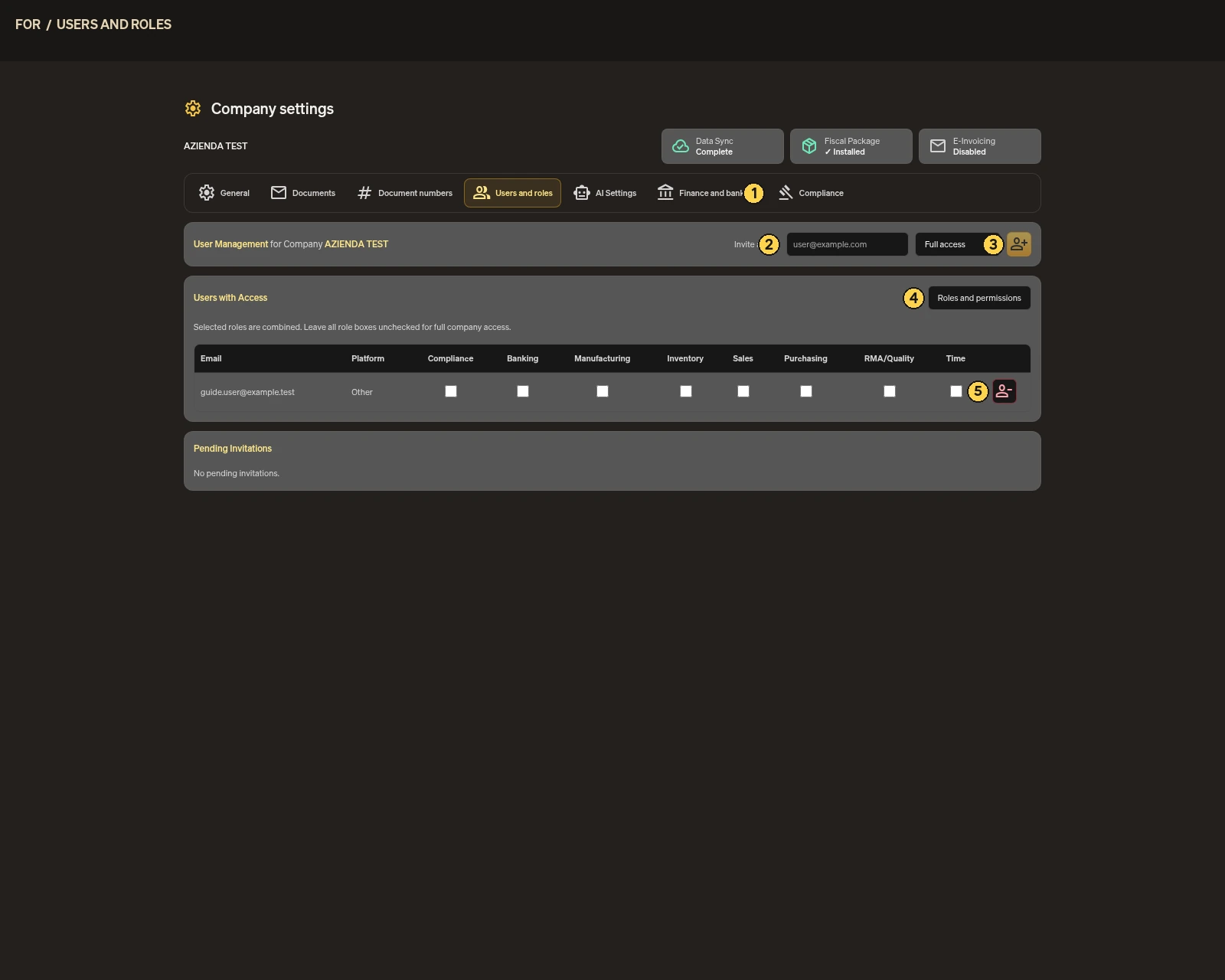
- 1
Compliance / Banking / Manufacturing / Inventory / Sales / Purchasing / RMA-Quality / Time
Checked roles combine limited permissions. Sales covers orders/estimates/invoices; Purchasing covers POs, not bills; RMA/Quality needs Inventory too for physical work; Time is native-only. Compliance can read/export available reports but cannot author reports or post financial entries.
- 2
Invite a User · Email
Enter the intended user's actual email, not a company document-ingestion alias.
- 3
Send Invite · person plus
Disabled in this example. Send the invitation with the chosen role. Inviting an existing member does not change their roles.
- 4
Roles and permissions
Open the searchable matrix with View/Create/Modify per category and the additional banking/report workflows. It is read-only.
- 5
Remove user
Remove an eligible person's company membership after confirmation. This does not delete their historical transactions.
How to work here
Grant only the company access a person needs. Roles combine; selecting several restricted roles does not turn them into Full access.
- Use Invite a User with the person's email and an explicit role. Unassigned cannot be invited; an invitation is not an already-active membership.
- Open Roles and permissions for the current view/create/modify matrix. Existing unrestricted users have no role boxes checked; checked roles combine their limited surfaces.
- Review pending invitations and cancel obsolete ones. You cannot alter your own access or the primary billing user's protected membership through this screen.
Every field and control
Use the exact label or hover over an icon to match it to this reference. A missing action is not the same as an empty field: check its availability below.
Invite a User · Email
FieldEnter the intended user's actual email, not a company document-ingestion alias.
Availability: Shown when the corresponding workflow and your permissions allow it; review required markers and any disabled-state explanation.
Role / Unassigned
FieldExplicitly choose Full access or one offered role. The selector resets after an attempt; adding more roles is a separate review after membership exists.
Availability: Shown when the corresponding workflow and your permissions allow it; review required markers and any disabled-state explanation.
Checked roles combine limited permissions. Sales covers orders/estimates/invoices; Purchasing covers POs, not bills; RMA/Quality needs Inventory too for physical work; Time is native-only. Compliance can read/export available reports but cannot author reports or post financial entries.
Availability: Shown when the corresponding workflow and your permissions allow it; review required markers and any disabled-state explanation.
Send Invite · person plus
ActionSend the invitation with the chosen role. Inviting an existing member does not change their roles.
Availability: Only when offered by the current screen, role and saved workflow state. Read any confirmation before proceeding.
Roles and permissions
ActionOpen the searchable matrix with View/Create/Modify per category and the additional banking/report workflows. It is read-only.
Availability: Only when offered by the current screen, role and saved workflow state. Read any confirmation before proceeding.
Remove user
ActionRemove an eligible person's company membership after confirmation. This does not delete their historical transactions.
Availability: Only when offered by the current screen, role and saved workflow state. Read any confirmation before proceeding.
Cancel invitation
ActionCancel a pending invitation that should no longer be accepted.
Availability: Only when offered by the current screen, role and saved workflow state. Read any confirmation before proceeding.
Platform
FieldThe sign-in method associated with the user. It is separate from company roles and does not prove billing ownership.
Availability: Shown when the corresponding workflow and your permissions allow it; review required markers and any disabled-state explanation.
Full access
FieldChoose explicitly for a new full-access invitation. Existing users with no restricted-role choices have full access; selecting every restricted role is not an equivalent shortcut.
Availability: Shown when the corresponding workflow and your permissions allow it; review required markers and any disabled-state explanation.
Compliance
FieldAccess available compliance work and view/export the company's reports. This role does not grant report authoring, arbitrary analysis or financial posting.
Availability: Shown when the corresponding workflow and your permissions allow it; review required markers and any disabled-state explanation.
Banking
FieldAccess the supported bank workspace and SEPA work. This is not unrestricted access to all financial master records.
Availability: Shown when the corresponding workflow and your permissions allow it; review required markers and any disabled-state explanation.
Manufacturing
FieldAccess permitted manufacturing documents and operational activities with necessary read-only reference choices.
Availability: Shown when the corresponding workflow and your permissions allow it; review required markers and any disabled-state explanation.
Inventory
FieldAccess warehouse work, picking, packing and shipment. An Inventory-only user has only the documented limited service-line edits on an existing sales order.
Availability: Shown when the corresponding workflow and your permissions allow it; review required markers and any disabled-state explanation.
Sales
FieldAccess sales orders, estimates and invoices. Adding Sales can extend an Inventory user's order permissions but cannot bypass placed or consumed-line locks.
Availability: Shown when the corresponding workflow and your permissions allow it; review required markers and any disabled-state explanation.
Purchasing
FieldAccess the permitted purchase-order workflows, not blanket vendor-bill or payment posting.
Availability: Shown when the corresponding workflow and your permissions allow it; review required markers and any disabled-state explanation.
RMA/Quality
FieldManage return cases and quality checks. Physical receipt, pick/pack and shipment still require the appropriate Inventory permission.
Availability: Shown when the corresponding workflow and your permissions allow it; review required markers and any disabled-state explanation.
Access the permitted native Time workspace. A Time-only user does not receive unrestricted Koaila chat, finance or report access.
Availability: Shown when the corresponding workflow and your permissions allow it; review required markers and any disabled-state explanation.
Watch the workflow

This recording is temporarily unavailable. Please try again later.
Shared workflow
A tour of company settings
Read the steps
- General settings hold company information, reply-to details, logo and document theme.
- Documents lets you choose document titles and default email text, CC and BCC recipients.
- Document numbers controls prefixes and supported numbering options. Existing numbers are not rewritten.
- Invite colleagues with explicit roles and consult the permissions matrix before granting access.
- AI Settings controls authorized email and WhatsApp intake, processing preferences and external-agent access.
- Finance and banking brings together bank workflows, invoice-payment setup and accounting preferences.
- Compliance exposes the tax settings applicable to the company's country and enabled services.